
If your WordPress contact form email is not sending, even though the form says “Message Sent,” the problem is almost always email delivery, not the form itself. Configuring SMTP, fixing your form settings, or adding SPF and DKIM records restores reliable delivery in most cases.
Whether you’re using Contact Form 7, Elementor Forms, WPForms, or Gravity Forms, this guide helps you find the exact cause instead of guessing your way through random fixes. In the next two minutes, you’ll identify where the problem is happening and know which solution to try first.
Quick answer: If your contact form submits successfully but no email arrives, the issue is usually email delivery, not the form itself. The most common causes are missing SMTP configuration, incorrect form settings, or missing SPF and DKIM records. This guide walks you through diagnosing and fixing the exact problem step by step.

WordPress Website Fix
Fixed in 24 hours or you don’t pay
Diagnose Your WordPress Email Problem in 2 Minutes
Before changing plugins or DNS settings, figure out where the email is actually failing. A contact form can look like it’s working perfectly while the email silently fails somewhere between your website and your inbox.
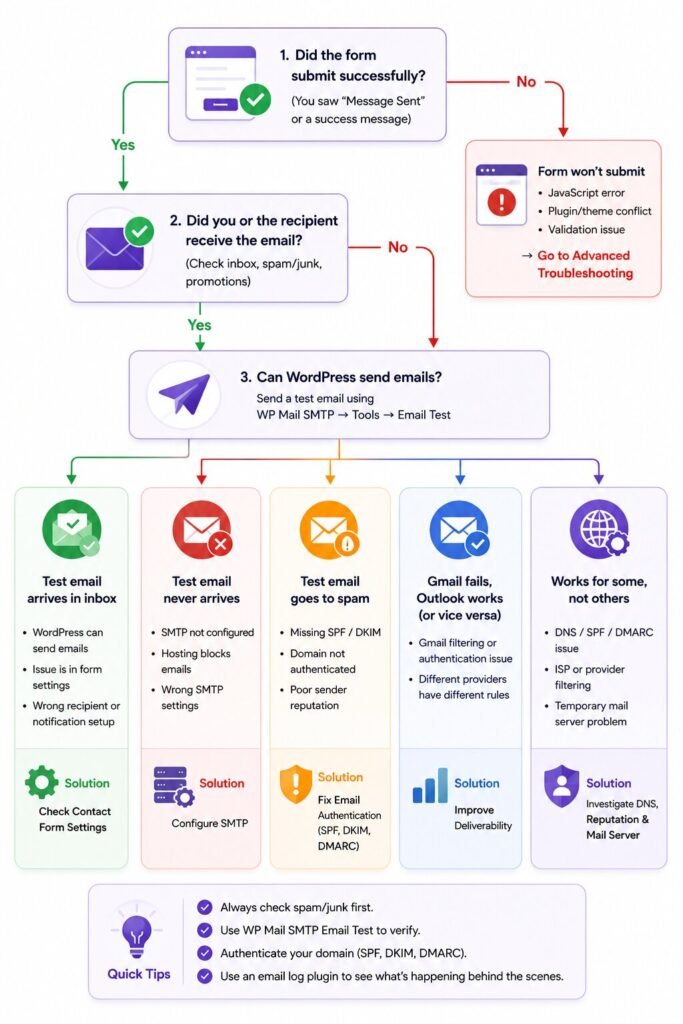
| If this is happening… | Most likely cause | Jump to |
|---|---|---|
| Form submits but no email arrives | SMTP or WordPress email delivery issue | Configure SMTP |
| Email lands in spam | Missing SPF or DKIM records | Fix Email Authentication |
| Admin gets emails, visitors don’t get confirmations | Form notification settings | Check Your Contact Form Settings |
| Stopped working after migrating your site | SMTP or DNS settings changed | Migration Troubleshooting |
| Gmail never receives emails | Domain authentication or spam filtering | Gmail & Spam Fixes |
| Form won’t submit at all | JavaScript, plugin conflict, or validation error | Advanced Troubleshooting |
A simple way to think about it: Your contact form isn’t responsible for delivering the email, it only collects the information and asks WordPress to send it. A visitor submits the form, WordPress generates an email, your mail server (or SMTP service) tries to send it, and the recipient’s provider decides whether to deliver it, mark it as spam, or reject it. A failure at any of these steps makes it look like your form isn’t working, even when it’s functioning correctly.
Run these five checks first:
- Does the form show a success message after submission?
- Have you checked your spam or junk folder?
- Have you tested with a different email address (Outlook instead of Gmail)?
- Did the problem start after changing hosts, domains, or DNS settings?
- Are other WordPress emails, like password resets, working?
Your answers quickly narrow down the cause. If the form says “Message Sent” but nothing arrives, configuring SMTP usually fixes it. If emails land in spam, your site is sending them, but mailbox providers don’t trust them yet, which points to missing SPF, DKIM, or DMARC records. If only admin notifications work, your form’s notification settings are likely misconfigured rather than WordPress email itself. And if everything broke after a migration, your host, DNS, or SMTP credentials probably changed behind the scenes.
Why WordPress Contact Forms Stop Sending Emails
If your WordPress email is not sending, the contact form itself is rarely the culprit. In most cases, the form collects the message successfully, but the email gets blocked, rejected, or never leaves your server. It’s similar to placing an online order that goes through, but the courier never delivers the package. The checkout worked, the delivery failed.
These four causes explain most failures.
PHP mail() by default
Out of the box, WordPress tries to send email using PHP’s built-in mail() function. It’s convenient because it needs no setup, but it’s also the biggest reason contact form emails fail. It doesn’t authenticate your domain, many hosts limit or disable it, and Gmail, Outlook, and Yahoo trust it far less than authenticated email. Sending this way is like mailing a letter with no return address: it might reach the post office, but the recipient may not trust it enough to accept it. That’s why switching to SMTP is the standard fix.
Hosting restrictions
Even a healthy website can have outgoing email restricted by its host, since shared hosts limit sending to prevent abuse. Hosts may cap how many emails you can send, block PHP mail entirely, or require authenticated SMTP. This is often why a form stops working right after a migration, a plan upgrade, or a server setting change.
The same hosting issues can affect overall performance too. If your site feels sluggish as well, learn why your WordPress website is slow and how to fix it.
Missing email authentication
Modern providers don’t just check whether an email was sent, they verify whether it should have been sent. SPF tells inbox providers which servers can send for your domain, DKIM adds a digital signature proving the message wasn’t altered, and DMARC tells providers what to do if authentication fails. Without these, even legitimate form emails get rejected or quietly filtered.
Spam filters
Even after an email leaves your server successfully, it still has to clear the recipient’s spam filter. A mismatched From Email, missing SPF or DKIM, sending from an untrusted server, or poor domain reputation are the most common reasons an email that technically “sent” never shows up.
The good news: most cases are fixed by confirming where the failure is happening, configuring SMTP correctly, authenticating the domain with SPF and DKIM, and verifying the form’s email settings. Start with the quickest test: confirming whether WordPress can send email at all.
Step 1: Test Whether WordPress Can Send Emails
Before touching SMTP settings or DNS records, confirm where the problem actually is. You want to know whether WordPress can’t send emails at all, whether emails are sent but blocked, or whether the issue is limited to your contact form.
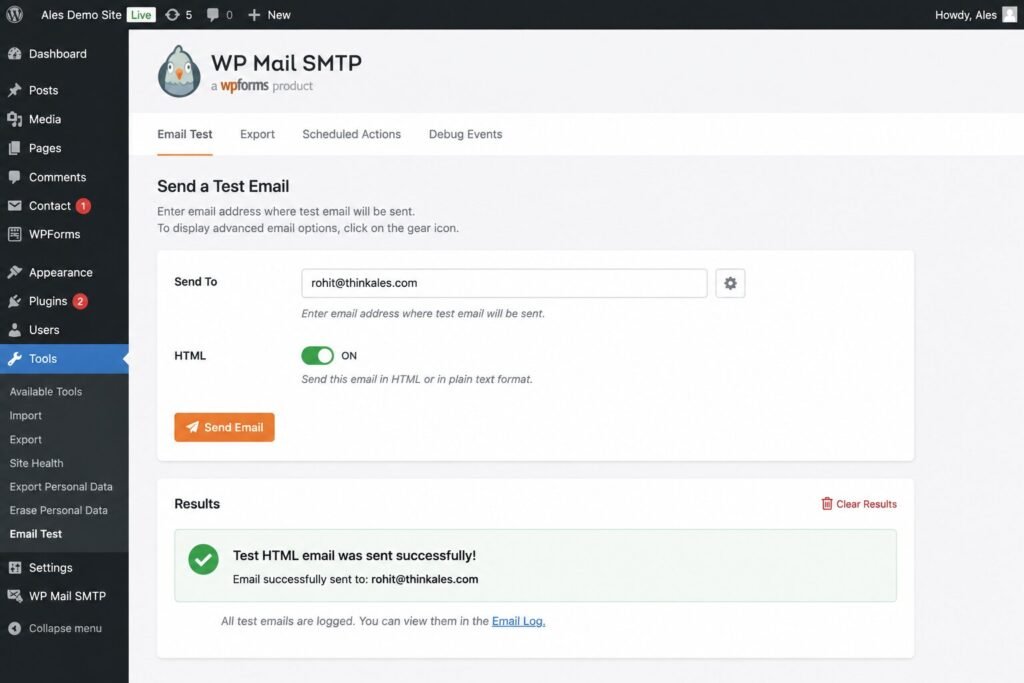
Send a test email
The fastest way to diagnose this is to send a test email directly from WordPress rather than relying on a form submission. Install WP Mail SMTP, go to WP Mail SMTP → Tools → Email Test, enter an address you can access, and click Send Email. If it arrives, WordPress can send email and the issue is likely your form settings. If it fails, your site’s email delivery is broken, and SMTP configuration is the next step. If it lands in spam, your domain needs proper authentication.
Check email logs
If the test fails, logs can confirm whether WordPress even attempted to send it. Many SMTP plugins log this, and some hosts offer mail logs in their control panel. Logs answer whether WordPress generated the email, whether it reached the mail server, whether the server rejected it, and whether it’s failing repeatedly. Contact Form 7 users can also install Flamingo to record submissions even when email delivery fails.
Test another inbox
Instead of testing only Gmail, send the same test to Outlook, Yahoo, Proton Mail, or a second Gmail account. Different providers filter differently, so if Outlook receives it and Gmail doesn’t, authentication or reputation is likely the issue rather than WordPress itself.
Check spam before changing anything
Look in Spam, Junk, and Gmail’s Promotions or Updates tabs. If the email is there, treat that as evidence your site is sending successfully but isn’t fully trusted yet, which is exactly what SPF, DKIM, and DMARC fix.
| Test Result | What It Means | Next Step |
|---|---|---|
| Never arrives | WordPress email delivery is failing | Configure SMTP |
| Arrives normally | WordPress works, check form settings | Review plugin settings |
| Lands in Spam | Authentication or reputation issue | Fix SPF, DKIM, and DMARC |
| Gmail fails, Outlook works | Gmail filtering or authentication issue | Improve deliverability |
| No record in logs | WordPress may not be sending at all | Check hosting or SMTP |
Step 2: Configure SMTP (The Most Common Fix)
If your WordPress contact form email is not sending, switching from PHP mail() to SMTP resolves the problem for most websites. SMTP (Simple Mail Transfer Protocol) sends email through a trusted mail service that authenticates your domain, rather than asking your web server to deliver it directly. That means better inbox placement, fewer spam flags, and more reliable delivery for contact forms, password resets, and WooCommerce emails.
Think of it as sending a package through a professional courier instead of dropping it in an unmarked mailbox. PHP mail() offers little proof your server is authorized to send, which is exactly why hosts commonly restrict it. SMTP authenticates the sender, encrypts the connection, and builds your domain’s reputation over time.
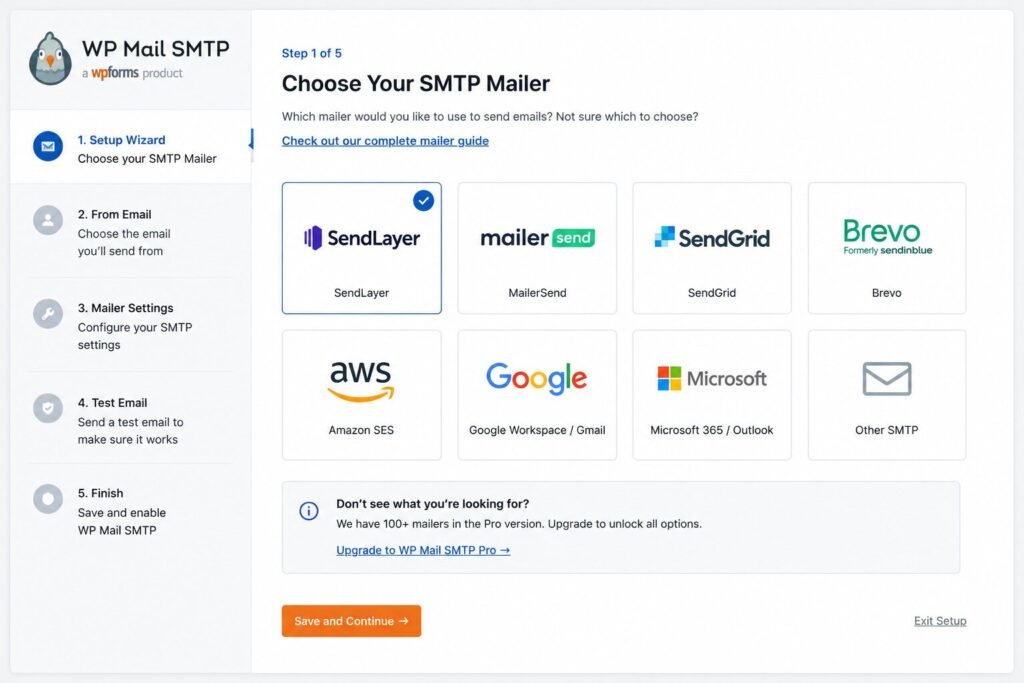
Choosing a provider:
| Provider | Best For |
|---|---|
| Gmail | Personal websites |
| Brevo | Small businesses |
| SendGrid | Growing websites |
| Amazon SES | High-volume sending |
Gmail is quick to set up for low-volume sites but has sending limits. Brevo is one of the easiest options for business sites with a generous free plan. SendGrid suits growing businesses sending larger transactional volumes. Amazon SES is extremely cost-effective for high volume but more technical to set up. For most service-based businesses running a contact form, Brevo strikes the best balance of simplicity and deliverability.
Install WP Mail SMTP: Go to Plugins → Add New, search for WP Mail SMTP, install and activate it, then launch the Setup Wizard, which walks you through selecting a provider and entering credentials.
Configure your credentials: Most providers ask for an SMTP host, port, encryption type, username, and password or app password. Use a business address like hello@yourdomain.com rather than a free Gmail address, make sure the From Email matches your domain, and enable Force From Email so other plugins can’t override it with an unauthenticated address.
Common ports:
| Port | Encryption |
|---|---|
| 587 | TLS (recommended) |
| 465 | SSL |
| 25 | Usually avoid unless required |
Port 587 with TLS is the recommended, most secure choice for most providers.
Test it
- Open WP Mail SMTP → Tools → Email Test
- Send to an inbox you can check, and confirm delivery
- If it arrives instantly, SMTP is working
- If it lands in spam, SMTP works, but authentication still needs improvement
- If it fails outright, check your credentials, port, or hosting restrictions.
If SMTP is confirmed working but your form still isn’t delivering, the problem is usually inside the form plugin itself, covered next.
WordPress Website Fix
Fixed in 24 hours or you don’t pay
Step 3: Check Your Contact Form Settings
A common mistake is assuming that because the form shows a success message, the email settings must be correct. WordPress can send email perfectly while one wrong From Email, Reply-To, or notification rule keeps your form from ever reaching an inbox.
Contact Form 7
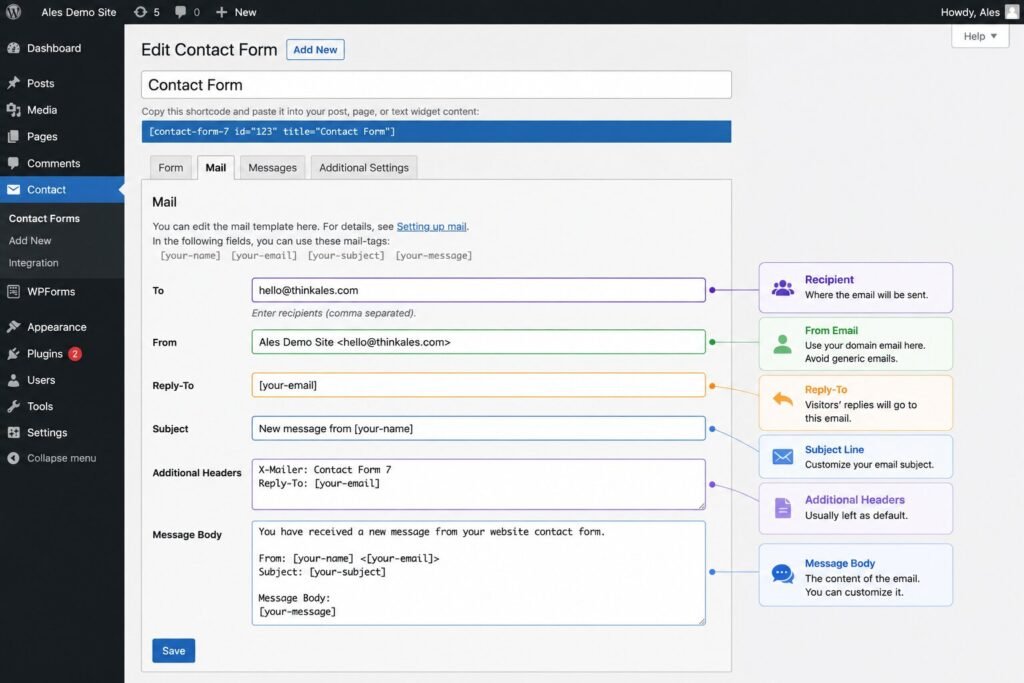
Go to Contact → Contact Forms → Edit Form → Mail. The From Email causes the most problems: using the visitor’s address (visitor@gmail.com) often gets flagged by Gmail and Outlook, so use a domain-based sender like hello@yourdomain.com instead. Set Reply-To to the visitor’s field so replies still reach them while your outgoing address stays authenticated, and check Additional Headers for anything malformed. Before saving, confirm the recipient, subject, and message body are correct and Mail is enabled. Install Flamingo to keep a backup of every submission even if email delivery fails.
Elementor Forms
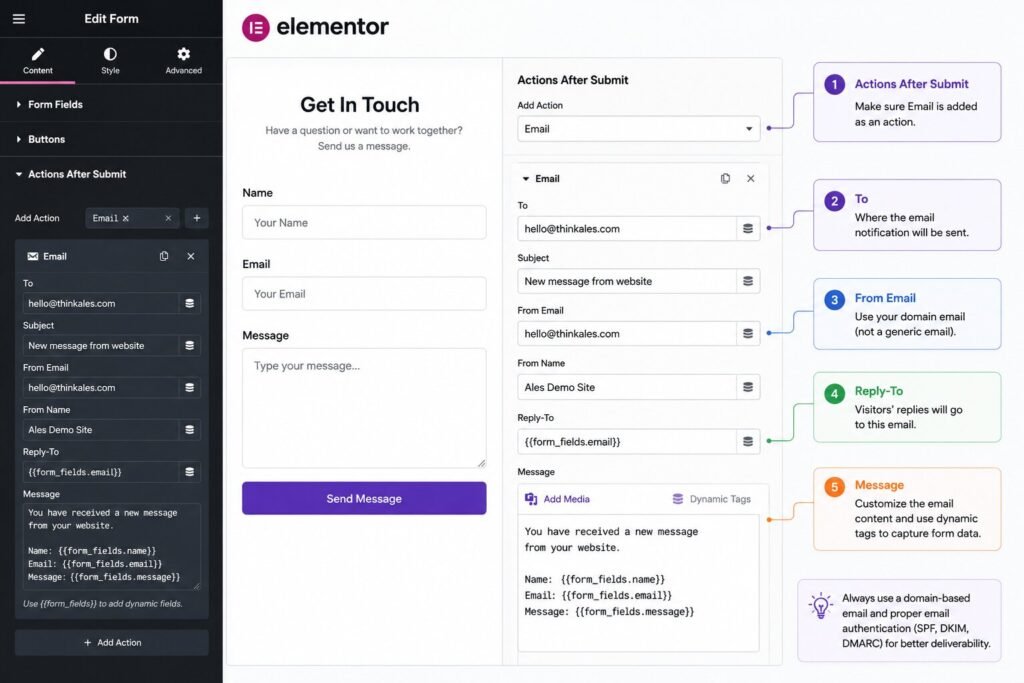
Open the form widget and check Actions After Submit. If Email isn’t listed there, Elementor will never send a notification even though the form submits successfully, and this is one of the most overlooked issues across WordPress guides. Inside the Email action, verify To, Subject, Message, From Email, and Reply-To. Use a domain-based From Email rather than the visitor’s, and set Reply-To to their field. Common mistakes include the Email action being accidentally removed, an invalid recipient, using Gmail as the sender, or SMTP being configured while the Elementor notification itself is disabled.
If Elementor itself isn’t behaving properly, our guide to fix Elementor Editor Not Loading covers plugin conflicts, cache problems, and server-side fixes.
WPForms
Go to WPForms → Edit Form → Settings → Notifications and confirm notifications are enabled, the Send To Email is correct, and the subject isn’t blank. Verify Smart Tags like {field_id="1"} or {all_fields} are intact in the message, since removing them can leave emails incomplete. Submit a real test rather than relying on the success message alone.
Gravity Forms
Go to Forms → Your Form → Settings → Notifications. Confirm the notification is active, the recipient is correct, and Conditional Logic isn’t quietly blocking it, which is easy to overlook since the notification can look properly configured while a rule prevents it from firing. Enable Logging to see whether the notification triggered, reached the mailer, or hit an error.
| Setting | Contact Form 7 | Elementor | WPForms | Gravity Forms |
|---|---|---|---|---|
| From Email | Domain email | Domain email | Domain email | Domain email |
| Reply-To | Visitor email | Visitor email | Smart Tag | Field mapping |
| Notifications | Mail tab | Email action | Notifications | Notifications |
| Logging | Flamingo | Limited | Optional | Built-in |
If SMTP works, form settings are correct, and notifications are enabled, but emails still land in spam or vanish, the next step is making your domain trustworthy through SPF, DKIM, and DMARC.
Step 4: Fix SPF, DKIM, and DMARC
If your WordPress contact form emails are going to spam, SMTP alone may not be enough. Think of SMTP as the delivery truck and SPF, DKIM, and DMARC as the paperwork proving that truck is authorized to deliver on your behalf. Without them, Gmail, Outlook, and Yahoo may still treat your emails as suspicious even though they were sent successfully.
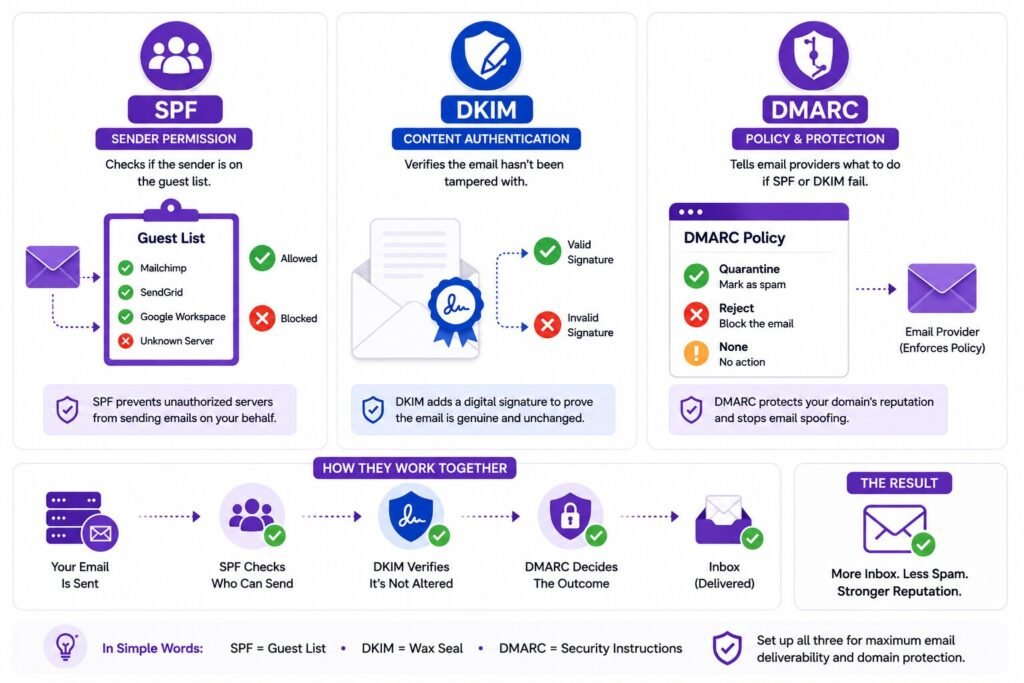
SPF (Sender Policy Framework) works like a guest list at a private event: it tells inbox providers exactly which servers are allowed to send on behalf of your domain. Without it, legitimate emails can be rejected or quietly filtered. If you use Brevo, for example, your SPF record tells providers Brevo has permission to send for yourdomain.com. Add it in your DNS settings through Cloudflare, Hostinger, GoDaddy, or Namecheap; most SMTP providers generate the exact record for you.
DKIM (DomainKeys Identified Mail) is like sealing an envelope with a tamper-proof wax stamp. It adds a cryptographic signature to every outgoing email, and when the recipient’s provider checks that signature against your domain, it confirms the message wasn’t altered in transit. Even if your email leaves WordPress successfully, missing DKIM makes providers less willing to trust it. Your SMTP provider will give you a DNS record name and TXT value to add, and it may take time to propagate.
DMARC (Domain-based Message Authentication, Reporting, and Conformance) tells providers what to do when a message fails SPF or DKIM, whether to let it through, send it to spam, or reject it outright. It protects your domain from spoofing and strengthens your sending reputation over time. If you’re setting it up for the first time, start with a monitoring policy so you can catch configuration issues before enforcing stricter rules.
Once records are added, verify them with a tool like MXToolbox, Google Admin Toolbox, or your SMTP provider’s verification tool, rather than assuming the DNS record saved correctly. Common mistakes include using a free address like hello@gmail.com as the From Email instead of your own domain, forgetting to publish the records, creating multiple conflicting SPF entries, mistyping DKIM values, and not waiting out DNS propagation, which can take anywhere from a few minutes to 24-48 hours.
Quick checklist
- SMTP configured
- SPF record exists
- DKIM record exists
- DMARC policy set (or monitoring enabled)
- From Email uses your domain
- Authentication passes in a verification tool.
Why Your WordPress Emails Go to Spam
If your form is going to spam, your site is actually doing something right, it’s sending the email. The problem is that Gmail, Outlook, and Yahoo don’t fully trust it yet. These providers evaluate dozens of signals, including whether your domain is authenticated, whether it has sent trustworthy email before, whether the sender matches the domain, and whether the sending server has a history of abuse.
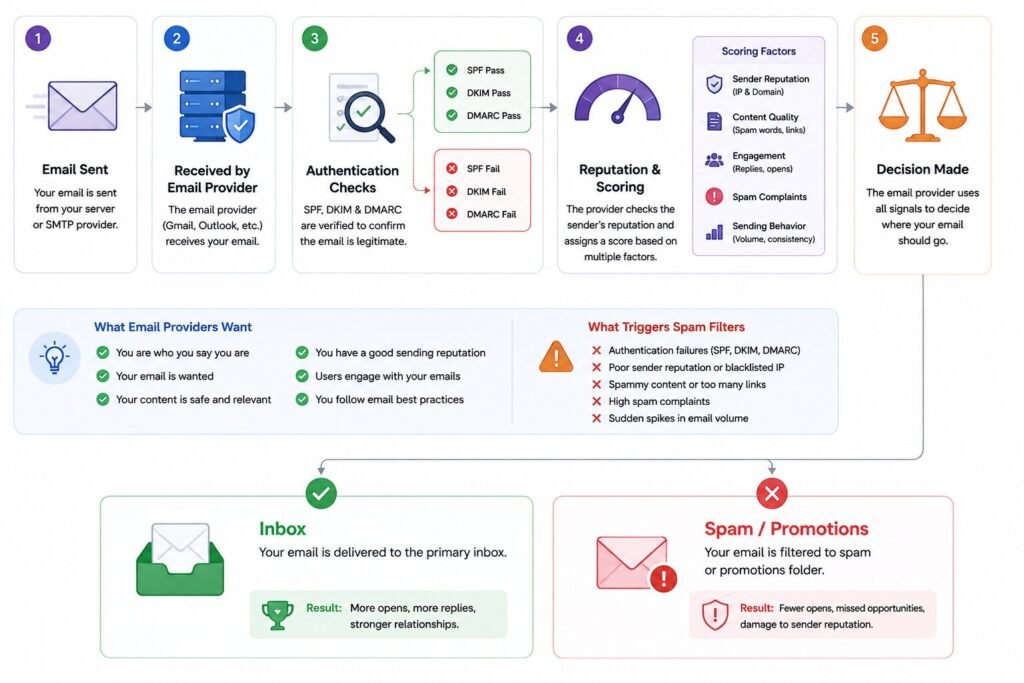
Gmail is one of the strictest providers. Even with SMTP configured, it may filter your email if SPF or DKIM is missing, the From Email doesn’t match your domain, or the server has a weak reputation. Use a domain-based sender, configure SPF and DKIM, and test after every change.
Outlook is particularly sensitive to sender authentication. If Gmail receives your email but Outlook doesn’t, that usually points to authentication rather than a broken form. Verify SPF and DKIM, use TLS, and avoid sending from free addresses.
Yahoo also prioritizes authenticated, consistent senders. Keeping the same From Email over time and maintaining authentication go a long way here.
Your domain’s reputation works like a credit score: authenticated sending, consistent behavior, low spam complaints, low bounce rates, and a reputable SMTP provider all build trust over time, which is why newer domains sometimes see more filtering at first.
The most common mistake is using visitor@gmail.com as the From Email, which makes it look like your website is impersonating someone else’s Gmail account. Use hello@yourdomain.com as the sender and set Reply-To to the visitor’s address instead, so you get authenticated outgoing mail and replies still land with the right person.
| Problem | Quick Fix |
|---|---|
| Missing authentication | Add SPF and DKIM |
| Gmail filtering | Use SMTP and a domain email |
| Outlook filtering | Verify TLS and authentication |
| Yahoo filtering | Keep a consistent sender |
| From Email mismatch | Use your domain as the sender |
| Weak reputation | Send through a trusted SMTP provider |
After making changes, test with Gmail, Outlook, and Yahoo separately, check spam folders, and verify authentication with a testing tool. One successful delivery doesn’t confirm the underlying issue is fixed.
WordPress Contact Form Stopped Working After Migration?
A migration often changes far more than where your files live. Your hosting server, DNS records, SMTP credentials, and security settings can all shift behind the scenes, even though the site loads exactly as before. The form itself usually isn’t broken, it’s the delivery path that changed.
If the migration affected more than just email delivery, here’s how to troubleshoot a WordPress site not loading after moving hosts.
Changed hosting providers?
New hosts may block PHP mail(), require different SMTP credentials, or enforce stricter outbound policies. Open your SMTP plugin, confirm the host hasn’t changed, verify the username and password, and send a fresh test email. A common scenario is SMTP settings still pointing at the old server, so the form submits fine but the email never leaves the new one.
Changed your domain?
Moving from olddomain.com to newdomain.com can break authentication if the new domain isn’t configured yet. Update your From Email, SMTP sender address, SPF, DKIM, and DMARC policy so your sender matches the new domain, for example hello@newdomain.com rather than the old address.
Using Cloudflare?
Cloudflare rarely breaks contact forms on its own, but related changes like Email Routing, DNS proxy adjustments, or new records can. Verify your SPF and DKIM records still exist, MX records weren’t changed accidentally, and your SMTP provider’s DNS entries remain intact.
Don’t forget propagation
Some DNS updates appear within minutes, others take up to 24-48 hours. During that window, Gmail might receive email while Outlook doesn’t, which doesn’t necessarily mean your configuration is wrong, just that it hasn’t finished propagating.
If the issue started immediately after updating a plugin rather than migrating hosts, follow this guide to fix WordPress broken after a plugin update before changing your SMTP settings.
Post-migration checklist
- Website loads correctly
- Test email sent successfully
- SMTP credentials updated
- From Email matches your domain
- SPF record exists
- DKIM record exists
- Cloudflare DNS verified
- DNS propagation complete.
Hosting-Specific Fixes
Sometimes the issue isn’t WordPress or your form plugin, it’s how your host handles outgoing mail. Even a website that loads perfectly can have outgoing email blocked or restricted until SMTP is configured correctly.
Hostinger: Use Hostinger’s SMTP settings instead of PHP mail(), confirm your From Email matches your domain, and verify SPF and DKIM in hPanel. If you recently migrated in, double-check that old SMTP credentials weren’t carried over from your previous host.
SiteGround: Use SiteGround’s SMTP credentials, confirm the mailbox exists and TLS is enabled, and send a test email after saving. Site Tools makes it easy to verify your email account is active before troubleshooting further.
Bluehost: SMTP is more reliable than PHP mail here too. Use a domain-based From Email, verify DNS records if you’re using Google Workspace, and check spam after testing. A mismatched sender is one of the most common causes of Bluehost delivery issues.
Cloudways: As a managed cloud platform, email sending usually needs a dedicated service. Enable your SMTP add-on or connect Brevo or SendGrid, verify the host and port, and check server-level logs if emails still fail.
GoDaddy: Confirm your Microsoft 365 or GoDaddy email account is active, use correct SMTP credentials, and verify SPF, DKIM, and MX records, especially if you recently switched email providers.
| Hosting Provider | Most Common Issue | First Thing to Check |
|---|---|---|
| Hostinger | Old SMTP settings after migration | SMTP credentials |
| SiteGround | Mailbox configuration | SMTP + TLS |
| Bluehost | PHP mail reliability | Domain-based sender |
| Cloudways | External mail service required | SMTP add-on |
| GoDaddy | Authentication mismatch | SPF, DKIM, MX records |
Advanced Troubleshooting
If you’ve configured SMTP, verified your form settings, added SPF, DKIM, and DMARC, and checked spam, but the form still isn’t delivering, it’s time to look at the server side.
If email problems are accompanied by fatal errors or a white screen, learn how to fix a WordPress Critical Error before troubleshooting your mail server further.
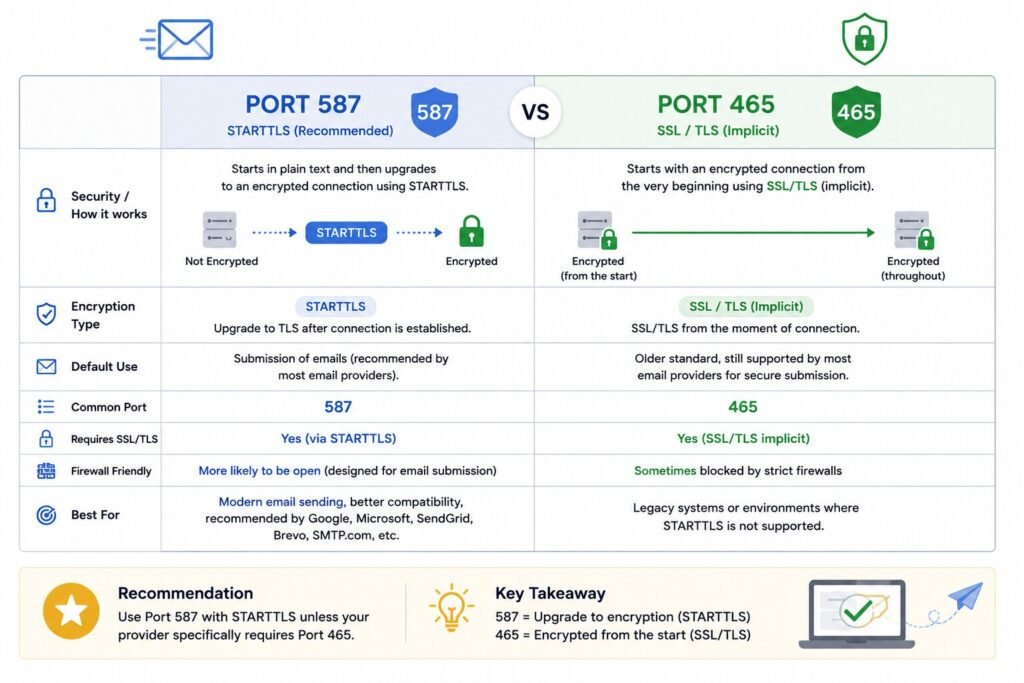
SMTP port (587 vs 465)
Port 587 with TLS is the recommended option for most providers, while 465 with SSL should only be used if your provider specifically requires it. Mismatching the port and encryption type can cause authentication failures even when your credentials are correct.
SSL/TLS errors
Errors like “Connection timed out,” “Could not connect to SMTP host,” or “STARTTLS failed” usually trace back to an incorrect encryption setting, an expired certificate, the wrong hostname, or hosting restrictions. Verify the exact hostname your provider gave you, match the correct port with the correct encryption, and use an app password for Gmail or Microsoft 365 where required.
Firewall blocking SMTP
This is more common on VPS, cloud, and security-hardened hosting. Signs include test emails failing immediately or authentication succeeding with no connection established. Ask your host whether outbound connections on ports 587 and 465 are allowed, since many managed hosts intentionally block direct SMTP unless you use an approved mail service.
WP-Cron delays
Some plugins rely on WordPress’s scheduled task system rather than sending instantly. If emails or WooCommerce notifications arrive hours late or not at all, replacing WP-Cron with a real server cron job often fixes it.
Read your email logs
Logs show what actually happened rather than what WordPress displayed, revealing whether the message was generated, accepted by SMTP, rejected due to failed authentication, or timed out at the connection stage.
Server-level checks
If you’re comfortable with hosting dashboards, confirm DNS resolves correctly, MX records point to the right mail service, SPF, DKIM, and DMARC validate, and outbound SMTP connections aren’t blocked.
When to contact your host
Ask specifically: are outbound SMTP connections blocked, is PHP mail() disabled, are ports 465 and 587 open, are server-side delivery logs available, and is my plan limiting outgoing email? Specific questions get faster answers than a general “my contact form isn’t working.”
WordPress Website Fix
Fixed in 24 hours or you don’t pay
Prevent This Problem in the Future
Fixing the form is only half the job. The bigger goal is making sure a quiet email failure never costs you a lead again, since these issues often return after a hosting migration, plugin update, domain change, or DNS edit.
Keep SMTP in place permanently rather than relying on PHP mail(), even once things seem to work. Recheck your SPF record whenever you change hosts, email providers, or SMTP services, and make sure you only have one valid record, since conflicting SPF entries are a surprisingly common mistake. Keep DKIM active through domain transfers and provider switches, updating it whenever your SMTP provider issues a new key. Once SPF and DKIM are solid, DMARC adds an extra layer of protection against spoofing, and even a monitoring policy gives you visibility into problems before they affect real leads.
Enable email logging so you have a record of whether a form was submitted, whether WordPress generated the email, and whether delivery succeeded, and consider Flamingo as a backup for Contact Form 7 users. Test your form monthly, and again after plugin updates, hosting changes, or DNS edits, since it takes less than a minute and can prevent lost inquiries. If leads matter to your business, add a backup notification path too, whether that’s a second email address, a Slack alert, or a CRM or spreadsheet integration, so an inquiry still gets recorded even if one channel fails.
Frequently Asked Questions
The most common causes are missing SMTP configuration, incorrect From Email settings, or missing SPF and DKIM records. In many cases the form submits successfully, but the email fails during delivery rather than at the form itself.
A success message only confirms the form submitted correctly, not that the email reached your inbox. It can fail due to SMTP issues, spam filtering, incorrect notification settings, or missing authentication like SPF and DKIM.
Yes, for any business website. WordPress uses PHP mail() by default, which many hosts restrict and providers trust less. SMTP authenticates your emails and significantly improves deliverability.
Usually because providers don’t fully trust the sender. Missing SPF, DKIM, or DMARC, a mismatched From Email, or an unauthenticated server can all trigger spam filters.
Gmail applies strict authentication checks. Missing SPF or DKIM, a From Email that doesn’t match your domain, or a weak sending reputation can cause Gmail to filter or reject your form emails.
Yes. Many hosts limit or disable PHP mail() and some restrict outbound SMTP unless you use an approved mail service. If your form stopped working after switching hosts, this is worth checking first.
WP Mail SMTP is one of the most popular options thanks to its guided setup and built-in testing. FluentSMTP and Post SMTP are solid alternatives. The key is using authenticated SMTP rather than PHP mail().
Migrations often change SMTP credentials, DNS records, or server email settings without breaking the site itself. Verify your SMTP configuration, update your From Email, check SPF and DKIM, and allow time for DNS propagation before assuming the form is broken.
Conclusion
A WordPress contact form that won’t send emails feels serious, but it’s usually caused by one of a handful of common issues. In most cases the fix isn’t rebuilding your form, it’s making sure WordPress sends through SMTP, your domain is authenticated with SPF and DKIM, and your form’s notification settings are correct.
Work through the steps in order: diagnose where the email is failing, configure SMTP, verify your form plugin settings, add SPF, DKIM, and DMARC, and test delivery across multiple providers. That covers the vast majority of WordPress email delivery issues. If your form still isn’t sending after SMTP and DNS authentication are properly configured, check server logs and hosting restrictions next rather than repeatedly changing form settings.
If you’re running a business website, test your contact form monthly. It takes two minutes and can save you from discovering weeks later that your site quietly stopped delivering leads.