
Few things are more stressful than discovering your WordPress website suddenly stops working, especially if your business depends on it for leads, sales, or customer inquiries. One minute everything is working normally, and the next your visitors are staring at a blank screen, a critical error, a timeout error, a “500 Internal Server Error” message, or a completely broken layout.
If your WordPress site is not loading, you are not alone. This is one of the most common issues WordPress website owners face, and in most cases, the problem can be fixed without rebuilding your entire website.
Sometimes the issue is small, like a caching conflict or an expired SSL certificate. Other times, your WordPress website may be down because of a plugin conflict, failed update, hosting outage, DNS issue, corrupted theme files, or server resource limits. Even something as simple as a recently updated plugin can cause a WordPress website to stop working unexpectedly.
The good news is that most “WordPress not working” issues follow a predictable pattern. Once you identify the root cause, the fix is usually straightforward.
In this guide, we’ll walk through the most common reasons a WordPress website stops loading and the exact troubleshooting steps you can take to get your site back online quickly. Whether your homepage is completely inaccessible, your admin dashboard will not open, or your website only fails on mobile devices, these checks will help you narrow down the problem step by step.
Before you panic or assume your site is permanently broken, start with the troubleshooting methods below.
WordPress Website Fix
All minor issues fixed in 24 hours.
Why Is My WordPress Website Not Loading?
WordPress relies on multiple systems running in sync. Your hosting server, plugins, theme files, database, DNS records, SSL certificate, and caching layers. When one fails, the entire site can go down.
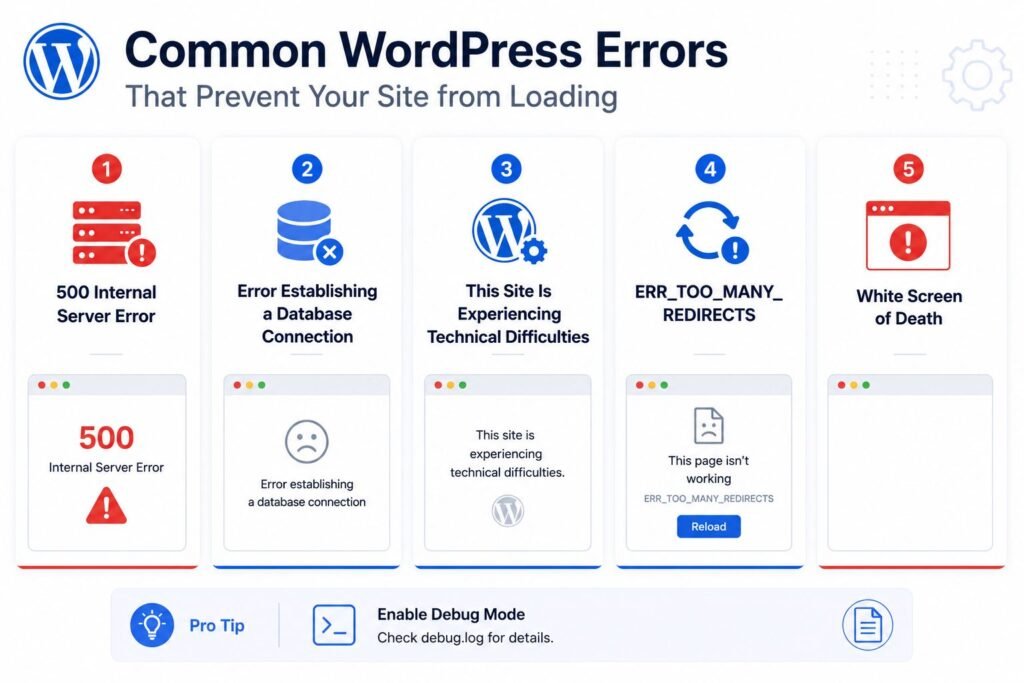
Common causes include:
- Plugin conflicts after an update
- Corrupted cache files
- Hosting or server downtime
- Expired or misconfigured SSL certificates
- DNS propagation issues
- PHP memory exhaustion
- A failed WordPress core or theme update
The key is to isolate the cause before making changes. Changing everything at once makes it impossible to know what actually fixed the problem.
1. Confirm Your WordPress Website Is Actually Down
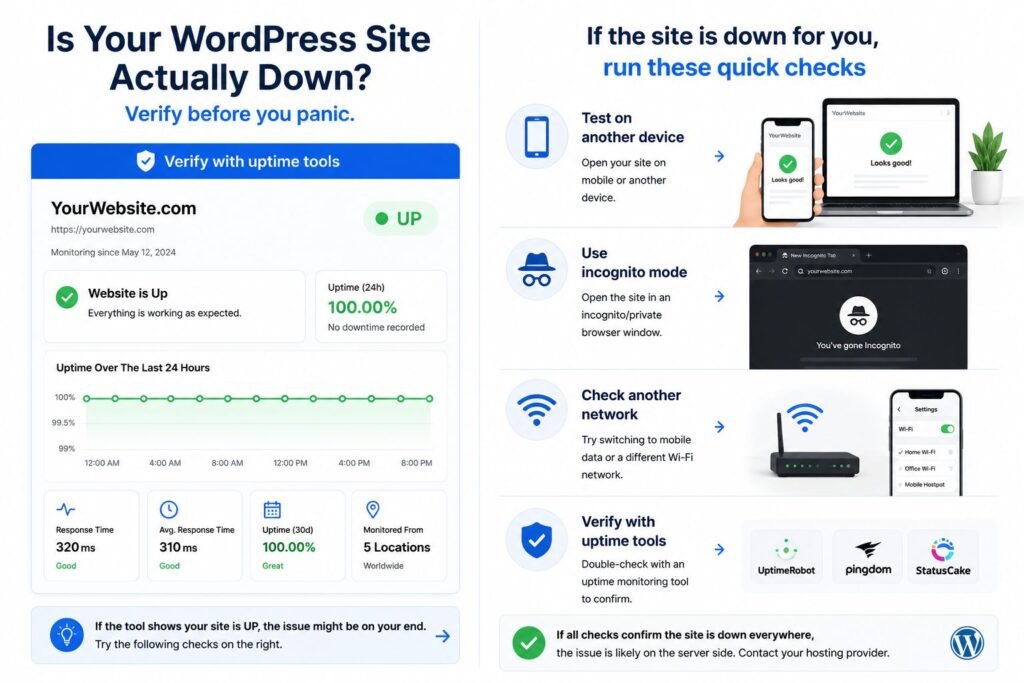
Before touching anything, confirm whether your site is down for everyone or just for you.
Open your website on a different device or network. Try incognito mode to bypass the browser cache. If the site loads in incognito or on another device, your local browser cache is likely the culprit.
You can also use a free uptime checking tool to test whether your site is reachable globally. If it shows your site as online, the problem is on your end. If it confirms the site is down, continue troubleshooting server-side causes.
2. Clear Your Browser Cache and CDN Cache
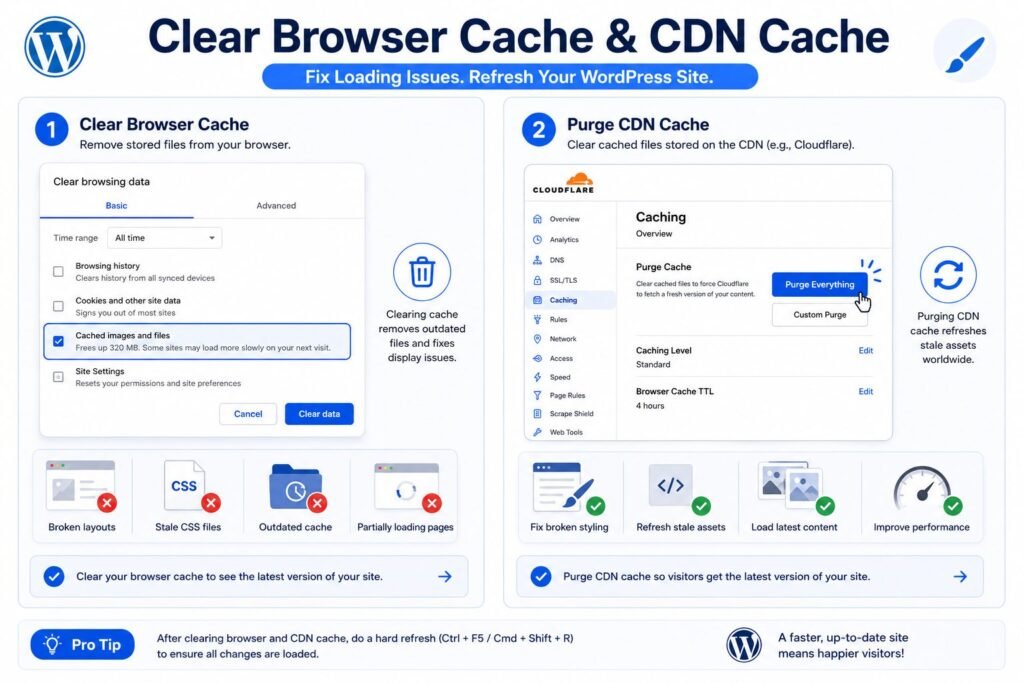
A corrupted or outdated cache is one of the most common reasons a WordPress website appears broken even when the server is functioning normally.
Start with a hard refresh on your browser (Ctrl + F5 on Windows, Cmd + Shift + R on Mac). If that does not help, clear your browser cache completely and reload the page.
If you use a WordPress caching plugin such as WP Rocket, LiteSpeed Cache, or W3 Total Cache, clear the plugin cache from your admin dashboard. If you are running Cloudflare or another CDN, log in and purge the CDN cache as well.
Stale CSS or JavaScript files are especially common after plugin updates or page builder changes and can make your WordPress website look completely broken without there being any real issue with your files.
3. Disable Recently Updated Plugins
Plugin conflicts are one of the biggest reasons a WordPress site crashes unexpectedly. This is especially common after updating a plugin, installing a new one, or running a bulk update.
If you can still access your WordPress dashboard, go to Plugins → Installed Plugins and deactivate recently updated plugins one by one. Refresh your site after each deactivation to see if it starts loading again.
If you cannot access wp-admin because the site is completely inaccessible, you can disable plugins manually using your hosting File Manager. Navigate to public_html/wp-content/ and rename the plugins folder to something like plugins-disabled. This instantly deactivates all plugins. If the site loads after that, you know a plugin is the cause. Rename the folder back to plugins, then reactivate plugins one at a time to find the problem.
Security plugins (Wordfence, Sucuri), caching plugins (WP Rocket, Autoptimize), and Elementor add-ons are the most frequent sources of conflicts.
4. Switch to a Default WordPress Theme
If disabling plugins did not fix the issue, your theme may be causing the problem. Themes can break after WordPress core updates, Elementor updates, WooCommerce updates, or PHP version changes.
From your WordPress dashboard, go to Appearance → Themes and activate a default theme such as Twenty Twenty-Five. If the site immediately starts loading correctly, your original theme is the source of the issue.
If you cannot access wp-admin, use File Manager to rename your active theme folder inside wp-content/themes/. WordPress will automatically fall back to an installed default theme.
5. Check If Your Hosting Server Is Down
Sometimes your website is perfectly fine and the hosting server is the actual problem. Server outages, PHP failures, database connection errors, and exhausted server resources can all bring a WordPress site down without any changes on your end.
Check your hosting provider’s status page for active outages. Look for email alerts from your host about maintenance or account issues. If you host multiple sites on the same account, check whether those are also down. If they are, the issue is server-side, not WordPress-specific.
Common hosting-related error messages include:
- 500 Internal Server Error
- 503 Service Unavailable
- Error Establishing a Database Connection
- Connection timed out
If your hosting plan has expired or your payment failed, your host may have suspended your account, which will take your site completely offline.
6. Increase Your PHP Memory Limit
If your WordPress website is crashing randomly, showing a white screen, or producing fatal errors, your site may be exceeding the PHP memory limit set by your hosting environment.
This is especially common on shared hosting plans, WooCommerce stores, and Elementor-heavy websites that run many active plugins.
To increase the memory limit, access your WordPress root directory using File Manager or FTP, open wp-config.php, and add the following line before the line that reads “That’s all, stop editing!”:
define('WP_MEMORY_LIMIT', '256M');If your hosting plan enforces server-level limits that override this setting, contact your hosting provider to request a higher allocation.
7. Fix DNS or SSL Problems
If your WordPress website stopped loading after a hosting migration, enabling HTTPS, connecting Cloudflare, or updating DNS records, the problem may be related to DNS or SSL configuration rather than WordPress itself.
DNS issues occur when browsers cannot locate your server. This is common after changing nameservers or connecting Cloudflare, and can take up to 48 hours to propagate fully. During that period, some visitors may reach the site while others cannot.
SSL problems appear when your certificate expires or HTTPS redirects are misconfigured. Browsers may block access entirely and show warnings such as “Your connection is not private” or ERR_SSL_PROTOCOL_ERROR.
Redirect loops, where the site bounces endlessly between HTTP and HTTPS, are also common after enabling Cloudflare or installing an SSL plugin such as Really Simple SSL. If you see an ERR_TOO_MANY_REDIRECTS error, check your Cloudflare SSL mode settings and confirm your WordPress Site Address uses https:// correctly.
WordPress Website Fix
All minor issues fixed in 24 hours.
8. Check If Your WordPress Website Is Not Loading on Mobile
If your site loads correctly on desktop but breaks on mobile devices, the issue is usually one of the following: mobile browser cache, JavaScript conflicts, responsive layout problems, or Elementor responsiveness settings.
Start by clearing your mobile browser cache and testing in private browsing mode. If the site works in private mode, cached files on your device are likely the cause.
If the layout appears broken rather than fully inaccessible, check your Elementor responsive settings, disable optimization plugins temporarily, and look for oversized popups or overlays that may be blocking the page on smaller screens.
Optimization plugins that defer or delay JavaScript are a frequent cause of mobile-only failures, because mobile browsers handle scripts differently from desktop browsers.
9. Enable WordPress Debug Mode
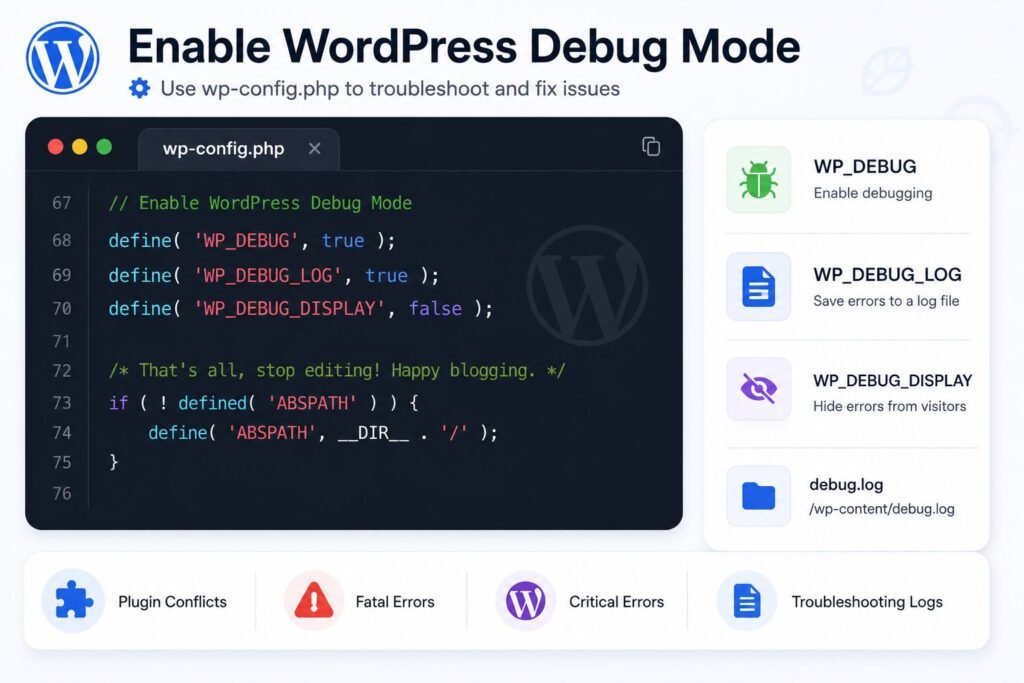
If none of the above steps have resolved the issue, enabling WordPress debug mode can reveal the exact error causing the problem.
Open wp-config.php and add the following before the stop-editing line:
define('WP_DEBUG', true);
define('WP_DEBUG_LOG', true);
define('WP_DEBUG_DISPLAY', false);
This saves all errors privately to wp-content/debug.log without showing them publicly to your visitors. Open that file and look for references to plugin names, theme files, or fatal error messages. These will usually point directly to the source of the issue.
Disable debug mode once troubleshooting is complete by setting WP_DEBUG back to false.
10. Restore a Backup
If your site crashed immediately after an update or configuration change and you have a recent backup available, restoring it is often the fastest recovery path.
Most hosting providers offer one-click backup restoration from inside the control panel. If you use a backup plugin such as UpdraftPlus, you can restore directly from the WordPress dashboard under Settings → UpdraftPlus Backups.
Be cautious with WooCommerce sites. Restoring an older database snapshot may overwrite recent orders and customer data. In those cases, restore only plugin or theme files if possible, and restore the database only as a last resort.
If you do not have a backup, this is the right moment to set one up. Automatic daily backups are one of the most effective ways to prevent hours of downtime from becoming a permanent problem.
11. When to Get Professional Help
Some WordPress loading issues are simple to resolve. Others, including database corruption, malware infections, recurring fatal errors, and WooCommerce checkout failures, require a deeper diagnosis than most business owners have time for.
If your site handles customer inquiries, bookings, or ecommerce transactions, every hour of downtime is a direct cost. At that point, the question is not whether to get help, but how quickly.
WordPress Website Fix
All minor issues fixed in 24 hours.
Frequently Asked Questions
A WordPress website may stop loading for several reasons, including plugin conflicts, hosting/server outages, corrupted cache, DNS problems, and failed WordPress updates. Most WordPress loading issues are fixable once the root cause is identified.
WordPress websites usually crash because of incompatible plugins, corrupted theme files, PHP fatal errors, malware infections, or database corruption.
The best way to fix a WordPress website that is down is to troubleshoot step by step. If the issue started after a plugin or theme update, rolling back recent changes often solves the problem quickly. For more advanced troubleshooting, enable WordPress debug mode (WP_DEBUG) to identify exact PHP or plugin errors.
If your WordPress website is not loading on mobile devices, the issue is often related to mobile caching problems, responsive design conflicts, or JavaScript errors. Elementor layouts and aggressive speed optimization settings are common causes of mobile-specific loading issues.
Final Thoughts
When your WordPress website is not loading, the instinct is to change everything at once. Resist that. Methodical troubleshooting, one step at a time, will get your site back online faster and with less risk of making the problem worse.
Work through this list in order. Clear cache. Disable plugins. Switch themes. Check your host. Increase memory. Fix DNS or SSL. Enable debug mode. Restore a backup if needed.
Most WordPress loading issues are recoverable. The root cause is almost always one of the above. Identify it, fix it, and put a backup system in place before it happens again.