
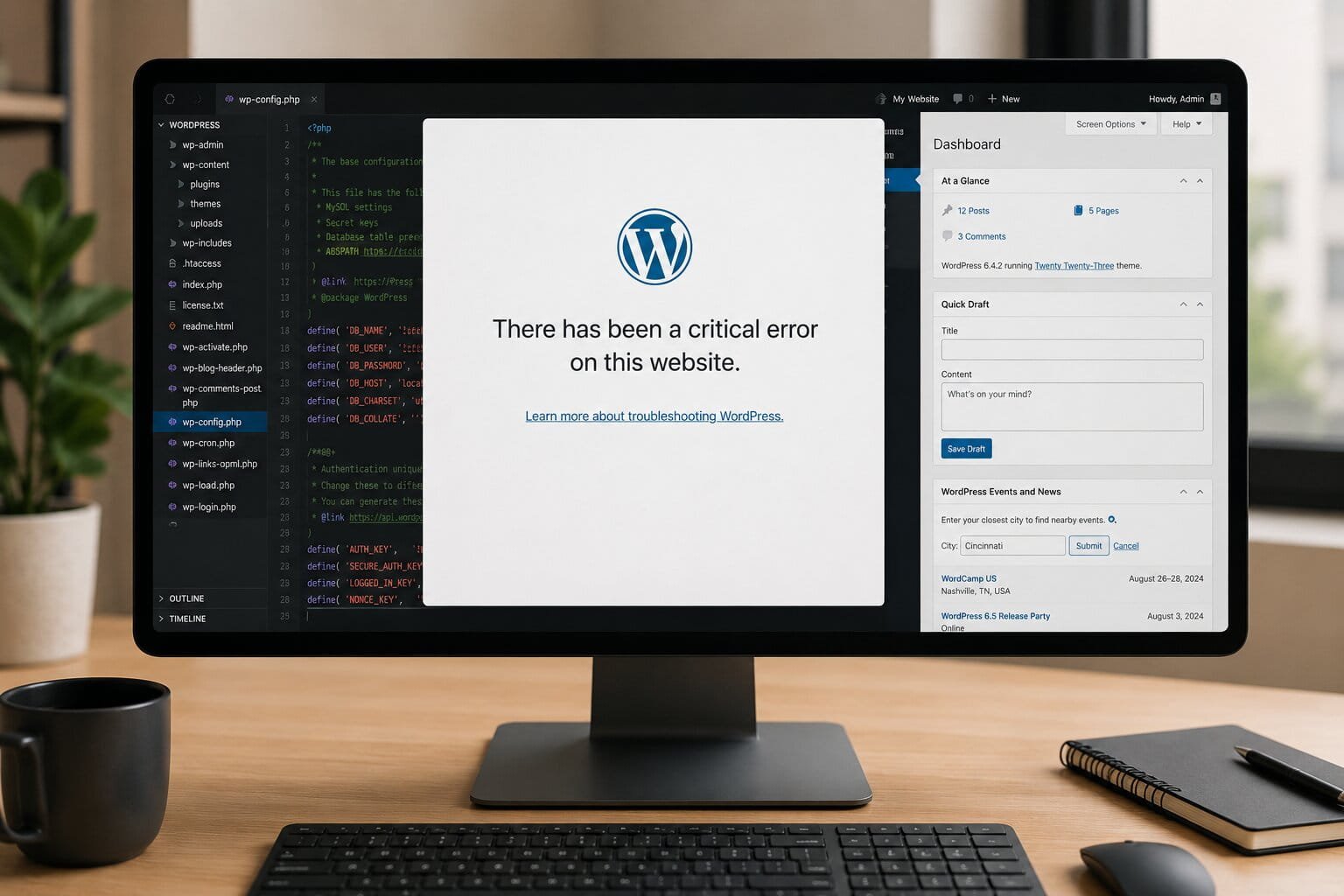
Seeing “There has been a critical error on this website” on your live site is stressful. The good news is that your site is almost never gone. WordPress hit a fatal PHP error and stopped loading to protect you. The cause is usually a plugin, a theme, low memory, or a bad update, and you can fix it in minutes.
Quick Fix: Do This First
- Check your admin email for a Recovery Mode link from WordPress. Use it to log in and disable the faulty plugin or theme.
- No email? Connect by FTP or your host’s File Manager and rename
wp-content/pluginstoplugins-disabled. - Reload your site. If it loads, a plugin is the cause. Rename the folder back and activate plugins one at a time until the error returns.
- Still broken? Switch to a default theme, then turn on the debug log to see the exact error.
Most critical errors are fixed by step 1 or step 3. The full guide below covers every other case.
What Does This Error Mean?
WordPress shows this message when it hits a fatal PHP error and cannot finish loading the page. It hides the technical details from visitors for security. You may see one of these versions:
- There has been a critical error on this website.
- There has been a critical error on this website. Please check your site admin email inbox for instructions.
- There has been a critical error on your website. Learn more about debugging in WordPress.
All of them mean the same thing. Something in your code stopped WordPress from running.
Common Causes
- Plugin conflict: The most common cause. A new or updated plugin clashes with another plugin, your theme, or your PHP version. See our guide on fixing a WordPress site that broke after a plugin update.
- Theme problem: An outdated theme or bad code in
functions.php. - PHP errors or version mismatch: Syntax errors, missing functions, or a plugin that does not support your PHP version.
- Low PHP memory limit: Common on shared hosting.
- Corrupted core files: Caused by a failed update, malware, or a server issue.
If your site shows a blank page or never loads at all, read why your WordPress site is not loading too.
Website problems? We fix it!
Get urgent website issues fixed in 24 hours.
How to Fix the Critical Error in WordPress
Start with the simplest fix and move down the list. Each step is safe and keeps your content intact.
1. Use WordPress Recovery Mode
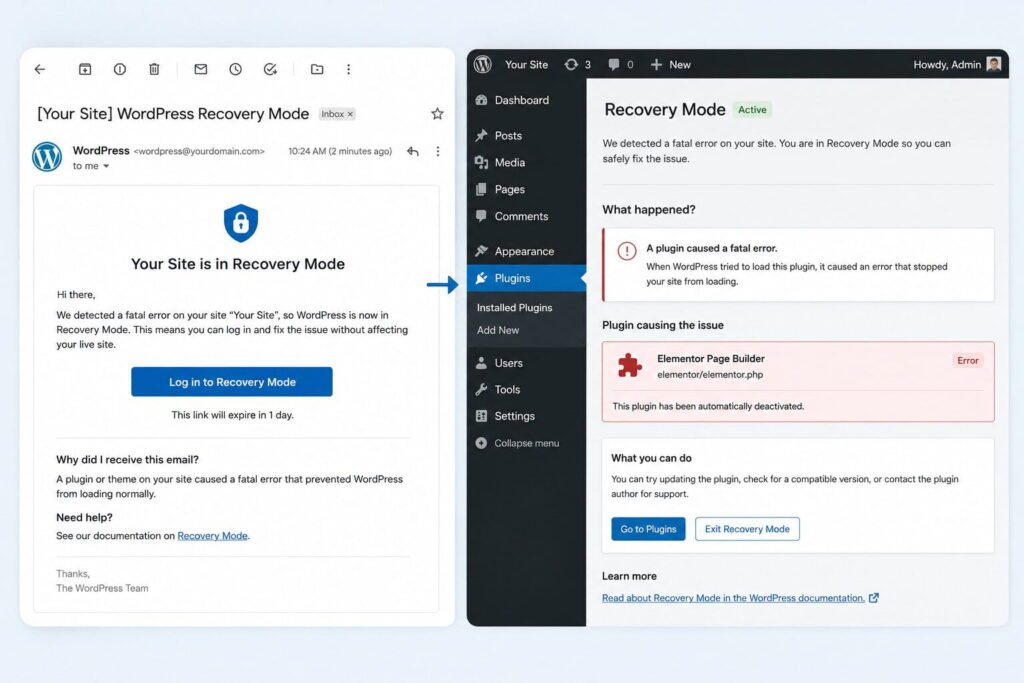
When a plugin or theme causes the crash, WordPress emails a Recovery Mode link to your site admin address. It lets you into the dashboard even while the site is down.
- Open the admin email inbox and look for a message from WordPress.
- Click the Recovery Mode link.
- Log in. WordPress will name the plugin or theme that failed.
- Deactivate it, then reload your site.
The link expires after about 24 hours. If you see “Recovery mode not initialized,” the link has expired. Move to step 2.
2. Disable All Plugins
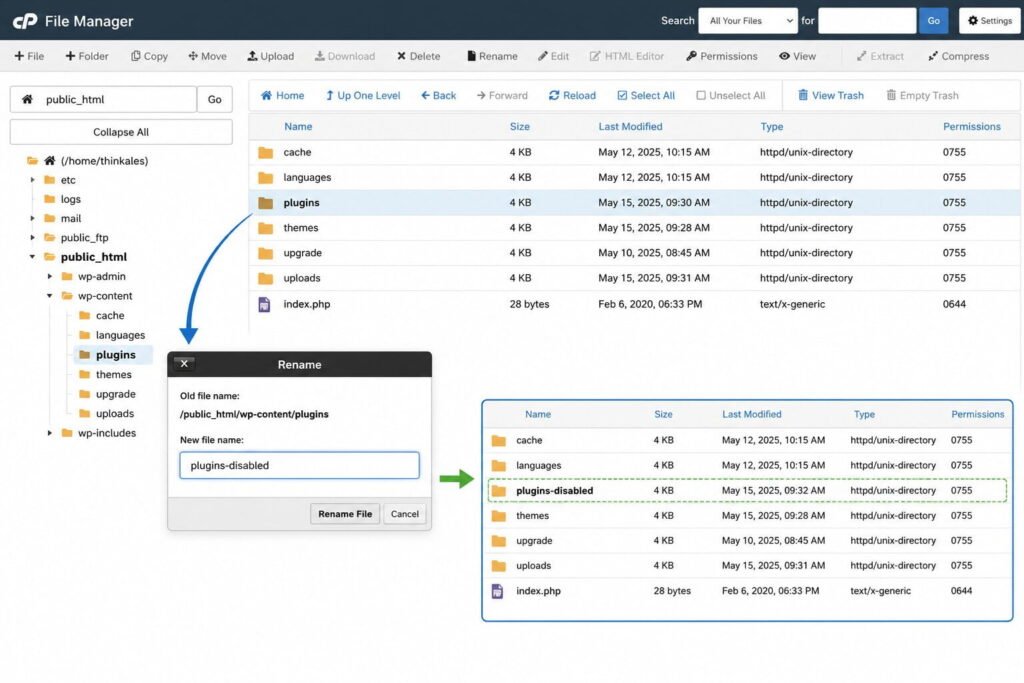
Plugins cause most critical errors, so test them early.
If you can reach the dashboard: Go to Plugins, then Installed Plugins. Deactivate recently added or updated plugins. Reload your site.
If you cannot reach the dashboard:
- Connect with FTP or your host’s File Manager.
- Open
wp-content. - Rename the
pluginsfolder toplugins-disabled. - Reload your site.
If the site comes back, rename the folder to plugins again. Then activate plugins one by one until the error returns. The last one you activated is the culprit.
3. Turn On Debug Mode
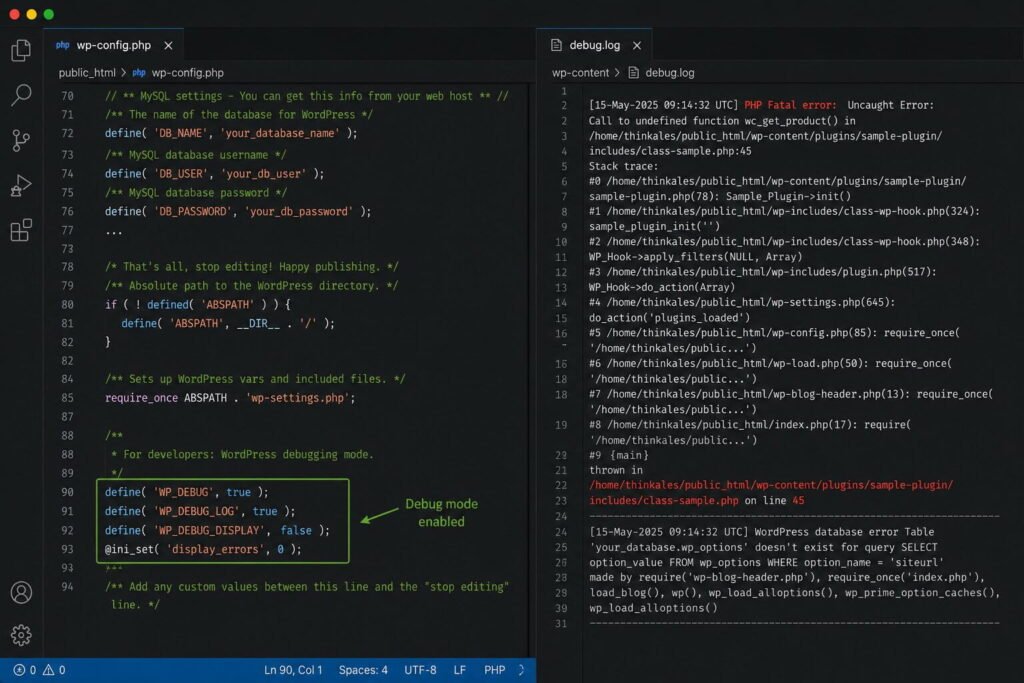
The debug log tells you exactly which file caused the error.
- Open
wp-config.phpin your WordPress root folder. - Find this line:
define( 'WP_DEBUG', false );- Replace it with:
define( 'WP_DEBUG', true );
define( 'WP_DEBUG_LOG', true );
define( 'WP_DEBUG_DISPLAY', false );- Save, then reload your site.
- Open
wp-content/debug.log.
Look for the line that starts with “PHP Fatal error.” The file path usually names the plugin or theme. Set WP_DEBUG back to false when you are done.
4. Switch to a Default Theme
If plugins are not the cause, test your theme.
- Open
wp-content/themes. - Rename your active theme folder.
- WordPress will fall back to a default theme such as Twenty Twenty-Five, if one is installed.
If the site loads, your theme or a recent edit to functions.php is the problem. If the error only appears inside the Elementor editor, see how to fix Elementor editor not loading.
5. Increase the PHP Memory Limit
Add this line to wp-config.php, above the “That’s all, stop editing!” comment:
define( 'WP_MEMORY_LIMIT', '256M' );Save and reload. If nothing changes, your host is capping memory. Ask them to raise it. Low memory also slows sites down, so read why WordPress websites become slow.
6. Check Your PHP Version
A plugin or theme that does not support your PHP version will crash the site. This often happens right after a PHP upgrade.
- Log in to your hosting control panel.
- Open the PHP settings.
- Switch to the previous PHP version and reload.
If the error disappears, update your plugins and theme first. Then upgrade PHP again.
7. Reinstall WordPress Core Files
Use this when the debug log points to a core file or you suspect a failed update.
- Download the latest WordPress from wordpress.org and unzip it.
- Upload the
wp-adminandwp-includesfolders and the loose files in the root. - Overwrite the existing files.
- Do not overwrite
wp-contentorwp-config.php.
Your posts, pages, media, plugins, and database stay untouched.
Website problems? We fix it!
Get urgent website issues fixed in 24 hours.
8. Restore a Backup (Last Resort)
Restore a backup if the error started after a major update or migration and nothing above worked. Pick a backup from before the problem began. Changes made after that date will be lost.
Pro tip: After your site is back, update plugins, themes, and core one at a time. Test after each update.
Fix the Critical Error in Specific Situations
Critical Error After a Plugin, Theme, or WordPress Update
A failed or incompatible update is the top trigger. Disable the plugin you just updated (step 2). If you updated WordPress core, check the debug log (step 3) and your PHP version (step 6). If neither helps, restore the backup you took before updating.
Critical Error After a PHP Update
Your host moved you to a newer PHP version and something in your site does not support it. Roll PHP back one version in your hosting panel (step 6). Then update or replace the incompatible plugin or theme.
Critical Error When Editing a Page
If the front end works but the error appears while editing, a page builder or editor plugin is usually the cause. Check the debug log, raise the memory limit (step 5), and disable any add-ons you recently installed. For Elementor, follow our Elementor editor fix guide.
How to Access wp-admin With a Critical Error
Use the Recovery Mode link first. If you do not have it, you can still get in. Rename the plugins folder by FTP (step 2), log in at yourdomain.com/wp-admin, then restore the folder name and reactivate plugins one at a time.
Not Getting the Recovery Mode Email?
The admin email may be wrong, the email may be in spam, or your site cannot send mail. Skip the email and use FTP or File Manager instead. If your emails never arrive, see why WordPress is not sending emails.
How to Prevent WordPress Critical Error
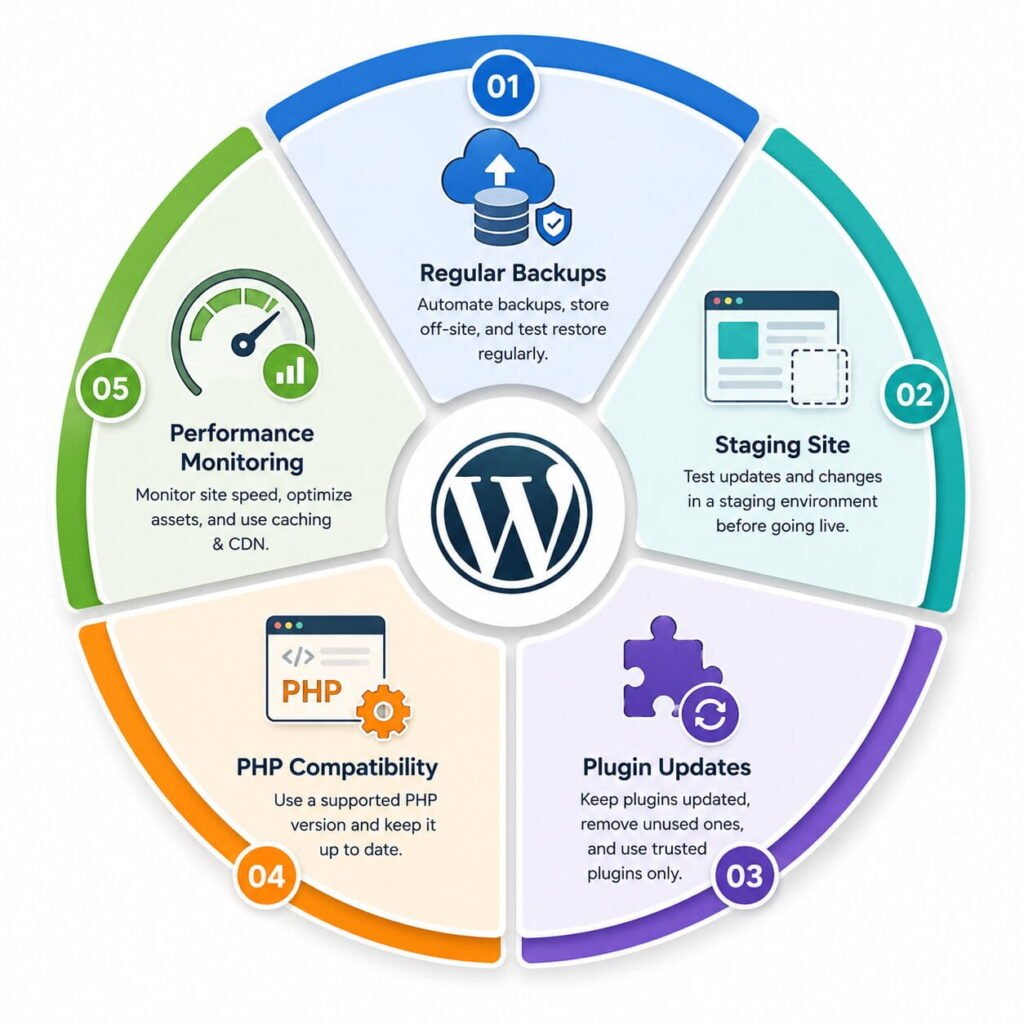
- Update one thing at a time. Read the changelog first. Then you always know what broke the site.
- Use a staging site. Test new plugins, themes, and updates there before touching your live site.
- Keep automatic backups. Back up files and database, and store a copy off-site.
- Match your PHP version. Make sure your host’s PHP version is supported by every plugin and theme you use.
- Remove plugins you do not use. Fewer plugins means fewer conflicts.
Frequently Asked Questions
A fatal PHP error. The usual causes are plugin conflicts, theme issues, low PHP memory, an incompatible PHP version, corrupted core files, or a failed update.
Use the Recovery Mode link from your admin email, or deactivate plugins from the dashboard if you can log in. If the site is fully down, you need FTP or your host’s File Manager.
About 24 hours by default. After that, WordPress shows “Recovery mode not initialized,” and you need to use FTP instead.
No. Your posts, pages, media, plugins, and database stay safe as long as you do not overwrite wp-content or wp-config.php.
It is the same kind of problem. Both come from fatal PHP errors. Older WordPress versions showed a blank white page. Newer versions show this critical error message instead.
Contact them if none of the steps work or you suspect a server problem such as PHP settings, missing extensions, or low resources. You can also get your website fixed by our team for $59.
Conclusion
The “There has been a critical error on this website” message looks scary, but it is fixable. Start with Recovery Mode, then disable plugins, then check the debug log. Those three steps solve most cases.
Once your site is back, keep backups, use a staging site, and update one item at a time. That keeps the error from coming back.