
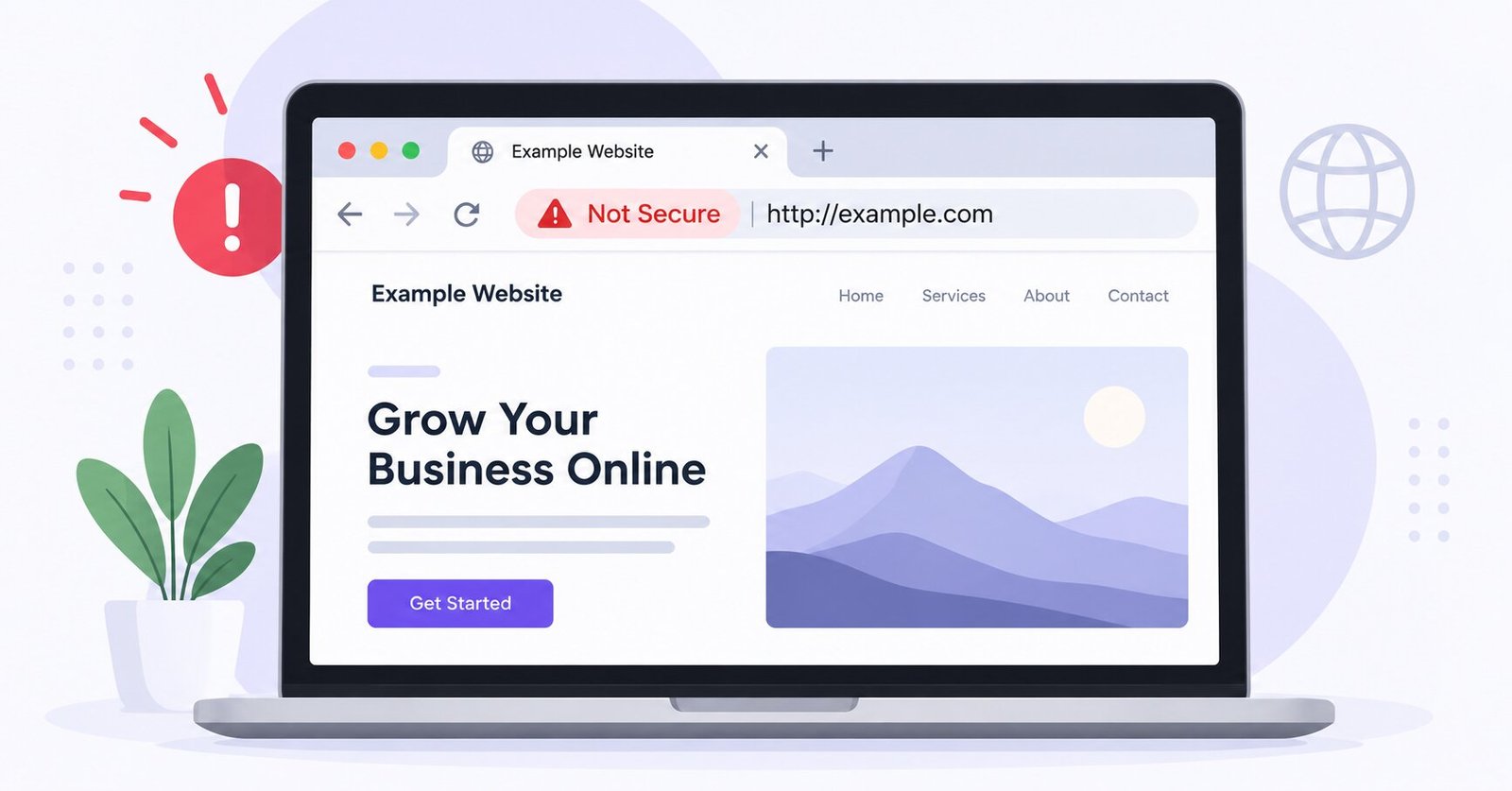
If your website displays a “Not Secure” warning, it means the connection between the visitor’s browser and your website is not being established as a fully secure HTTPS connection. While this warning should be addressed, it does not necessarily mean that your website has been hacked or compromised.
There are several reasons why a website may display a security warning. The website may still be using HTTP instead of HTTPS, the SSL/TLS certificate may be expired or incorrectly configured, or the website may contain mixed content where certain resources are still being loaded over HTTP. WordPress settings, redirects, hosting configurations, and CDN services can also contribute to HTTPS-related issues.
Identifying the underlying cause is important because installing or renewing an SSL certificate is not always the solution. If HTTPS is already enabled, the problem may be caused by an insecure image, script, stylesheet, redirect, or another resource on the page.
In this guide, we explain why your website is not secure, how to identify the cause, and how to fix the most common SSL and HTTPS issues.
You will also learn how to fix HTTPS issues on WordPress websites and verify that your website is properly secured after making the necessary changes.
WordPress Website Fix
Fixed in 24 hours or you don’t pay
What Does “Not Secure” Mean on a Website?
A “Not Secure” website warning means that your browser cannot establish a fully secure HTTPS connection with the website. The warning is most commonly associated with websites that are still using HTTP, but it can also appear when there is an issue with the site’s SSL/TLS configuration or when a page contains insecure resources.
Understanding what the warning means is the first step toward identifying the correct website not secure fix.
HTTP vs. HTTPS
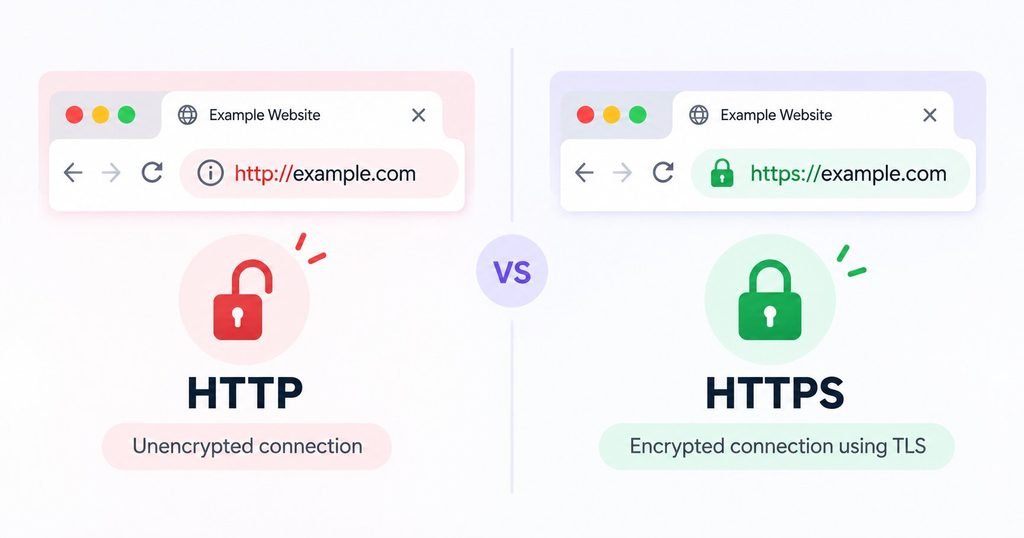
The main difference between HTTP and HTTPS is whether the connection between the visitor’s browser and the website is protected by encryption.
- HTTP (
http://) uses an unencrypted connection. Information transmitted between the browser and server is not protected by TLS. - HTTPS (
https://) uses TLS (Transport Layer Security) to encrypt the connection between the browser and server.
For example:
http://example.com
uses HTTP, while:
https://example.com
uses HTTPS.
HTTPS is particularly important for websites that collect information such as login credentials, contact details, payment information, or other personal data.
Does “Not Secure” Mean My Website Has Been Hacked?
No. A “Not Secure” warning does not, by itself, mean that your website has been hacked.
The warning generally indicates an issue with the website’s connection or HTTPS configuration. Your website may simply be using HTTP, have an incorrectly configured SSL/TLS certificate, or contain resources that are still being loaded over HTTP.
A compromised website can have different symptoms, including unauthorized content, unexpected redirects, malicious scripts, or changes to website files. Therefore, a website security warning should not automatically be interpreted as evidence of a security breach.
“Not Secure” vs. “Your Connection Is Not Private”
These warnings are related to website security, but they can indicate different underlying problems.
“Not Secure” commonly appears when a page is being served over HTTP or is not fully secured with HTTPS.
“Your Connection Is Not Private” generally indicates that the browser has detected a problem validating the website’s SSL/TLS certificate. Depending on the problem, you may see errors such as:
NET::ERR_CERT_DATE_INVALID– the SSL certificate may be expired or not yet valid.NET::ERR_CERT_COMMON_NAME_INVALID– the certificate may not match the domain being accessed.NET::ERR_CERT_INVALID– the browser has detected an invalid or otherwise unacceptable certificate configuration.
Knowing which warning you are seeing can help narrow down the cause and determine whether you need to fix HTTPS, renew or reconfigure an SSL certificate, resolve mixed content, or address another website configuration issue.
Why Is My Website Not Secure? 10 Common Causes
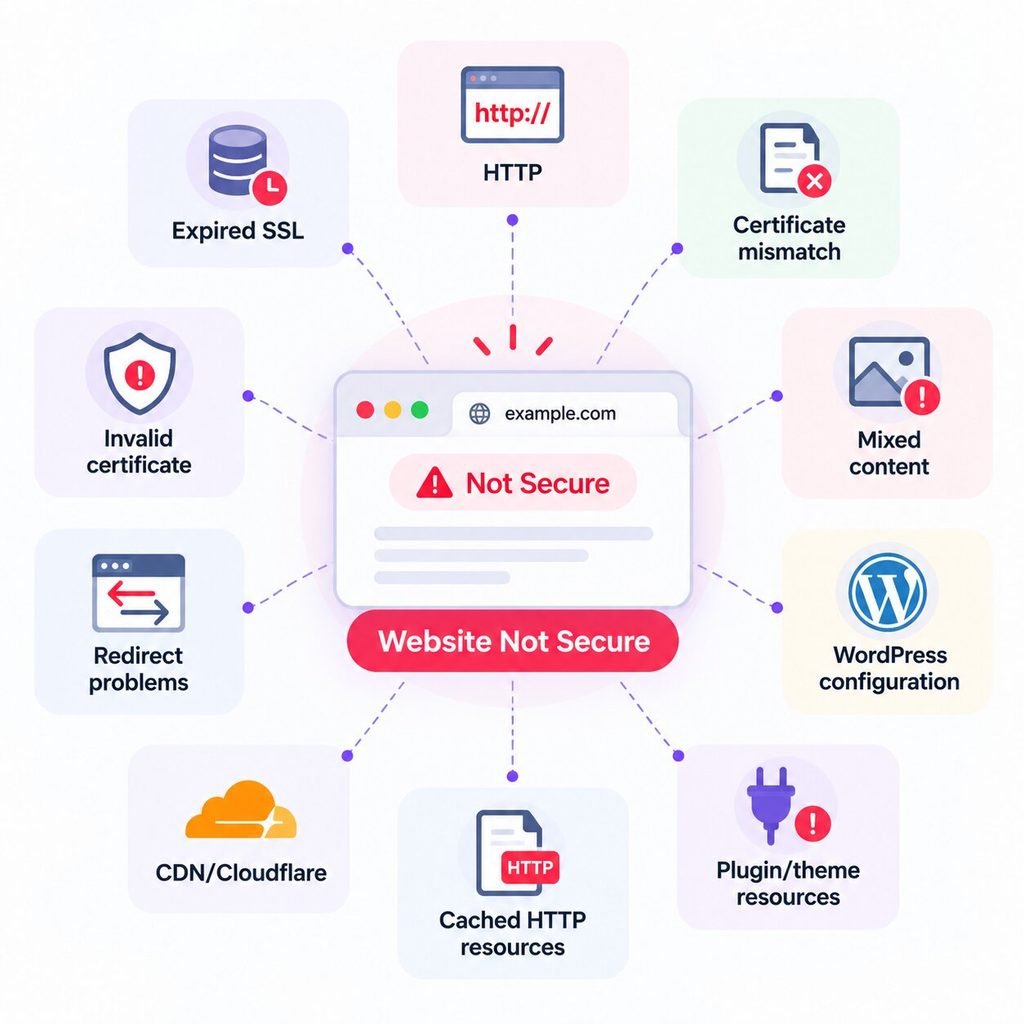
A “Not Secure” warning can have several different causes, and installing or renewing an SSL certificate is not always the correct solution. Before making changes to your website, it is important to identify what is actually causing the warning.
Here are the 10 most common causes of a not secure website.
1. Your Website Is Still Using HTTP
The simplest explanation is that your website is being served over HTTP instead of HTTPS. If your URL begins with http://, the connection is not protected by TLS, and browsers may display a “Not Secure” warning.
Your website should generally load through an HTTPS address such as:
https://example.com
However, simply having an HTTPS version available is not enough. The HTTP version should also redirect visitors to the HTTPS version.
2. Your SSL Certificate Is Missing
Your web server needs a valid SSL/TLS certificate to establish an HTTPS connection. If no certificate has been installed or the server is not configured to use it, visitors may receive a security warning when accessing the HTTPS version of your website.
Many hosting providers like Hostinger now offer SSL certificates as part of their hosting plans, including free certificates through services such as Let’s Encrypt.
3. Your SSL Certificate Has Expired
SSL/TLS certificates have a defined validity period. Once a certificate expires, browsers can no longer verify it as valid and may display a certificate warning.
If your certificate has expired, check whether your hosting provider automatically renews it. If automatic renewal has failed, the certificate may need to be renewed or reissued.
4. Your Certificate Does Not Match Your Domain
An SSL certificate is issued for specific domain names. If the certificate does not cover the domain visitors are accessing, the browser may reject the connection.
For example, your certificate may be configured for:
example.com
while visitors are accessing:
www.example.com
Depending on the certificate configuration, the required hostname may not be covered. A certificate issued for an entirely different domain can produce the same type of problem.
5. Your Certificate Is Not Trusted or Is Incorrectly Configured
A certificate can exist and still generate an SSL certificate error if it has not been configured correctly.
For example, the server may not be providing the complete certificate chain required by browsers to establish trust. Incorrect server configuration, an invalid certificate, or an improperly installed certificate can also cause validation failures.
6. Your Website Has Mixed Content
Mixed content occurs when a page loads over HTTPS but one or more resources on that page are still requested over HTTP.
For example:
https://example.com
may load an image from:
http://example.com/image.jpg
The same problem can occur with JavaScript, CSS files, fonts, videos, iframes, tracking scripts, or resources loaded by WordPress plugins and themes.
Mixed content is particularly common after migrating a WordPress website from HTTP to HTTPS or when old HTTP URLs remain in the site’s database, theme settings, or page content.
7. HTTP → HTTPS Redirects Are Not Configured Correctly
Your website should normally redirect visitors from HTTP to the corresponding HTTPS URL.
For example:
http://example.com/page
should redirect to:
https://example.com/page
If redirects are missing, visitors may continue accessing the unsecured HTTP version. Incorrect or conflicting redirect rules can also create redirect loops, preventing the website from loading correctly.
8. WordPress Is Still Configured to Use HTTP
On WordPress websites, the WordPress Address (URL) and Site Address (URL) can affect how the website loads and generates URLs.
If either setting still uses HTTP after an HTTPS migration, WordPress may continue generating insecure URLs.
You can check these settings under:
WordPress Dashboard → Settings → General
Both URLs should normally use the correct HTTPS version of your domain.
9. Your CDN or Cloudflare Configuration Is Conflicting With SSL
If your website uses a CDN such as Cloudflare, the HTTPS connection involves more than just your hosting server. The browser connects to the CDN, which then communicates with your origin server.
An incorrect SSL/TLS mode, conflicting redirect rules, or an improperly configured origin certificate can therefore cause HTTPS errors, redirect loops, or other security warnings.
This is less common than basic HTTP or certificate issues, but it is worth checking when a website uses Cloudflare or another CDN.
If an SSL, DNS, redirect, or CDN configuration problem is preventing your WordPress website from loading altogether, follow our guide on how to fix a WordPress website that is not loading for a step-by-step troubleshooting process.
10. Your Cache Is Serving Old HTTP Resources
Caching can sometimes cause a website to continue serving outdated HTTP URLs after HTTPS has been enabled or resources have been updated.
This can occur at several levels, including your browser, WordPress caching plugin, hosting server, or CDN.
If you’ve already fixed the underlying HTTPS configuration but the warning persists, clear the relevant caches and test the website again in a private or incognito browser window.
The key takeaway is that “Not Secure” is a symptom, not a diagnosis. Identifying which of these issues is affecting your website will help you apply the right fix instead of making unnecessary SSL or configuration changes.
How to Fix a Website That Says “Not Secure”
Once you identify the likely cause, you can work through the following steps to fix a website that displays a “Not Secure” warning. The order matters because there is little value in fixing mixed content if HTTPS itself is not working correctly.
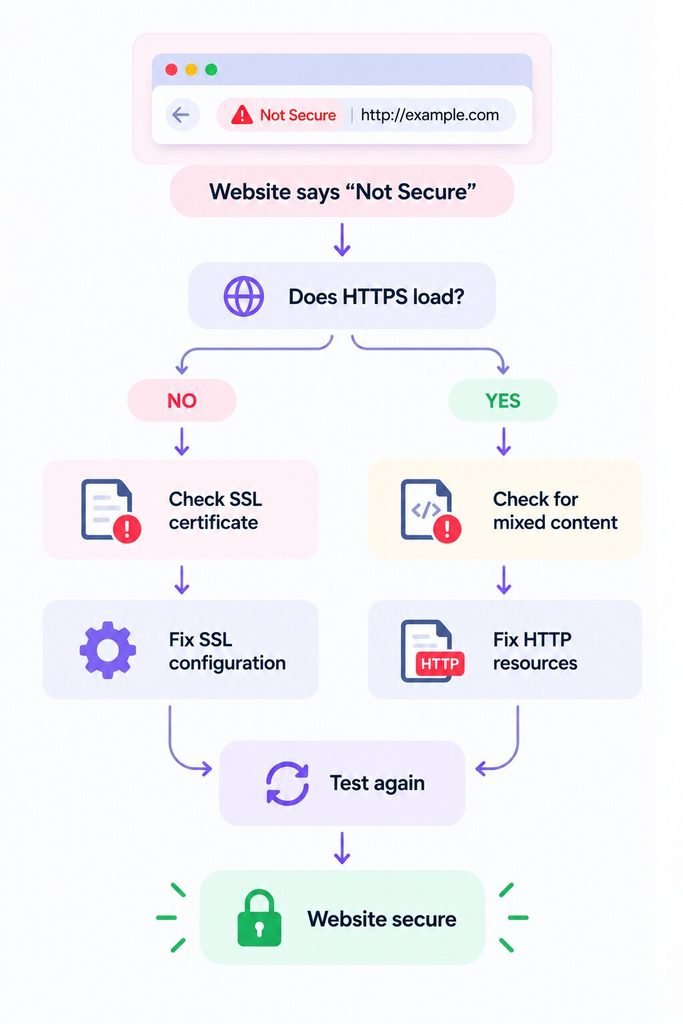
Step 1: Check Whether Your Website Loads With HTTPS
Start by manually entering the HTTPS version of your website in your browser:
https://yourdomain.com
If the website loads normally and the browser shows a secure connection, HTTPS is working at a basic level and you can continue troubleshooting other issues.
If the HTTPS version does not load, displays a certificate warning, or returns an SSL-related error, the problem may involve your SSL certificate, hosting server, DNS configuration, or HTTPS setup. Resolve this before moving on to mixed-content troubleshooting.
You should also test the important versions of your domain, including the www and non-www versions.
Step 2: Inspect Your SSL Certificate
If HTTPS is not working correctly, inspect the certificate presented by your web server.
Check the following:
- Domain name: Does the certificate cover the domain you’re visiting?
- Expiration date: Is the certificate currently valid?
- Certificate status: Does the browser consider it valid?
- Issuer: Is it issued by a trusted certificate authority?
- Certificate chain: Is the server providing the certificates required to establish trust?
If the certificate is expired, incorrectly installed, issued for the wrong domain, or otherwise invalid, the appropriate solution may be to renew, reissue, or correctly install the certificate.
Do not automatically purchase another SSL certificate. Many websites already have a valid certificate, and the actual problem may be elsewhere in the HTTPS configuration.
Step 3: Make HTTP Redirect to HTTPS
Once HTTPS is working, make sure visitors who enter the HTTP version are automatically redirected to HTTPS.
For example:
http://example.com
should redirect to:
https://example.com
Test all relevant variations:
http://example.comhttp://www.example.comhttps://example.comhttps://www.example.com
Your website should ultimately resolve to one preferred HTTPS version. This helps prevent visitors from accessing an unsecured version of the site and avoids unnecessary URL duplication.
The exact method for configuring the redirect depends on your hosting environment, web server, CDN, or WordPress configuration.
Step 4: Check Your WordPress URLs
If you’re using WordPress, check whether WordPress itself is configured to use HTTPS.
Go to:
WordPress Dashboard → Settings → General
Check these two fields:
- WordPress Address (URL)
- Site Address (URL)
Both should normally use the correct HTTPS version of your domain.
For example:
https://example.com
If either address still uses http://, WordPress may continue generating insecure URLs even though your SSL certificate is working correctly.
Step 5: Find Mixed-Content Resources
If HTTPS works but the browser still reports a security problem, check for mixed content.
In Chrome, open the affected page, right-click and select Inspect, then open the Console tab. Look for messages containing:
Mixed Content
The browser may identify the specific resource being loaded over HTTP, such as an image, JavaScript file, stylesheet, font, iframe, or other external resource.
For example, your page may load securely at:
https://example.com
while an image is still being requested from:
http://example.com/image.jpg
That HTTP resource needs to be updated to use HTTPS, provided the resource supports HTTPS.
Step 6: Replace Old HTTP URLs
If mixed content is caused by old URLs, identify where those URLs are stored and update them to HTTPS.
Depending on your website, check:
- Pages and posts
- Images and media
- Theme settings
- Plugins
- Elementor content and settings
- WordPress database
- Custom HTML or JavaScript
- Embedded content
- External resources
On WordPress, a search-and-replace operation can be useful when many old HTTP URLs exist in the database. However, database-wide replacements should be performed carefully and only after creating a reliable backup. Replacing the wrong strings can affect serialized data or other website functionality.
Step 7: Clear Your Caches and Retest
After making the necessary changes, clear caches at every relevant level:
- WordPress caching plugin
- Server or hosting cache
- CDN cache
- Browser cache
Then open the website in a private or incognito window and test it again.
Check the homepage as well as important pages such as contact forms, login pages, checkout pages, and landing pages. Confirm that the HTTPS version loads correctly, there are no mixed-content warnings, and important website functionality still works.
If the warning remains, return to the browser’s security information and developer console. The remaining error message can usually provide a useful clue about what still needs to be corrected.
WordPress Website Fix
Fixed in 24 hours or you don’t pay
How to Fix “Not Secure” in Chrome
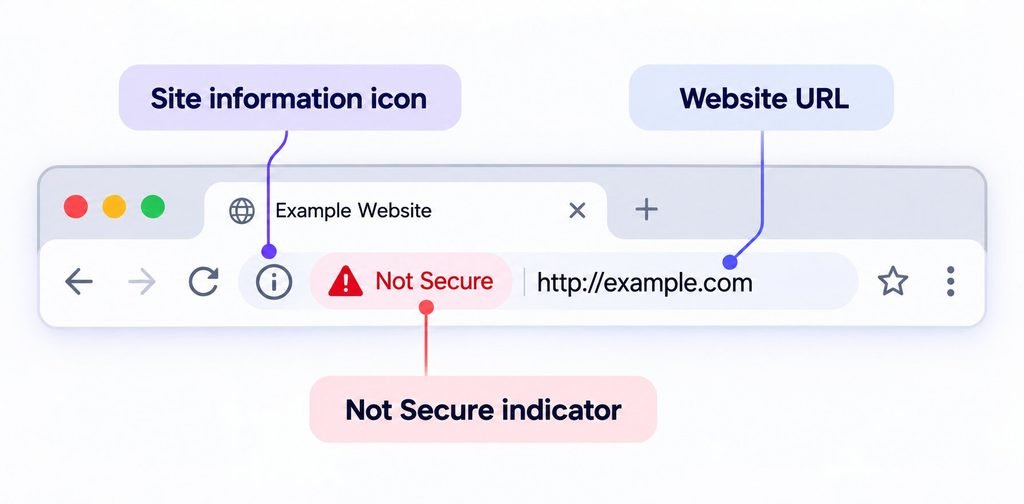
Google Chrome is one of the most common browsers where website security warnings are noticed. However, Chrome can display different warnings depending on what is wrong with the website’s HTTPS configuration. Identifying the exact message or error code can therefore make troubleshooting much easier.
If you are looking for a website not secure Chrome fix, start by identifying which warning Chrome is displaying.
Chrome Says “Not Secure”
If Chrome displays “Not Secure” next to your website address, the page is typically being accessed over an HTTP connection rather than a properly secured HTTPS connection.
First, check the address bar. If your website starts with:
http://example.com
try accessing:
https://example.com
If the HTTPS version works correctly, configure your website to automatically redirect HTTP requests to HTTPS. You should also check that your SSL/TLS certificate is valid and that your website does not contain insecure HTTP resources.
If the HTTPS version itself produces a certificate warning, the issue is more likely related to the certificate or server configuration.
Chrome Says “Your Connection Is Not Private”
“Your Connection Is Not Private” is different from a basic “Not Secure” warning.
Chrome generally displays this message when it cannot verify that the website’s SSL/TLS certificate is valid and trustworthy. Possible causes include an expired certificate, a certificate issued for a different domain, an incorrectly installed certificate, or problems with the certificate chain.
Chrome may display an error code underneath the warning. That code can provide a more specific indication of the problem.
NET::ERR_CERT_DATE_INVALID
This error indicates that Chrome has detected a problem with the certificate’s validity dates.
The certificate may have:
- Expired
- Not yet become valid
- An incorrect validity period
- A server configuration with an incorrect system date or time
Start by checking the SSL certificate’s expiration and validity dates. If the certificate has expired, it may need to be renewed or reissued.
NET::ERR_CERT_COMMON_NAME_INVALID
This error generally indicates that the certificate does not match the domain name being accessed.
For example, you may be visiting:
https://www.example.com
while the certificate is configured only for a different hostname.
Check whether the certificate covers the exact domain and subdomain being accessed. Also test both the www and non-www versions of your website to determine whether the problem affects only one hostname.
How to Inspect Your SSL Certificate in Chrome
Chrome provides a quick way to inspect the certificate presented by a website.
- Open your website in Chrome.
- Click the site information icon to the left of the address bar.
- Open the connection or certificate information available for the site.
- Review the certificate details, including the domain, issuer, and validity dates.
The exact wording and interface can vary between Chrome versions, so the available options may not appear exactly the same on every device.
You can also use Chrome’s Developer Tools to investigate HTTPS problems that are not immediately obvious. Open Inspect → Console and look for messages related to mixed content, blocked resources, certificate errors, or failed requests.
If Chrome reports a specific error code, use that error as the starting point rather than repeatedly reinstalling SSL. A Chrome SSL error can have several different causes, and identifying the error first will usually lead to a more targeted fix.
SSL Is Installed, but My Website Still Says “Not Secure”
Installing an SSL certificate does not automatically mean that every resource on your website is being delivered securely over HTTPS. If your website still displays a “Not Secure” warning after installing SSL, the certificate itself may not be the problem.
This is particularly common on WordPress websites that have been migrated from HTTP to HTTPS. Old URLs, third-party resources, plugins, themes, page builders, caching systems, or CDN configurations can continue to serve content over HTTP even after the main website has been secured.
If you’re asking “why is my website not secure even with HTTPS?”, work through the following checks before replacing or purchasing another SSL certificate.
1. Check for Mixed Content
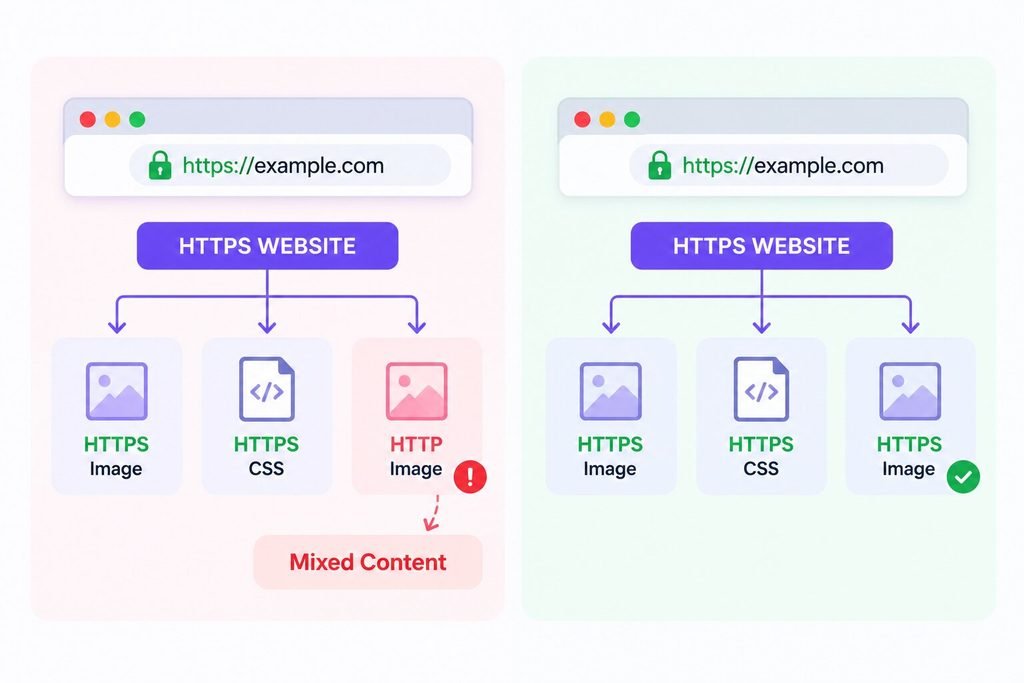
Mixed content occurs when an HTTPS page attempts to load one or more resources over HTTP.
For example:
https://example.com
may still load an image from:
http://example.com/image.jpg
The same issue can occur with:
- Images
- CSS files
- JavaScript
- Fonts
- Videos
- Iframes
- Embedded content
- Tracking scripts
- External resources
Open the affected page in Chrome, select Inspect → Console, and look for Mixed Content warnings. Chrome may identify the exact HTTP resource causing the problem.
If the resource supports HTTPS, update its URL from http:// to https://.
2. Check Your WordPress URLs
WordPress can continue generating HTTP URLs even when an SSL certificate is correctly installed.
Go to:
WordPress Dashboard → Settings → General
Check:
- WordPress Address (URL)
- Site Address (URL)
Both should normally use your HTTPS domain.
For example:
https://example.com
If either URL still uses HTTP, update it and then clear your website’s caches before testing again.
3. Check for Old HTTP URLs in Your Database
An older WordPress website may contain hundreds or even thousands of references to its previous HTTP address.
For example:
http://example.com
may still exist in:
- Post content
- Media URLs
- Theme options
- Plugin settings
- Widget content
- Custom fields
- Elementor data
- Other database records
These old references can result in mixed-content warnings even though the main website loads through HTTPS.
A search-and-replace operation can update old HTTP URLs to HTTPS, but database changes should be performed carefully. Always create a reliable backup first, and use a tool that properly handles WordPress data, including serialized data.
4. Check Elementor and Other Page-Builder Assets
Page builders can introduce additional sources of HTTPS problems because they may store URLs, generated CSS, images, scripts, or other assets separately from the basic WordPress content.
If you’re using Elementor, check whether the affected page contains old HTTP URLs and regenerate Elementor’s generated files or CSS after making the necessary changes.
Also clear Elementor’s cache and your site’s other caching layers.
The same principle applies to other page builders: check their generated assets and settings for resources that may still reference the HTTP version of your website.
5. Check Your Plugins and Themes
A plugin or theme can load an asset using an HTTP URL even when the rest of the website uses HTTPS.
Common examples include:
- Images
- JavaScript files
- CSS files
- Web fonts
- Iframes
- API resources
- Tracking or analytics scripts
If the browser console identifies a particular resource, determine which plugin, theme, or external service is responsible for loading it.
Do not simply disable plugins at random. Identifying the specific insecure resource first makes it easier to locate the source of the problem.
6. Check Your CDN or Cloudflare Configuration
If your website uses Cloudflare or another CDN, check its SSL/TLS configuration as well as the SSL configuration on your hosting server.
The visitor connects to the CDN, while the CDN may then establish a separate connection to your origin server. If those two connections are configured inconsistently, you can encounter SSL errors, redirect loops, or other HTTPS problems.
With Cloudflare, review the SSL/TLS mode and make sure it is compatible with the certificate and HTTPS configuration on your origin server.
Also check for conflicting HTTPS redirect rules between Cloudflare and your hosting environment.
7. Clear Caches and Regenerate Assets
After fixing the underlying problem, clear the relevant caches before testing the website again.
Depending on your setup, this may include:
- WordPress caching plugin
- Elementor-generated CSS/cache
- Server or hosting cache
- CDN cache
- Browser cache
Then open the website in a private or incognito window and test the affected pages again.
Check the browser console for any remaining Mixed Content warnings and confirm that important resources such as images, CSS, JavaScript, fonts, forms, and embedded content are loading correctly.
If your website still displays a “Not Secure” warning after SSL installation, do not assume that the certificate needs to be replaced. In many cases, the certificate is already valid and the actual problem is an old HTTP URL, mixed content, WordPress configuration, page-builder asset, plugin, theme, cache, or CDN setting.
Diagnosing the specific cause first will help you apply the correct website not secure fix without making unnecessary changes to your SSL configuration.
How to Fix a Not Secure WordPress Website
WordPress websites can continue to display a “Not Secure” warning even after an SSL certificate has been installed. This is often caused by old HTTP URLs, mixed content, plugin or theme resources, caching, page-builder assets, or CDN configuration.
If your WordPress website is not secure, work through the following checks in order. This approach helps identify the underlying issue instead of simply reinstalling the SSL certificate.
Check Your WordPress Address and Site Address
WordPress has two URL settings that determine the primary address of your website.
Go to:
WordPress Dashboard → Settings → General
You will find:
- WordPress Address (URL)
- Site Address (URL)
Both should normally use the HTTPS version of your domain.
For example:
https://example.com
If either setting uses:
http://example.com
WordPress may continue generating HTTP links and resources throughout the website.
Before changing these settings on a live website, make sure HTTPS is already working correctly. If the HTTPS configuration is incomplete, changing the WordPress URLs can make the website inaccessible.
Fix HTTP URLs in WordPress Content
Migrating a website from HTTP to HTTPS does not necessarily update every URL stored in WordPress.
Old HTTP references can remain in:
- Posts
- Pages
- Images and media
- Widgets
- Menus
- Theme settings
- Plugin settings
- Custom fields
- Elementor content
- Database options
For example, a page may load through:
https://example.com
but contain an image linked to:
http://example.com/uploads/image.jpg
That image can trigger a mixed-content warning.
Search for old HTTP references and update them to their HTTPS equivalents where appropriate. For larger WordPress websites, a properly configured search-and-replace tool can help identify and update large numbers of URLs.
Always create a complete backup before performing database-wide replacements, and use a WordPress-aware tool that handles serialized data correctly.
Fix Mixed Content
Mixed content is one of the most common reasons a WordPress website can continue to have HTTPS-related problems after an SSL certificate has been installed.
To identify mixed content in Chrome:
- Open the affected page.
- Right-click and select Inspect.
- Open the Console tab.
- Look for messages containing Mixed Content.
- Identify the HTTP resource listed in the warning.
- Locate that resource in WordPress and change its URL to HTTPS, if supported.
The resource could be an image, stylesheet, JavaScript file, font, iframe, video, or third-party service.
If the resource belongs to a plugin or theme, check its settings or documentation before modifying its files directly. Updating plugin or theme files manually can cause changes to be overwritten during a future update.
Check Your Themes and Plugins
Themes and plugins can introduce HTTP resources independently of WordPress’s main URL settings.
For example, a plugin may load an external JavaScript file over HTTP, while a theme may reference an image or stylesheet using an old HTTP URL.
Use the browser console to identify the exact insecure resource before troubleshooting the plugin or theme responsible for it.
If a particular plugin is causing the problem, check whether an updated version is available and review its configuration. If the issue comes from a theme, check its customizer settings, theme options, or code for hard-coded HTTP URLs.
Third-party services should also be checked. Analytics tools, embedded content, advertising scripts, fonts, video players, and other external resources must support HTTPS if they are loaded on an HTTPS page.
Regenerate Elementor CSS and Clear Your Cache
If your website uses Elementor, updating URLs may not immediately resolve the issue because Elementor can have generated CSS and cached assets associated with previously stored URLs.
After correcting the underlying URLs, regenerate Elementor’s generated files or CSS using the relevant Elementor tools available in your WordPress dashboard.
Then clear your website’s other caching layers, including:
- WordPress caching plugins
- Server cache
- CDN cache
- Browser cache
Open the website in a private or incognito browser window and test it again.
If the mixed-content warning disappears after regenerating the files and clearing the cache, the problem was likely related to an outdated generated asset rather than the SSL certificate itself.
If you’re also experiencing problems with the Elementor editor itself, see how to fix the Elementor editor not loading.
Check Cloudflare or Your CDN
If your WordPress website uses Cloudflare or another CDN, there can be two HTTPS connections to consider:
Visitor’s browser → CDN → Origin server
The browser connects to the CDN, while the CDN communicates with the server where your WordPress website is hosted.
If the CDN’s SSL/TLS configuration does not match the HTTPS configuration on the origin server, the website can experience certificate errors, redirect loops, or other HTTPS problems.
Check your CDN’s SSL/TLS settings and confirm that the origin server has a valid certificate. Also look for duplicate or conflicting HTTP-to-HTTPS redirects configured at both the CDN and hosting level.
Test Every Important Page
Fixing the homepage does not necessarily mean the entire WordPress website is secure.
After making your changes, test the pages that matter most to your visitors and business:
- Homepage
- Contact page
- Contact forms
- Login and account pages
- Checkout and cart pages
- Landing pages
- Important service pages
- Blog posts
- Pages containing embedded content
For each page, confirm that:
- The URL uses HTTPS.
- The browser does not display a security warning.
- There are no mixed-content warnings in the console.
- Images and other media load correctly.
- CSS and JavaScript function normally.
- Forms and interactive elements work correctly.
This final step is particularly important after an HTTPS migration because a website can appear secure at the domain level while individual pages still contain insecure resources.
A successful WordPress website not secure fix therefore involves more than installing an SSL certificate. You need to verify the WordPress URLs, update old HTTP references, eliminate mixed content, check plugins and themes, regenerate page-builder assets, review CDN configuration, and test the website’s important pages from end to end.
How to Fix Common SSL/HTTPS Errors
SSL and HTTPS problems can produce similar symptoms even when the underlying causes are completely different. For example, a “Not Secure” warning may be caused by HTTP, while a “Your Connection Is Not Private” message may indicate a certificate validation problem.
The quickest way to troubleshoot an SSL or HTTPS issue is to identify the exact error, determine its likely cause, and then check the relevant part of your website’s configuration.
| Error or problem | Likely cause | What to check |
|---|---|---|
| Not Secure | Website is using HTTP | Confirm HTTPS is enabled and redirect HTTP to HTTPS |
| SSL installed but warning remains | Mixed content | Find images, scripts, CSS, fonts, or other resources still using HTTP |
| Certificate expired | SSL certificate is past its validity period | Check the certificate’s expiration date and renew or reissue it |
| Certificate mismatch | Certificate does not cover the domain being accessed | Check the certificate’s domain names and test www and non-www versions |
| Your Connection Is Not Private | Certificate validation or trust problem | Inspect the certificate, issuer, validity, and certificate chain |
| Too many redirects | Conflicting HTTP/HTTPS redirect rules | Check WordPress, server, CDN, and Cloudflare redirect settings |
| HTTPS works on one version only | www/non-www configuration issue | Test all domain variations and configure one preferred HTTPS version |
| CSS or JavaScript breaks after SSL | Resources are blocked or still referenced through HTTP | Inspect browser console and update insecure resource URLs |
| Site works after SSL installation but later breaks | Cache, CDN, hosting, or configuration issue | Clear caches and check recent configuration changes |
| Only one page is affected | Page-specific HTTP resource or embedded content | Inspect that page’s resources and browser console |
Not Secure
If Chrome displays “Not Secure”, first check whether the website is being loaded through HTTP.
For example:
http://example.com
should generally redirect to:
https://example.com
If HTTPS is already enabled but the warning remains, investigate mixed content and other HTTPS configuration issues.
SSL Installed but Warning Remains
Installing an SSL certificate secures the connection to the server, but individual resources on the page can still be requested through HTTP.
Check the browser console for Mixed Content warnings and identify the specific insecure resource. Update the resource to HTTPS where supported.
Certificate Expired
SSL/TLS certificates are valid for a defined period. An expired certificate can cause browsers to reject the connection.
Check the certificate’s validity dates and determine whether your hosting provider automatically renews it. If automatic renewal has failed, the certificate may need to be renewed or reissued.
Certificate Mismatch
A certificate mismatch occurs when the certificate presented by the server does not cover the domain being accessed.
Test both:
example.comwww.example.com
Then inspect the certificate to confirm that the relevant hostname is covered.
Your Connection Is Not Private
This warning generally indicates that Chrome cannot validate the site’s certificate correctly. Check the certificate’s:
- Validity dates
- Domain names
- Issuer
- Trust status
- Certificate chain
The specific Chrome error code can provide additional information about the problem.
Too Many Redirects
A redirect loop can occur when multiple systems are trying to control HTTPS simultaneously.
For example, WordPress, your hosting server, and Cloudflare could each have their own redirect rules. If those rules conflict, the browser may repeatedly redirect between HTTP and HTTPS versions.
Review the redirect configuration at each layer and ensure that there is one clear path to the preferred HTTPS URL.
HTTPS Works on One Version Only
Your website may work correctly at:
https://example.com
but fail at:
https://www.example.com
or vice versa.
Check all four combinations of HTTP/HTTPS and www/non-www. Choose the preferred HTTPS version and configure the other versions to redirect to it consistently.
CSS or JavaScript Breaks After SSL
If your website’s design or functionality breaks immediately after enabling HTTPS, check whether CSS, JavaScript, fonts, or other assets are still being requested through HTTP.
Open Chrome Developer Tools and inspect the Console and Network tabs to identify blocked or insecure resources. Update those URLs to HTTPS and clear your caches afterward.
Site Works After SSL Installation but Then Breaks
If HTTPS initially works and the problem appears later, check whether something changed in your caching, CDN, hosting, SSL, or redirect configuration.
Clear your WordPress, server, CDN, and browser caches, then test the site again. If the issue returns, review recent plugin, theme, hosting, or CDN changes.
If your WordPress site becomes unstable after making HTTPS changes, updating plugins, or changing your configuration, and you see “There has been a critical error on this website,” the problem may extend beyond the SSL configuration itself.
See our guide on how to fix a WordPress critical error for steps to identify the underlying WordPress error.
Only One Page Is Affected
If the homepage is secure but one specific page displays a warning or broken resources, the problem is likely specific to that page.
Inspect the page in Chrome Developer Tools and look for HTTP images, scripts, stylesheets, embeds, iframes, or other resources. This is particularly common with older landing pages, custom HTML, embedded third-party services, and content created before the website was migrated to HTTPS.
The key principle is to diagnose the specific SSL or HTTPS error before changing your certificate or website configuration. Once the underlying cause is identified, the appropriate fix is usually much more straightforward.
WordPress Website Fix
Fixed in 24 hours or you don’t pay
How to Check That Your Website Is Fully Secure
Fixing the “Not Secure” warning is an important step, but it should not be the final test. A website can stop displaying a browser warning while still having broken resources, incorrect redirects, or HTTPS issues on individual pages.
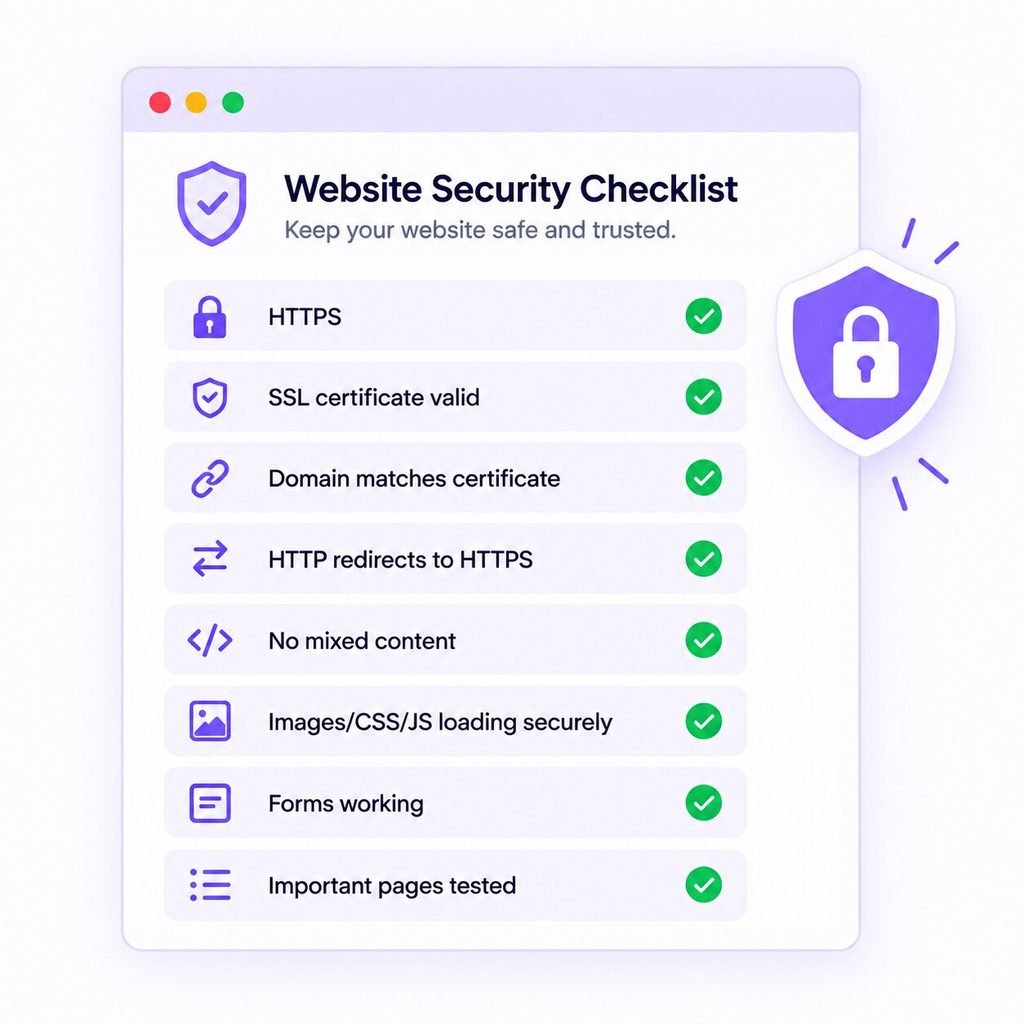
Use the following checklist after making your changes:
- HTTPS loads correctly without a certificate warning.
- SSL/TLS certificate is valid and has not expired.
- Certificate matches your domain and the hostname being accessed.
- HTTP redirects to HTTPS correctly.
- www and non-www versions resolve to the preferred HTTPS version.
- No mixed-content warnings appear in the browser console.
- Images load correctly over HTTPS.
- CSS loads correctly and the website’s layout is intact.
- JavaScript works without HTTPS-related errors.
- Contact forms and other forms work correctly.
- Login, account, and checkout functions work where applicable.
- Important pages use HTTPS URLs, including landing pages and service pages.
- Relevant caches and CDN data have been cleared after making changes.
It is also worth testing the website in a private or incognito browser window and checking several important pages rather than relying only on the homepage.
A browser showing a padlock or no “Not Secure” warning is a useful indication that the connection is working correctly, but it is not a complete website security audit. You should still verify that the certificate is valid, HTTPS redirects are working, page resources are secure, and important website functionality operates correctly over HTTPS.
Frequently Asked Questions
A website may display a “Not Secure” warning because it is using HTTP instead of HTTPS, has an expired or incorrectly configured SSL/TLS certificate, or contains mixed content. WordPress, redirect, hosting, CDN, or caching configurations can also cause HTTPS-related issues.
First, determine the cause. Check whether HTTPS loads correctly, inspect your SSL certificate, configure HTTP-to-HTTPS redirects, check your WordPress URLs, and look for mixed-content warnings. Then clear your caches and test the website again.
Having HTTPS enabled does not guarantee that every resource on the page is secure. Images, CSS, JavaScript, fonts, iframes, or other resources may still be loading through HTTP. This is known as mixed content and can cause security warnings or blocked resources.
Common causes include incorrect WordPress Address or Site Address settings, old HTTP URLs in the database, mixed content from plugins or themes, outdated Elementor assets, incorrect redirects, or CDN configuration issues.
First, identify the warning Chrome is displaying. Check whether the website uses HTTPS, inspect the SSL certificate, and open Inspect → Console to look for certificate or mixed-content errors. Chrome may also provide a specific error code that helps identify the underlying problem.
Make sure your website has a valid SSL/TLS certificate, loads through HTTPS, redirects HTTP traffic to HTTPS, and does not contain insecure HTTP resources. After making changes, clear relevant caches and retest the website.
Not necessarily. If your existing certificate is valid and correctly configured, the problem may be caused by mixed content, redirects, WordPress settings, caching, or CDN configuration. Identify the cause before purchasing or replacing an SSL certificate.
Yes. Mixed content occurs when an HTTPS page loads resources such as images, scripts, stylesheets, fonts, or iframes over HTTP. Check the browser console to identify the insecure resources and update them to HTTPS where supported.