
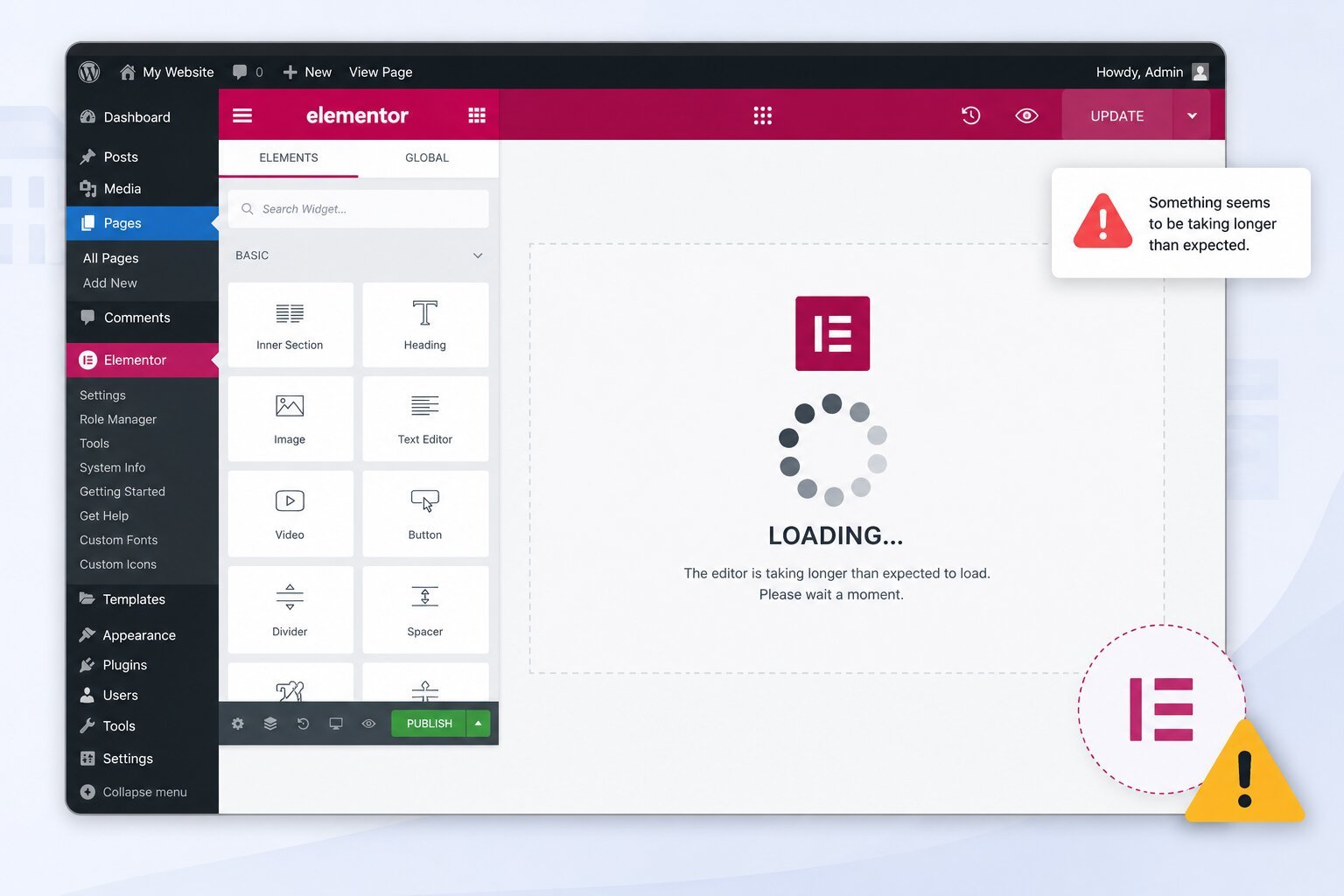
Elementor is one of the most popular WordPress page builders. But like any complex plugin, it can run into loading issues. Sometimes the editor refuses to open at all. Other times Elementor gets stuck on the loading screen, shows an endless spinner, displays a blank white page, or fails to load the preview correctly.
The underlying cause isn’t always obvious. Elementor loading problems can be triggered by plugin conflicts, theme compatibility issues, insufficient server resources, JavaScript errors, caching conflicts, CDN settings, REST API restrictions, or a recent update to WordPress or Elementor itself.
The good news is that most Elementor loading problems can be fixed without rebuilding your site or restoring a backup. The key is identifying the specific cause and applying the right fix, rather than working through random troubleshooting steps that may not touch the actual problem.
If you’ve searched “why is Elementor editor not loading” and landed here after trying a random tutorial or two, this guide is built differently. It starts with your exact symptom, walks you through the fastest diagnostic path, and only then moves into the deeper fixes for plugin conflicts, memory limits, updates, and hosting issues. You don’t need to work through every section. Find your symptom, jump to the matching cause, and apply the fix.
Website problems? We fix it!
Get urgent website issues fixed in 24 hours.
How to Identify the Exact Elementor Problem in Under 2 Minutes
Many Elementor troubleshooting guides jump straight into a long list of possible fixes. The problem with that approach is that different loading issues have different causes. A fix for a caching issue won’t help if the real problem is a PHP error or a blocked REST API request.
The fastest way to troubleshoot is to start with your symptom, then match it to the most likely cause.
| Symptom | Most Likely Cause |
|---|---|
| Elementor stuck on loading screen | Plugin conflict, JavaScript error, cache issue |
| Elementor editor not opening | Plugin conflict, theme conflict, PHP error |
| Infinite loading spinner | JavaScript conflict, third-party scripts |
| Blank white editor page | PHP memory limit, fatal PHP error |
| Elementor preview not working | Cache issue, CDN conflict, theme incompatibility |
| Changes not appearing on frontend | Browser cache, website cache, CSS generation issue |
| Unable to save or publish changes | REST API error, security plugin, firewall restriction |
| Only one page fails to load | Corrupted Elementor content or widget |
| Editor loads slowly or times out | Hosting resource limitations, server performance issues |
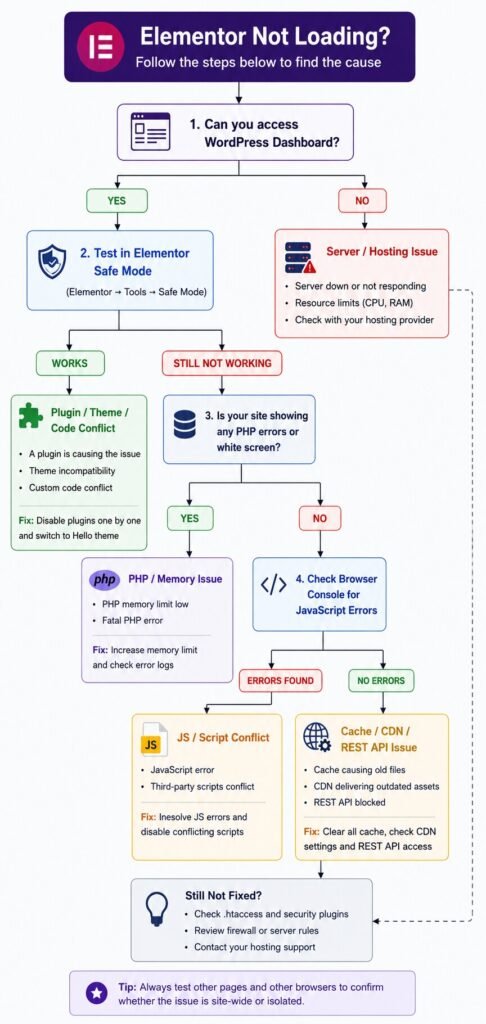
Elementor stuck on loading screen usually points to a plugin conflict, JavaScript error, or a script blocking Elementor’s initialization. This often shows up right after installing a new plugin or changing performance settings.
Blank editor page means Elementor is launched but couldn’t render content, which is frequently caused by insufficient PHP memory or a server-side fatal error.
Elementor preview not working typically traces back to caching, CDN configuration, or theme compatibility. If the preview shows outdated content while the editor shows the latest changes, a caching layer is likely serving an old version of the page.
Changes not appearing on the live site is almost always a caching or CSS generation issue, at the browser, plugin, server, or CDN level.
Can’t save or publish points to a breakdown in communication between Elementor and WordPress, commonly caused by REST API restrictions, security plugins, or firewall rules.
Only one page affected suggests the issue isn’t site-wide. Corrupted page data, a problematic widget, or invalid custom code is more likely than a global conflict.
Editor loads slowly or times out points away from a code-level conflict and toward your hosting environment. If the editor eventually loads but takes far longer than it should, or times out under load, server resources are the more likely culprit than a plugin or theme.
Once you’ve matched your symptom, move on to the fixes below. Testing other pages and other browsers first will save you time, since it tells you almost immediately whether you’re dealing with a site-wide issue or something isolated to one page or one environment.
Quick Fix Checklist (Try These First)
Many Elementor loading problems come down to temporary caching issues, outdated software, browser conflicts, or corrupted CSS. These can often be resolved in minutes.
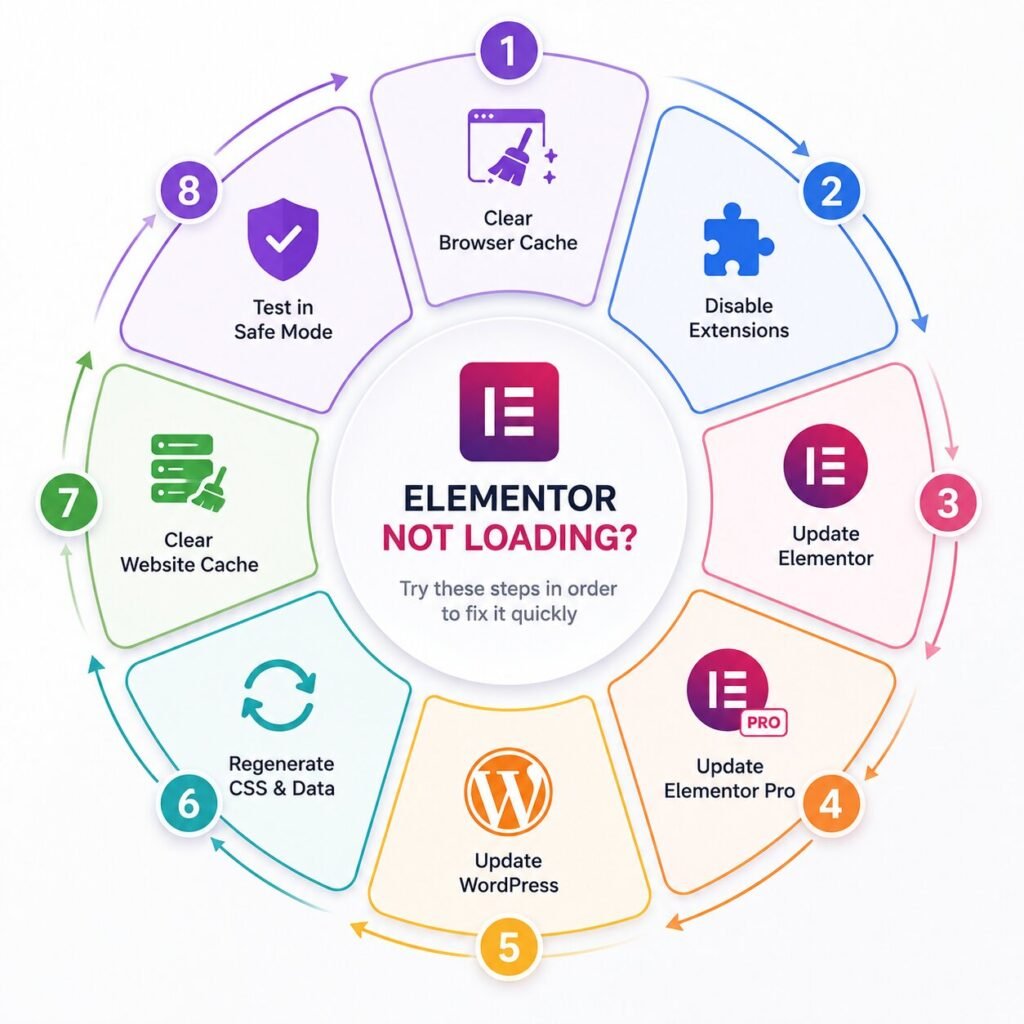
1. Clear your browser cache. Browsers store site files locally, and can keep serving outdated JavaScript or CSS after an update. Clear the cache fully and reload the editor before trying anything else.
2. Disable browser extensions. Ad blockers, privacy tools, script blockers, and security extensions can all interfere with Elementor’s scripts. Disable them all, reload, and if the editor works, re-enable them one at a time to find the culprit.
3. Update Elementor. An outdated version can create compatibility issues with newer WordPress, theme, or PHP versions. Go to Dashboard → Updates and install any available updates, then retest.
4. Update Elementor Pro. Elementor and Elementor Pro need to stay on compatible versions. A mismatch is a common cause of loading failures and missing functionality.
5. Update WordPress. Elementor is built to support the latest WordPress releases, and an outdated install can cause compatibility problems. Back up first, confirm plugin compatibility, then update.
6. Regenerate CSS & Data. Elementor’s generated CSS files can become corrupted or outdated. Go to Elementor → Tools → General → Regenerate CSS & Data, wait for it to finish, and reload. This frequently fixes display and preview problems.
7. Clear website cache. Even after clearing your browser cache, your site may still serve cached files through WP Rocket, LiteSpeed Cache, W3 Total Cache, FlyingPress, server-level caching, or a CDN like Cloudflare. Clear every layer, not just one, or it will look like your changes haven’t taken effect.
8. Test Elementor in Safe Mode. Safe Mode temporarily isolates the editor from theme and plugin conflicts. Open Elementor, click the Safe Mode prompt, and launch the editor. If it works in Safe Mode, a plugin, theme, or custom code elsewhere on the site is the likely cause.
Run through these eight steps in order rather than skipping around. Each one takes a couple of minutes, and together they resolve a large share of Elementor loading issues without touching plugin settings, theme files, or server configuration. If you’ve worked through the checklist and Elementor still isn’t loading, the issue is probably a deeper compatibility, server, or configuration problem.
Website problems? We fix it!
Get urgent website issues fixed in 24 hours.
Elementor Editor Not Loading: 10 Common Causes and Fixes
1. Plugin Conflict
Plugin conflicts are one of the most common reasons Elementor fails to load. The editor depends on multiple scripts, stylesheets, and WordPress functions, and when another plugin interferes, it can get stuck or stop functioning.
Symptoms: Infinite loading spinner, a frozen or unresponsive editor, blank editor screen, missing widgets or controls.
Fix: Test in Safe Mode first. If that resolves it, deactivate every plugin except Elementor and Elementor Pro, then reactivate them one at a time, testing after each, until you find the one causing the conflict. Security plugins, optimization plugins (minification, delayed script execution), and popup or marketing plugins are the most common offenders, since they all inject scripts or block requests that Elementor depends on to finish loading. Once you’ve isolated the plugin, check whether an update is available before deciding whether to replace it entirely.
2. Theme Conflict
Not every WordPress theme is fully compatible with Elementor, especially heavily customized themes, older themes, or themes with their own built-in page builder.
Symptoms: Broken layouts, blank editor, missing content, incorrect preview.
Fix: Temporarily activate the Hello Elementor theme under Appearance → Themes and test the affected page. If it loads correctly, your previous theme is the problem. From there, check for a theme update, disable theme-specific optimization features, or contact the theme developer. Theme conflicts show up most often with older themes, multipurpose themes that ship with their own page builder, heavily customized premium themes, and themes that modify WordPress core functionality more aggressively than usual. If switching themes resolves the issue, you’ll need to adjust theme settings, wait on a compatibility update from the developer, or consider migrating to a more Elementor-friendly theme long term.
3. Insufficient PHP Memory Limit
Elementor needs adequate server memory to load the editor and render content. Running out of memory is especially common on larger sites, WooCommerce stores, and sites running many plugins.
Symptoms: Blank white editor, crashes during loading, fatal error messages, pages that won’t save or publish.
Recommended limits: Minimum 128MB for a small site, 256MB for a business site, and 512MB or more for a WooCommerce store.
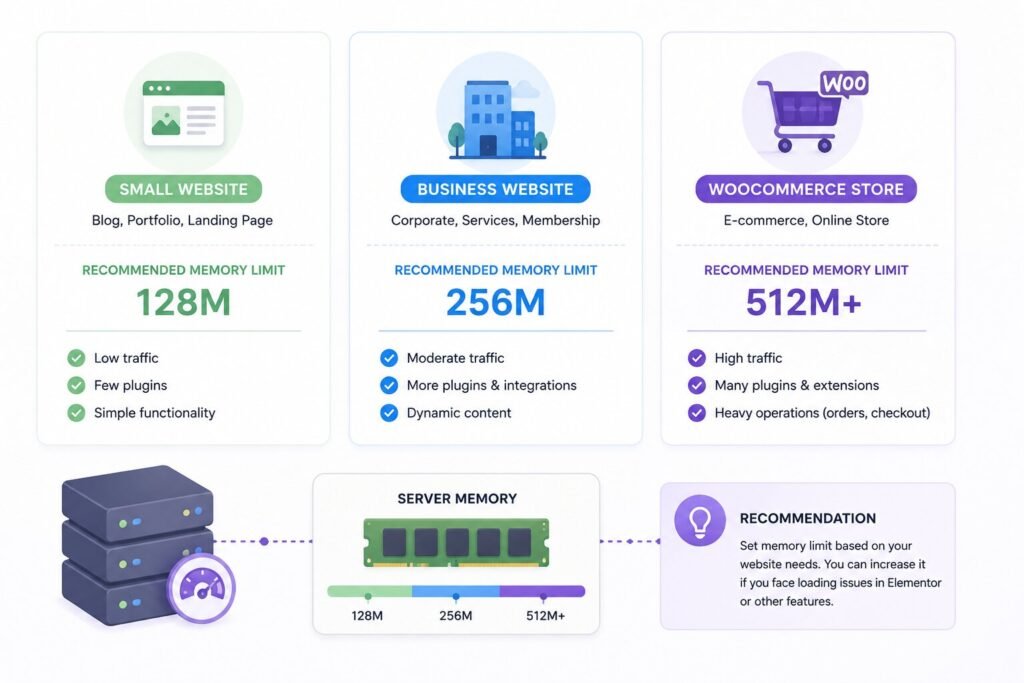
Fix: Contact your host to raise the limit, adjust it through wp-config.php if your host allows it, or change it in your hosting control panel. Clear your cache and retest afterward. While Elementor may technically run on lower memory limits, giving it more headroom generally improves overall editor stability, not just this one loading issue. If you’ve already increased memory and Elementor still won’t load, treat that as a signal to check for a recent update, plugin conflict, or JavaScript error instead of raising memory further.
4. Elementor Update Broke Your Website
An Elementor update can expose an existing compatibility problem, conflict with another plugin, or create a version mismatch with Elementor Pro, WordPress, or your theme.
Symptoms: Elementor stops loading right after an update, editor stuck on loading, blank page, missing widgets, broken frontend layouts.
Fix: If the issue started right after an update, roll back Elementor from Elementor → Tools → Version Control to confirm the update is responsible. If you use Elementor Pro, keep both plugins on compatible versions, rolling back both if needed. If the live site is affected and troubleshooting is taking too long, restore a recent backup, then reintroduce updates one at a time while checking compatibility.
Prevention: Back up before every update, test on staging first, keep Elementor, Elementor Pro, and WordPress compatible, remove plugins and themes you’re not using, and confirm your hosting environment meets Elementor’s current requirements before applying major version updates.
5. JavaScript Errors Blocking Elementor
Elementor relies heavily on JavaScript to load the editor and power its drag-and-drop functionality. A JavaScript error can stop the loading process before the editor finishes initializing.
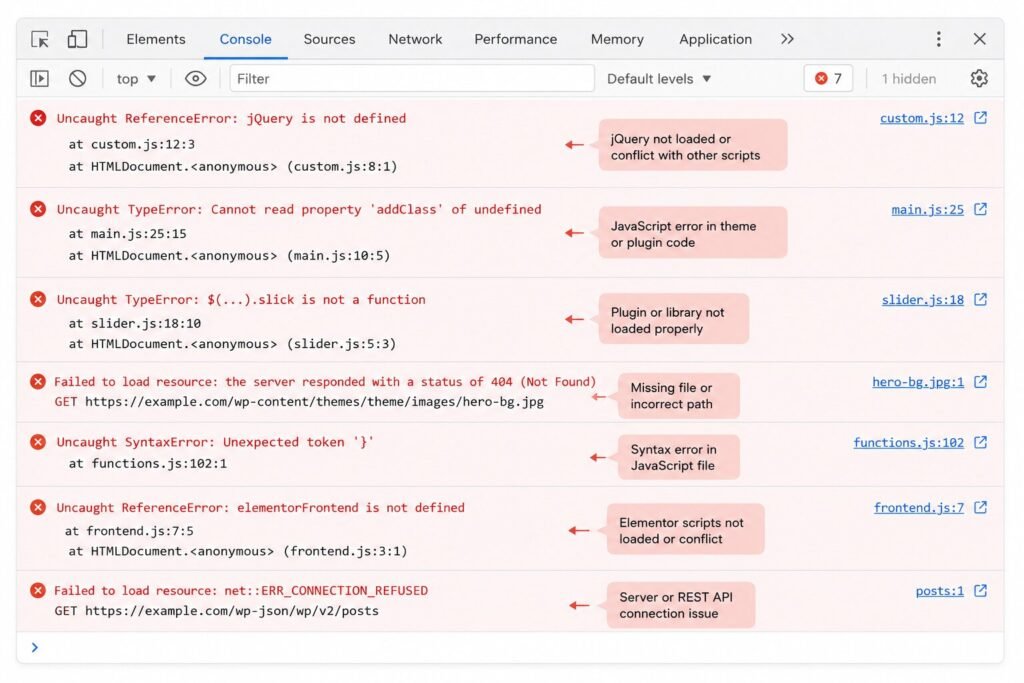
Symptoms: Infinite spinner, editor that never finishes loading, missing widgets, unresponsive editor sections.
Fix: Open your browser console (F12 in Chrome, Firefox, or Edge; Cmd+Option+J on Mac for Chrome), reload Elementor, and check for red error messages. A “jQuery is not defined” error usually points to a plugin or theme conflict. “Uncaught TypeError” suggests a script conflict. “Failed to load resource” points to a CDN, caching, or missing file issue. You don’t need to fully understand every message, just identify the type of error to narrow your fix. If no errors show up in the console at all, the problem is more likely happening server-side, which means the REST API section below is your next stop.
6. REST API Errors
Elementor uses the WordPress REST API to save changes, publish content, and communicate with your site. If these requests are blocked, the editor may load but fail to save, which makes this issue easy to overlook.
Symptoms: Unable to save, publishing fails, editor hangs while saving, “Server Error” or “Publishing Failed” messages, changes missing from the live site.
Fix: Visit yourdomain.com/wp-json/ to test the REST API. A JSON response means it’s working; an error means something is blocking it. Security plugins like Wordfence, login protection tools, firewall plugins, ModSecurity rules, and hosting-level firewalls are the usual causes, along with misconfigured security headers. Temporarily disable security plugins to test, check firewall and ModSecurity logs, ask your host to review server-side security rules if needed, and remove any REST API restrictions that aren’t strictly necessary for your setup. If Elementor can load and edit pages but consistently fails only when saving or publishing, a REST API issue is almost always the underlying cause rather than a plugin or theme conflict.
7. Cache and CDN Conflicts
Caching and CDN services improve performance by storing copies of your site files, but outdated cached files can prevent Elementor from showing the latest version of a page, which can make it look like Elementor isn’t working at all.
Symptoms: An old version of a page keeps displaying, the preview doesn’t match the live page, published changes aren’t visible, styling looks broken or outdated.
Fix: Clear every cache layer, browser, WordPress caching plugin, server-level cache, and CDN cache such as Cloudflare, LiteSpeed Cache, WP Rocket, or FlyingPress. Then regenerate CSS through Elementor → Tools → Regenerate CSS & Data and reload the page. If clearing the cache resolves it, the issue wasn’t Elementor itself, it was outdated files sitting between your editor and your visitors. Cloudflare in particular can keep serving cached assets after you’ve published changes in Elementor, and features like WP Rocket’s cache preloading or FlyingPress’s script optimization can occasionally delay when new assets actually refresh, so it’s worth clearing each layer individually rather than assuming one cache purge covers everything.
8. Browser Extensions Interfering with Elementor
Less common than plugin or theme conflicts, but ad blockers, privacy extensions, and script blockers can still prevent the editor from loading correctly.
Fix: Open Elementor in an incognito or private window. If it loads correctly, an extension is the cause. Disable your extensions, then re-enable them one at a time until the problem returns. Testing in a different browser can also confirm whether the issue is browser-specific.
9. Hosting Resource Limits
Elementor needs server resources to load the editor and handle background requests. If your hosting environment is maxed out, the editor can become slow, unstable, or fail to load. Unlike plugin or theme conflicts, this tends to show up intermittently, which makes it harder to diagnose.
Symptoms: Random loading failures, slow performance, pages that take a long time to open, timeouts, delayed saving and publishing.
What to check: CPU limits on shared hosting, available RAM, available PHP workers (busy workers delay new requests, especially on WooCommerce stores), and overall server response time. A slow server response can affect Elementor’s loading speed just as much as a resource cap does, so if your site generally feels slow before you even open the editor, that’s worth investigating alongside memory and worker limits.
Host-specific notes: On Hostinger, check PHP memory and LiteSpeed Cache settings in hPanel. On SiteGround, review Site Tools for caching and PHP allocation. With Cloudways, monitor server resources and PHP worker settings. On WP Engine, check caching layers and platform-level restrictions. On Kinsta, use the dashboard to monitor resource usage, PHP performance, and application logs.
If performance issues appear mainly during high-traffic periods, upgrading your hosting plan or optimizing resource usage will usually resolve it.
10. Corrupted Elementor Content
If Elementor works fine everywhere except one specific page, the cause is more likely corrupted page content than a site-wide conflict. This can happen after failed imports, interrupted saves, incompatible widgets, or custom code changes.
Fix: If the issue started after adding a specific widget or section, remove and rebuild it. Try duplicating the page and editing the copy instead, since the duplicate often loads normally. If the page is still inaccessible, create a new page and import the content manually or with Elementor’s export and import tools.
11. Container and Flexbox Layout Issues
Modern Elementor sites often rely on Containers, Flexbox, and Nested Elements for responsive design. These features can occasionally cause loading or rendering issues, especially after an Elementor update or when importing templates built on a different version.
Symptoms: The editor loads only partially, containers disappear, nested elements fail to display, layouts look broken or misaligned, or the editor and frontend show different layouts.
Fix: Regenerate CSS & Data from Elementor → Tools. Confirm Elementor, Elementor Pro, WordPress, and your theme are all fully updated. If only one page is affected, try removing the container added right before the issue appeared, or rebuild the layout.
Website problems? We fix it!
Get urgent website issues fixed in 24 hours.
Elementor Error Messages and What They Mean
Stuck on loading: Usually a script conflict, often after a plugin install or update. Start with Safe Mode.
White screen: Usually a server-side issue, most often insufficient PHP memory or a fatal PHP error. Increase memory and check server logs.
Preview could not be loaded: Typically caused by cached files, CDN conflicts, theme compatibility issues, or incorrect site URL settings. Clear every cache layer first.
500 Internal Server Error: The server hit an unexpected problem, possibly from PHP configuration issues, corrupted files, resource limits, or server-level restrictions. Check your hosting error logs.
Publishing failed: Usually a REST API issue. Security plugins, firewall rules, or hosting restrictions are blocking the requests Elementor needs to communicate with WordPress. Test the REST API and review your security settings.
How to Prevent Elementor Loading Problems
Preventing loading issues is far more efficient than troubleshooting a broken editor.
Before every update: Back up your full site, test on a staging environment when possible, and check the changelog and compatibility notes for Elementor, Elementor Pro, your theme, and any critical plugins, especially on WooCommerce or heavily customized sites. Updates are one of the most common triggers for loading problems, and a few minutes of preparation beforehand almost always costs less time than troubleshooting a broken editor afterward.
Monthly maintenance: Keep Elementor, WordPress, themes, and plugins updated, remove plugins you’re not using, confirm your PHP version is supported by both WordPress and Elementor, and optimize your database periodically to clear out old revisions, transients, and other temporary data that accumulates over time. None of these tasks take long individually, but skipping them for months at a time is how small issues turn into major ones.
Hosting best practices: Run the latest supported PHP version, allocate enough memory for your site’s size (256MB for small sites, 512MB for business sites, 512MB or more for WooCommerce), and choose a host with solid performance, reasonable resource limits, and responsive support. A well-maintained hosting environment prevents a large share of the loading, saving, and preview issues covered in this guide, since so many of them trace back to resource limits or server-level configuration rather than Elementor itself.
Frequently Asked Questions
The most common causes are plugin conflicts, theme incompatibilities, insufficient PHP memory, or JavaScript errors.
An endless loading screen is usually caused by a plugin conflict, JavaScript error, or corrupted Elementor files.
This is often related to caching, CDN conflicts, theme issues, or incorrect site URL settings.
Updates can expose compatibility issues between Elementor, Elementor Pro, WordPress, your theme, or other plugins.
Yes. Cached files and certain optimization features can prevent Elementor from displaying the latest version of a page.
A minimum of 256MB is recommended, while 512MB or higher is ideal for business sites and WooCommerce stores.
Enable Safe Mode or disable plugins one by one. If Elementor starts working after a plugin is disabled, you’ve found the conflict.
When every other page loads normally, the cause is usually isolated to that page rather than a site-wide conflict. Corrupted page data, a broken widget, invalid custom code, or a dynamic content conflict are the most likely explanations, and duplicating the page or rebuilding the affected section will usually confirm it.
Yes. Elementor needs adequate CPU, RAM, and available PHP workers to load and process pages. On shared hosting in particular, resource limits can cause the editor to load slowly, time out, or fail intermittently, especially during high-traffic periods.
Conclusion
Elementor loading issues fall into a handful of common categories: plugin conflicts, theme incompatibilities, insufficient PHP memory, JavaScript errors, REST API restrictions, caching conflicts, and hosting resource limitations.
If you’re not sure where to start, work through the Quick Fix Checklist first. Clearing your cache, updating Elementor, regenerating CSS, and testing Safe Mode resolve a large share of loading issues in just a few minutes.
If the problem persists, use the symptom table and the cause-by-cause breakdown above to narrow things down before trying more advanced fixes. In most cases, Elementor loading issues aren’t caused by Elementor itself. They’re the result of a plugin conflict, a memory limitation, a blocked REST API request, or a caching layer getting in the way.
The most reliable path forward is always the same: match your symptom to its most likely cause, confirm it with the quick tests in each section (Safe Mode, the browser console, a REST API check, a cache clear), and apply the fix that matches. Skipping straight to advanced changes, like editing server configuration or rebuilding pages, before confirming the cause usually wastes more time than it saves. Identify the actual source of the problem, apply the matching fix, and the editor should be back to normal.