
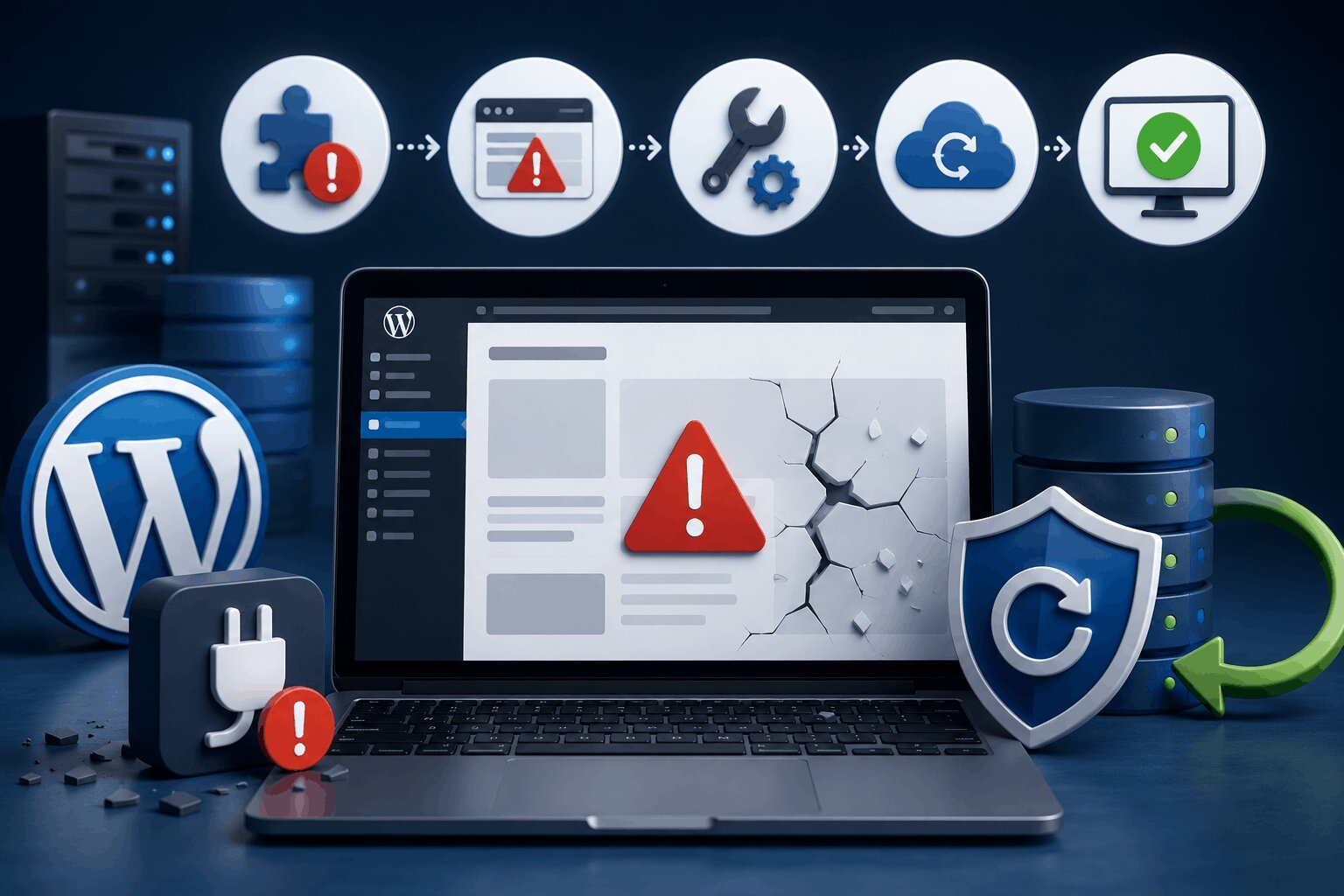
Plugin updates are a normal part of maintaining a WordPress website. They improve security, fix bugs, add features, and keep your website compatible with newer versions of WordPress.
But sometimes an update prevents your WordPress website from loading instead of solving them.
A plugin update can introduce compatibility conflicts, trigger PHP issues, interrupt existing functionality, or expose underlying problems that were already present in your website environment.
The symptoms can look different depending on what broke.
You might see a white screen, critical error messages, broken layouts, Elementor issues, WooCommerce functionality failing, plugin update failed errors, or even lose access to your WordPress admin dashboard entirely.
The good news is that most plugin update issues are recoverable.
The key is understanding what changed, identifying where the failure occurred, and applying the right fix instead of trying random troubleshooting steps.
Website problems? We fix it!
Get urgent website issues fixed in 24 hours.
First: Don’t Panic. Do These 5 Things Before Touching Anything
Random troubleshooting under pressure creates more problems. Before you start disabling plugins or clicking restore:
- Take a backup if your site or hosting dashboard is still accessible. A recovery point changes everything.
- Note exactly which plugin was updated. Timing matters. If Elementor updated and your layouts broke, that’s a different path than a WooCommerce update stopping checkout.
- Check your hosting server status. A hosting outage or PHP configuration change can look identical to a plugin failure.
- Clear every caching layer (CDN, plugin cache, browser cache). A surprising number of “broken site” situations are stale cache serving outdated files.
- Stop updating more plugins. Every additional change creates another variable and makes isolating the original failure harder.
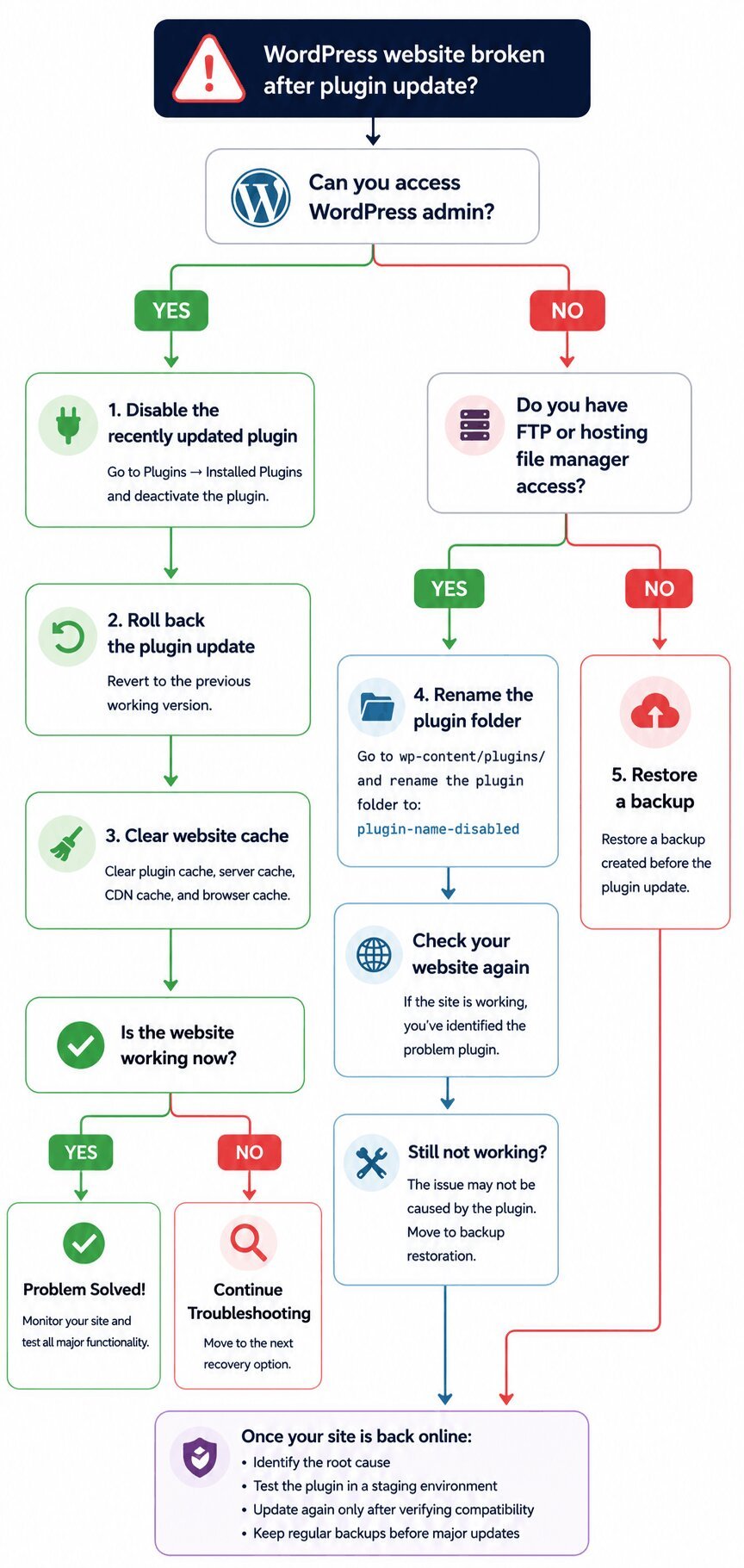
Quick Fix Flowchart
Identify What Actually Broke (Symptom-Based Troubleshooting)
The visible symptom usually points toward the cause. Start here before trying any fix.
White screen of death after plugin update
Likely causes: PHP fatal error, memory limit exhaustion, plugin conflict with another installed plugin or theme.
WordPress critical error message (“There has been a critical error on this website”)
Likely causes: Fatal plugin error, PHP version incompatibility, corrupted plugin files. WordPress may automatically send a Recovery Mode email to your admin address.
Elementor broke after plugin update
Likely causes: JavaScript conflict, cached CSS serving outdated assets, incompatibility between Elementor and a recently updated addon plugin.
WooCommerce checkout stopped working
Likely causes: Payment plugin conflict, failed database update, WooCommerce extension incompatibility. Investigate payment gateway plugins first.
WordPress admin dashboard won’t load
Likely causes: Plugin fatal crash, PHP memory exhaustion, resource limitations at the server level.
Site stuck in maintenance mode
Likely causes: Interrupted plugin update. Removing the .maintenance file from your WordPress root directory usually restores access immediately.
Fix #1: Use WordPress Recovery Mode
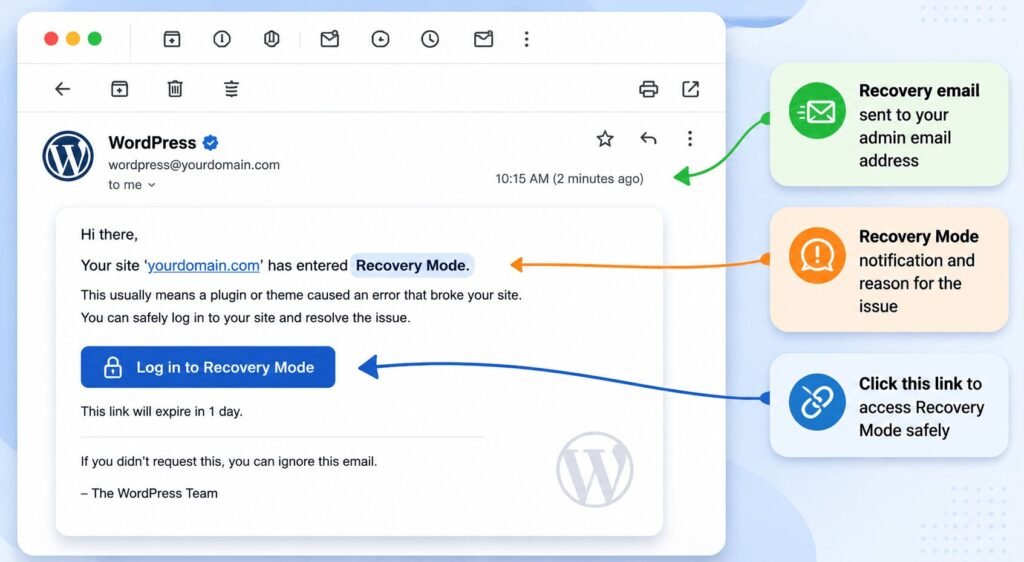
If WordPress detected a fatal error, check your admin email inbox for a Recovery Mode link. It temporarily isolates the failing component so you can access your dashboard without a full rollback.
Once inside Recovery Mode:
- Go to Plugins > Installed Plugins
- Deactivate the plugin that was updated before the issue appeared
- Reload your website and verify functionality returns
If no Recovery Mode email arrived, your WordPress email configuration may not be functioning, or the error wasn’t fatal enough to trigger it. Move to Fix #2.
Fix #2: Disable Plugins Manually
If the WordPress admin is inaccessible, you need to disable plugins directly through your files.
Using File Manager (fastest option)
- Log in to your hosting dashboard and open File Manager
- Navigate to public_html/wp-content/plugins/
- Find the folder for the plugin that was updated before the problem appeared
- Rename it (example: elementor to elementor-disabled)
WordPress detects the folder is missing and auto-deactivates the plugin. Test your site and admin access.
Using FTP
Connect via FTP (FileZilla or similar), navigate to wp-content/plugins/, and rename the same folder. Same result.
If disabling the obvious plugin doesn’t fix it, start disabling additional plugins one at a time, testing after each. Plugin compatibility conflicts often involve two plugins interacting, not just the one that updated.
Fix #3: Roll Back the Plugin Update
If disabling the plugin restores functionality, rolling back to a previous version gives you a stable site while you investigate why the update failed.
Using WP Rollback plugin (recommended when admin access is available)
- Install and activate WP Rollback
- Go to Plugins > Installed Plugins
- Find the affected plugin and click Rollback
- Select a previous stable version and confirm
Note: WP Rollback works with plugins in the official WordPress repository. Premium plugins require manual rollback.
Manual rollback via FTP
- Download the previous working version from the plugin developer’s archive or a pre-update backup
- Deactivate the current plugin
- Delete the plugin folder via FTP at wp-content/plugins/
- Upload the older version folder
- Activate through WordPress admin
After any rollback, clear all cache layers (plugin cache, CDN cache, browser cache, server cache) before testing. Verify forms, checkout, login, and Elementor pages specifically.
Important: Rollback is a recovery tool, not a permanent fix. Investigate the underlying compatibility issue before attempting the update again.
Website problems? We fix it!
Get urgent website issues fixed in 24 hours.
Fix #4: Restore a Website Backup
When multiple systems break at once or troubleshooting becomes too disruptive, restoring a backup is often faster than diagnosing the failure in a broken environment.
Hosting backup restore
Log into your hosting dashboard and look for Backups, Website Restore, or Backup Manager. Choose a restore point dated before the plugin update. Most hosting backup systems restore files, database, plugins, themes, and media uploads together.
Before restoring: confirm the backup predates the update, and create a fresh snapshot of the current broken state first in case you need it later.
Plugin-level snapshot restore
Some backup plugins (Updraft, BlogVault, Jetpack Backup) support restoring individual plugins or database components without replacing the entire site. This is useful when only one plugin caused the failure and the rest of the site is intact.
After any restore, clear all caching layers before testing.
Fix #5: Enable WordPress Debug Mode
When the cause isn’t obvious, debug logs often reveal it immediately.
Open wp-config.php (in your WordPress root directory via File Manager or FTP). Add these lines directly above /* That’s all, stop editing! Happy publishing. */:
define(‘WP_DEBUG’, true);
define(‘WP_DEBUG_LOG’, true);
define(‘WP_DEBUG_DISPLAY’, false);
Reload your site. WordPress will log errors to wp-content/debug.log.
Open that file and look for:
- PHP fatal errors – these stop WordPress execution entirely and commonly cause the white screen or critical error
- Deprecated function warnings – a plugin relying on functionality WordPress or PHP plans to remove; not always immediately breaking, but a signal of future risk
- Missing dependencies – a plugin requiring a file, class, or PHP extension that isn’t available in your hosting environment
Once you’ve identified the cause, disable debug mode on your production site:
define(‘WP_DEBUG’, false);
Fix #6: Fix File Permissions and PHP Memory
Two infrastructure problems frequently masquerade as plugin failures.
File permissions
WordPress needs write access to wp-content/plugins/ to install and update plugin files. Standard recommended permissions:
- Folders: 755
- Files: 644
If permissions became too restrictive after a migration, hosting change, or manual FTP upload, WordPress will fail to complete updates regardless of which plugin you’re updating. Check these via File Manager or FTP and correct them if needed. Also verify file ownership: if plugin files belong to a different server user than the one WordPress runs under, updates will fail even if permissions look correct.
PHP memory limits
Larger plugins (WooCommerce extensions, page builders, security plugins) can exhaust available PHP memory during updates. Look for Allowed memory size exhausted in your debug log.
To increase memory, add this to wp-config.php:
define(‘WP_MEMORY_LIMIT’, ‘256M’);
If this doesn’t take effect, your hosting provider may be enforcing a server-level restriction. Contact their support to confirm current memory allocation.
Fix #7: Update PHP Version
If a plugin update introduces code that requires a newer PHP version than your server is running, you may see critical errors, white screens, or fatal PHP errors immediately after updating.
Check your current PHP version at Tools > Site Health > Info > Server > PHP Version.
Common plugin compatibility requirements now reference PHP 8.1 or 8.2. If your server is running 7.4, compatibility failures become increasingly likely as plugins update to support newer PHP standards.
Before upgrading:
- Create a full site backup
- Check that your theme and all installed plugins support the target PHP version
- Test in a staging environment if available
Most hosting dashboards allow PHP version switching directly (look for PHP Selector, PHP Configuration, or MultiPHP Manager). After upgrading, clear all cache and test critical functionality.
Fix #8: Clear All Cache Layers
Sometimes a plugin update completes successfully, but old cached files continue serving outdated content. Before assuming a compatibility problem exists, eliminate the cache first.
Clear in this order:
- Hosting/server cache — look for Purge Cache or Clear Cache inside your hosting dashboard
- CDN cache — log into your CDN provider (Cloudflare, BunnyCDN, etc.) and purge everything
- Caching plugin cache (WP Rocket, W3 Total Cache, LiteSpeed Cache) — purge from inside WordPress admin
- Browser cache — test in an incognito window or use Ctrl+F5 (Windows) / Cmd+Shift+R (Mac)
- PHP OPcache — less common but relevant on higher-performance hosting. Ask your host to flush it if standard cache clearing doesn’t resolve the issue.
Elementor layout issues, missing CSS, and JavaScript failures after updates are disproportionately caused by stale cache rather than genuine plugin conflicts.
Fix #9: Reinstall the Plugin Manually
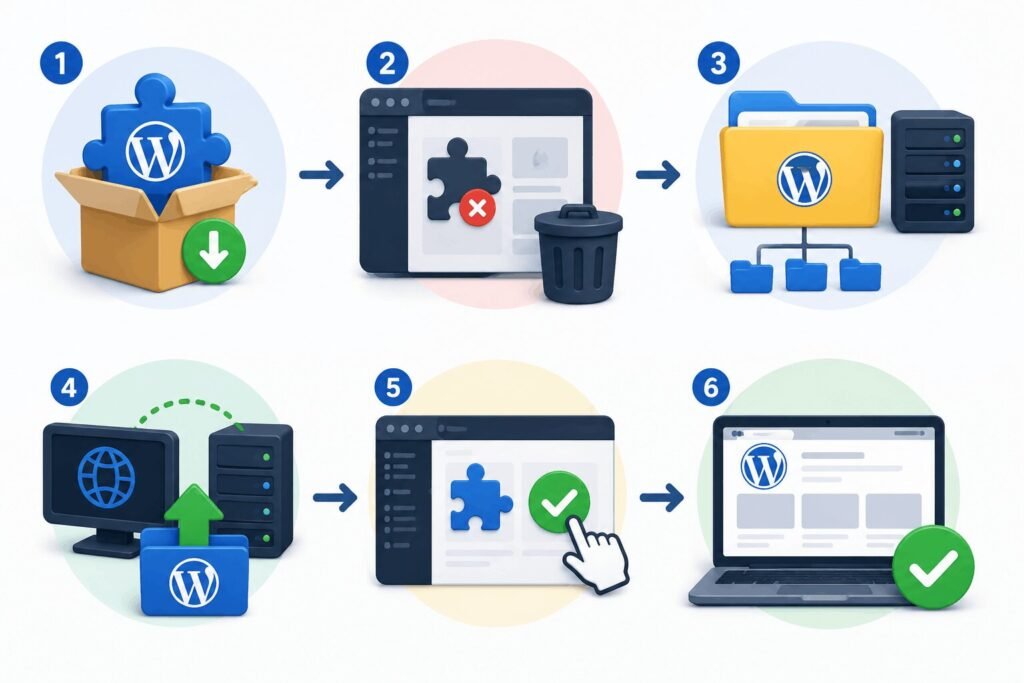
If a plugin update was interrupted or files became corrupted during installation, the plugin may be loading incomplete code. Manual reinstallation removes damaged files and starts clean.
- Download a clean copy of the plugin from the official WordPress repository or the developer’s portal. For free plugins, always download directly from WordPress.org. For premium plugins, use the developer’s account portal.
- Remove the broken plugin folder via FTP or File Manager at wp-content/plugins/. Rename it first as a temporary backup while testing, then delete once confirmed.
- Upload the clean plugin folder to wp-content/plugins/ via FTP. Allow the upload to complete fully before activating.
- Activate the plugin from WordPress admin and test functionality.
Clear all cache layers after reinstalling. If plugin settings stored in the database are intact, they should persist through file replacement.
Plugin-Specific Recovery Fixes
Different plugins interact with WordPress in different ways. Here are targeted recovery steps for the most common update failures.
Elementor update broke website
- Regenerate Elementor CSS (Elementor > Tools > Regenerate Files & Data)
- Clear all cache layers (plugin cache, hosting, CDN)
- Disable Elementor addon plugins temporarily to isolate conflicts
- Verify PHP memory is sufficient (Elementor recommends 256MB+)
- Roll back Elementor if compatibility with an addon isn’t resolvable quickly
WooCommerce update failed
- Check WooCommerce > Status for any pending database update notices and run them
- Disable payment gateway plugins temporarily and test checkout
- Review server resources: WooCommerce updates are resource-intensive
- Restore a backup if order processing is affected — downtime here has direct revenue impact
WP Rocket update problems
- Clear WP Rocket cache completely from the plugin dashboard
- Disable JavaScript and CSS minification temporarily
- Purge CDN cache separately
- Test in private browsing mode to rule out browser cache
Yoast SEO / Rank Math update conflict
- Clear all cache layers first — SEO plugin issues are often cache-related
- Verify sitemap is still generating correctly
- Check schema markup output on key pages
- Review debug logs for PHP warnings if sitemap or metadata issues persist
Contact form plugin errors (Contact Form 7, WPForms, Gravity Forms)
- Submit a test form immediately after any update — contact form failures are silent
- Check SMTP configuration is still intact
- Disable caching on form pages temporarily
- Review browser console for JavaScript errors on the form page
When Rolling Back Is NOT Recommended
Rolling back a plugin is an effective recovery tool, but not always the right one. Three situations require additional caution:
Security updates
Rolling back restores the vulnerability the update was designed to patch. This is especially critical for plugins handling user accounts, login, payments, or file uploads. If a security update breaks functionality, investigate alternatives before relying on a permanent rollback.
Payment plugins
Payment providers regularly update API requirements and security compliance standards. An older plugin version may process transactions but operate outside current platform requirements, creating subtle failures or failed compliance checks.
Database migration updates
Some plugin updates modify database structure directly. Rolling back the plugin files after a database migration has already run creates an inconsistency: the old code now tries to operate against a schema built for the new version. In these cases, a full backup restore is safer than plugin rollback alone.
What to Do If WordPress Plugins Are Not Updating
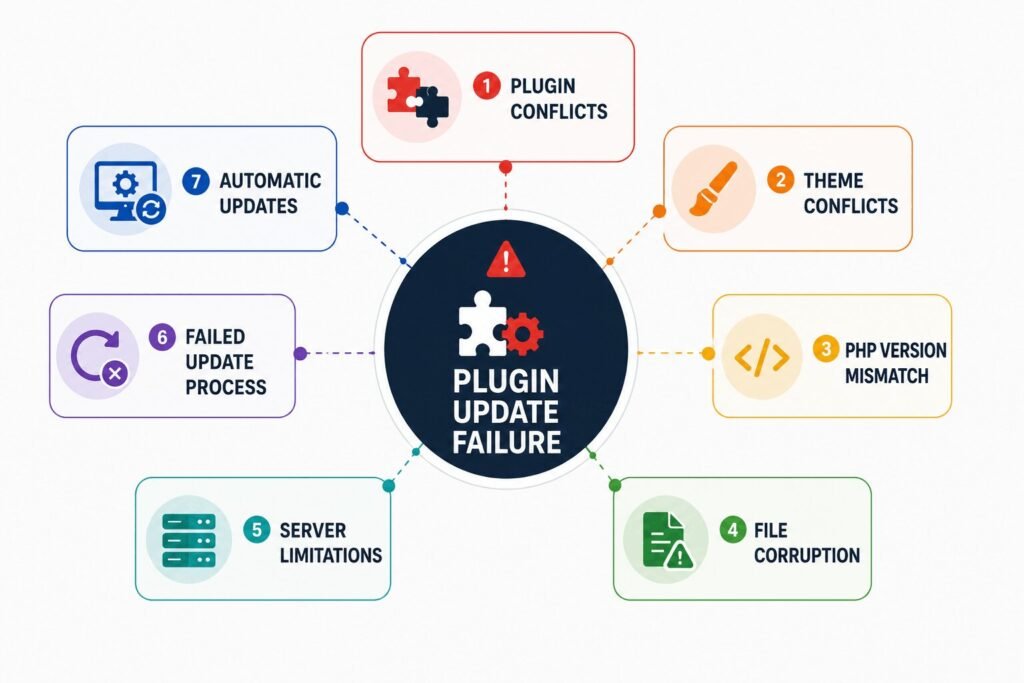
If plugin updates aren’t completing at all, the issue is usually one of four things:
File permissions – WordPress can’t write to its own plugin directory. Check that wp-content/plugins/ has 755 permissions and is owned by the correct server user.
Hosting resource limits – PHP memory, execution time, or PHP worker limits can cause updates to stall or time out. Check with your hosting provider if updates fail repeatedly on larger plugins.
Plugin file corruption – an interrupted previous update may have left incomplete files. Disable the plugin, remove the folder, download a fresh copy, and reinstall manually.
Manual update as a bypass – if automatic updates keep failing, update manually via FTP (see Fix #9). This bypasses the WordPress update mechanism entirely and often resolves issues caused by hosting restrictions or connection timeouts.
Avoid clicking the update button repeatedly when updates fail. Each attempt can leave the plugin in a partially updated state that’s harder to diagnose.
The Safe Plugin Update Framework
Prevention matters more than recovery. Most plugin update failures are predictable and avoidable with a consistent process.
Before every update:
- Check the changelog. Version 5.4.1 to 5.4.2 is usually maintenance. Version 5.x to 6.0 may involve structural changes, database migrations, or new PHP requirements.
- Create a full backup. Database, files, plugins, themes, uploads.
- Use a staging site if your site runs WooCommerce, a membership system, or complex plugin dependencies. Test updates there before touching production.
- Update one plugin at a time. Bulk updates make failures impossible to isolate.
- Test critical functionality after each update — forms, checkout, login, Elementor pages, mobile responsiveness.
- Monitor debug logs in the hours after updates. Some failures surface under specific conditions, not immediately.
How Long Does It Usually Take to Fix Plugin Update Issues?
| Problem | Typical Fix Time |
| Plugin conflict | 5–15 minutes |
| Plugin rollback | ~10 minutes |
| Backup restore | 15–30 minutes |
| Database issue | 30–60+ minutes |
The time table above assumes you’ve already identified the root cause. Diagnosis adds time when symptoms are ambiguous, multiple plugins are involved, or the failure is at the infrastructure level rather than the plugin itself.
When to Hire a WordPress Developer
Structured troubleshooting resolves most plugin update failures. But there’s a point where continued trial-and-error becomes counterproductive.
Consider bringing in professional help when:
- Database corruption is suspected – missing content, failed migration notices, or admin errors pointing to database tables
- Multiple plugins fail simultaneously – points to an environmental problem (PHP version, hosting configuration, resource exhaustion) rather than a single plugin issue
- WooCommerce revenue is affected – checkout failures justify faster escalation than aesthetic issues; every hour of downtime has a direct cost
- Site remains inaccessible after all standard fixes – Recovery Mode, plugin deactivation, backup restore, debug mode, and cache clearing have all been attempted without success
Website problems? We fix it!
Get urgent website issues fixed in 24 hours.
Frequently Asked Questions
The most common causes are plugin compatibility conflicts, outdated PHP versions, failed or interrupted update processes, and corrupted plugin files. Less often, the issue originates at the hosting level rather than in the plugin itself.
Use the WP Rollback plugin if admin access is available and the plugin is in the WordPress repository. For premium plugins or inaccessible admin areas, restore a pre-update backup or manually install an older version via FTP.
Yes. Plugin updates can introduce compatibility conflicts with other plugins, themes, or your PHP version, or fail mid-process and leave corrupted files behind.
File permission problems, hosting resource limits, and plugin file corruption are the most common causes. Manual FTP installation bypasses most of these issues.
In many cases, yes. Recovery Mode, plugin rollback, FTP-based plugin deactivation, and debug mode can recover a site without a backup. But a backup is always faster and lower risk.
Start with the Recovery Mode email. If unavailable, disable the updated plugin via FTP or File Manager. Enable debug mode to identify the specific error. Restore a backup if the issue involves database corruption or multiple simultaneous failures.
Conclusion
Plugin updates are a necessary part of maintaining a secure and reliable WordPress website. They deliver security improvements, compatibility updates, bug fixes, and new functionality that keep your website performing properly over time.
But updates do not always go smoothly.
A plugin update can trigger compatibility conflicts, PHP issues, failed update processes, caching problems, resource limitations, or expose weaknesses that already existed within your WordPress environment.
The most important step is avoiding random troubleshooting.
Start by identifying what actually broke.
Look at the symptoms.
A white screen, WooCommerce checkout failure, Elementor issue, critical error message, or inaccessible admin dashboard can often point toward the underlying cause much faster than trial and error fixes.
From there, work through recovery systematically.
Use Recovery Mode when available. Disable plugins manually if necessary. Roll back updates safely. Restore backups when recovery becomes disruptive. Review debug logs, server resources, and hosting limitations when problems become more complex.
Most importantly, build a safer update process moving forward.
Create backups before every update. Test changes in staging environments. Update plugins one at a time. Monitor logs. Verify critical website functionality. Treat plugin maintenance as an operational process rather than a reactive task.
Plugin failures can happen on any WordPress website.
The important thing is having a structured recovery process that helps you diagnose issues faster, apply the right fix confidently, and reduce the risk of future failures.