
WordPress plugins make it easy to add features to your website without writing custom code. But what happens when a plugin stops working, refuses to activate, or breaks your website after an update?
If your WordPress plugin is not working, the cause could be a plugin conflict, outdated software, incompatible PHP versions, incorrect file permissions, or a server configuration problem. Sometimes, a plugin may appear to work correctly while silently preventing another feature from functioning.
The good news is that you can troubleshoot most plugin problems without rebuilding your website or losing your existing content.
In this guide, you’ll learn how to identify the cause of a WordPress plugin failure and follow nine practical steps to fix it safely.
Why WordPress Plugin Is Not Working?
Before changing anything, identify what is happening. Different symptoms often point to different underlying problems.
Here are some common reasons why WordPress plugins stop working.
- Plugin conflicts: Two plugins may use incompatible scripts, libraries, or functions, causing one or both to malfunction.
- Theme conflicts: Your active theme may interfere with a plugin’s functionality.
- Outdated software: An outdated plugin may not work correctly with your current WordPress or PHP version.
- Failed updates: An interrupted plugin update can leave files incomplete or the plugin in an inconsistent state.
- PHP compatibility issues: A plugin may rely on PHP functions or language features that aren’t supported by your server’s PHP version.
- Caching problems: Browser, server, or CDN caches may display outdated content or prevent recent changes from appearing.
- Incorrect file permissions: WordPress may be unable to read plugin files or write to the directories required for updates.
- Server resource limits: Insufficient PHP memory, execution timeouts, or other server restrictions may prevent a plugin from completing its tasks.
- Configuration errors: Incorrect settings, missing dependencies, or an unavailable external service can interfere with plugin functionality.
Understanding the symptoms will help you choose the right troubleshooting method instead of making random changes.
Website problems? We fix it!
Get urgent website issues fixed in 24 hours.
9 Ways to Fix WordPress Plugins Not Working
Follow these troubleshooting steps in order. You may not need to complete all nine, so stop once you’ve identified and resolved the problem.
1. Check for WordPress Plugin Conflicts

A plugin conflict occurs when two or more plugins interfere with each other’s functionality. It can also happen when a plugin conflicts with your WordPress installation or active theme.
Common symptoms include broken forms, missing website elements, failed checkout processes, JavaScript errors, and features that stop working after installing a new plugin.
If a plugin conflict prevents your entire website from loading, follow our guide on how to fix a WordPress site that isn’t loading to troubleshoot the underlying problem.
Here’s how to check for a WordPress plugin conflict.
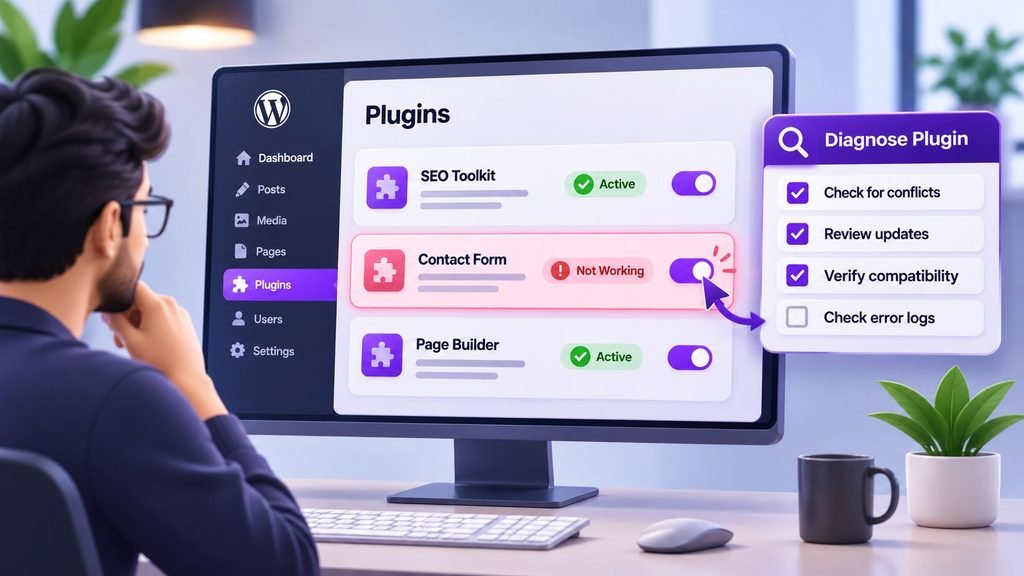
Step 1: Back up your website.
Create a recent backup of your website files and database before disabling plugins or changing configurations.
If possible, perform the test on a staging website rather than your live website.
Step 2: Deactivate your plugins.
Open your WordPress dashboard and navigate to Plugins → Installed Plugins.
Select the plugins, choose the bulk action to deactivate them, and apply it.
If your website relies on critical functionality such as payments, memberships, bookings, or forms, avoid disabling everything on a live site without a maintenance plan.
Step 3: Test the affected functionality.
Check whether the problem disappears when the plugins are deactivated.
If it does, reactivate the plugins one at a time, testing the affected functionality after each activation.
When the problem returns, investigate the most recently activated plugin and its interaction with other components.
Step 4: Test for theme conflicts if necessary.
If you cannot identify a plugin conflict, test with a default WordPress theme on a staging site.
If the problem disappears, investigate your original theme and any custom code it contains.
What if you cannot access the WordPress dashboard?
If a plugin conflict has locked you out of WordPress, you may need to deactivate the suspected plugin through your hosting file manager or SFTP.
Navigate to wp-content/plugins/ and rename the directory belonging to the suspected plugin. WordPress will generally treat the plugin as unavailable and deactivate it.
Restore the original directory name once you’ve completed your investigation, then check the plugin’s status in WordPress.
Avoid renaming the entire plugins directory unless you understand the consequences. Doing so can disable every plugin on your website.
2. Deactivate and Reactivate the Problematic Plugin
Sometimes a plugin stops responding because of a temporary error or an incomplete initialization process.
If you’ve identified the problematic plugin, try deactivating and reactivating it.
- Navigate to Plugins → Installed Plugins.
- Locate the affected plugin.
- Click Deactivate.
- Wait a few seconds.
- Click Activate.
- Test the functionality that wasn’t working.
This process can help when a plugin hasn’t initialized correctly.
However, deactivation and reactivation won’t fix every problem. Some plugins perform actions during activation, and others may remove scheduled tasks or temporarily interrupt functionality when deactivated.
Before trying this with a complex plugin, check its documentation and make sure you have a backup.
If reactivation doesn’t resolve the issue, move on to the next troubleshooting step rather than repeatedly toggling the plugin.
3. Update WordPress, Your Plugins, and PHP
Outdated software is another common reason WordPress plugins stop working.
A plugin may depend on functionality introduced in a newer WordPress version. Alternatively, an update may introduce a compatibility issue with your current PHP version or another plugin.
Start by checking for available updates.
Update WordPress and your plugins:
- Open Dashboard → Updates.
- Review available WordPress, plugin, and theme updates.
- Check the changelog and compatibility information for the affected plugin.
- Back up your website.
- Apply updates in a controlled order, preferably on a staging site.
- Test the affected functionality after each significant change.
Check your PHP version:
Navigate to Tools → Site Health → Info → Server to find your current PHP version.
Compare it with the requirements of your WordPress installation, theme, and affected plugins.
If your PHP version is outdated, discuss an upgrade with your hosting provider. Before changing PHP versions, verify that your website’s software supports the target version.
If the plugin stopped working immediately after an update, the update itself may be responsible. Check the plugin’s changelog, error logs, and compatibility notes before deciding whether to roll back.
Avoid keeping WordPress, plugins, or PHP permanently outdated as a workaround. Resolve the compatibility issue instead.
4. Clear Your Website and Browser Cache
Have you updated a plugin, but the changes aren’t appearing on your website?
The problem might be caching rather than a plugin malfunction.
WordPress websites can use several layers of caching:
- Browser caching
- WordPress caching plugins
- Hosting-level page caching
- Server-side object caching
- Content delivery network (CDN) caching
Cached files may prevent you from seeing updated styles, scripts, or page content.
To troubleshoot the issue:
- Open your website in a private or incognito browser window.
- Hard-refresh the page to bypass the browser cache.
- Clear the cache in your WordPress caching plugin.
- Purge your hosting cache if your provider offers one.
- Purge your CDN cache if you’re using a service such as Cloudflare.
- Test the affected functionality again.
If the plugin works in a private browser window but not in your regular browser, investigate browser caching, cookies, extensions, and stored site data.
Important: Caching is only one possible cause. If the plugin still fails after clearing the relevant caches, continue troubleshooting rather than repeatedly purging them.
5. Check Plugin Compatibility and Requirements
Not every plugin works with every WordPress configuration.
Before installing or updating a plugin, check its compatibility information and technical requirements.
Look for the following:
- Minimum and recommended WordPress versions
- Required PHP version
- Required PHP extensions
- Dependencies on other plugins
- Compatibility with your active theme
- Known conflicts with other installed plugins
- Requirements for external services or API integrations
For plugins from the official WordPress directory, you can review the plugin’s page for compatibility information, support discussions, and changelog details.
For premium plugins, check the developer’s documentation and support resources.
If a plugin depends on another plugin or service, verify that the dependency is installed, active, and configured correctly.
For example, an extension built for WooCommerce may not function as expected if WooCommerce is inactive or configured incorrectly.
If the plugin is abandoned or incompatible with your current environment, consider replacing it with a maintained alternative.
Don’t install an unofficial or modified copy of a premium plugin simply to avoid a compatibility problem. That can introduce security risks.
6. Fix Plugin Installation and File Permission Problems
If a WordPress plugin fails to install, update, or load its files, the problem may involve an incomplete installation or incorrect file permissions.
Start by checking the error message displayed during installation or activation.
For example, an update that fails because WordPress cannot write to a directory may indicate a file ownership or permission problem.
Here’s what to investigate:
Check the plugin directory.
Using your hosting file manager or SFTP, navigate to:
wp-content/plugins/
Confirm that the affected plugin’s directory and files exist.
If an update was interrupted, some files may be missing or incomplete.
Check file permissions and ownership.
WordPress needs appropriate access to read plugin files and perform updates.
Common starting points for standard hosting environments are:
- Directories: 755
- Files: 644
These are typical defaults, not universal requirements. Your hosting environment and security configuration may require different settings.
Incorrect file ownership can also prevent updates even when permissions appear correct.
Ask your hosting provider to investigate if you’re unsure how your server handles ownership and permissions.
Reinstall the plugin if necessary.
If the plugin installation is corrupted, download a clean copy from its official source.
Back up your website first. Before reinstalling, check whether the plugin stores important configuration or data in its own database tables, and confirm that the reinstall process won’t remove them.
Never delete plugin directories or recursively change permissions across your entire WordPress installation without understanding the consequences.
7. Troubleshoot WordPress Plugins That Won’t Activate
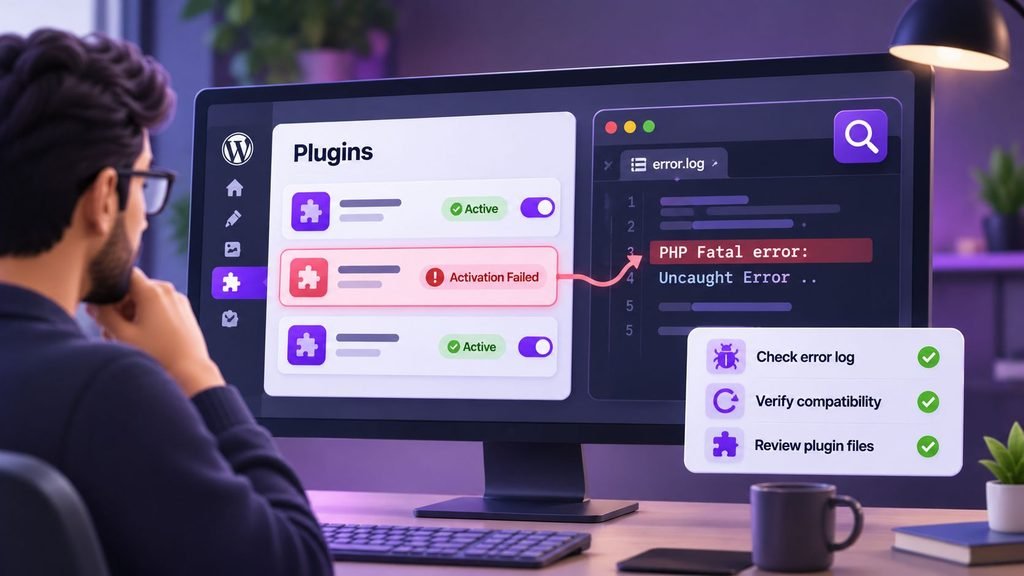
Sometimes, a plugin installs successfully but displays an error when you try to activate it.
If activating a plugin triggers a critical error on your website, follow our guide on how to fix the WordPress critical error for additional troubleshooting steps.
This usually means WordPress encountered a problem while loading the plugin or executing its activation code.
Possible causes include PHP fatal errors, missing dependencies, incompatible PHP versions, or incomplete plugin files.
Here’s how to investigate.
Check the activation error.
Read the error message carefully. It may identify a missing function, undefined class, incompatible PHP feature, or file that cannot be loaded.
If WordPress displays a critical error, follow any recovery instructions provided in the message.
Enable debugging if necessary.
If you have access to your WordPress files, you can enable logging in wp-config.php:
define( ‘WP_DEBUG’, true );
define( ‘WP_DEBUG_LOG’, true );
define( ‘WP_DEBUG_DISPLAY’, false );
Add these settings before the line that says /* That’s all, stop editing! Happy publishing. */.
If the constants are already defined, edit their existing definitions rather than adding duplicates.
Reproduce the problem and inspect wp-content/debug.log, if logging is available and configured correctly.
On some hosting environments, errors may instead appear in the server’s PHP error log.
Important: Debug logs can contain sensitive information, including file paths and data exposed by faulty code. Restrict access to logs and disable debugging when you’re finished troubleshooting on a production website.
Check the plugin’s requirements.
If the error references a missing PHP function or class, verify that the required plugin dependencies and PHP extensions are available.
If the issue persists, share the relevant error message with the plugin developer or your hosting provider.
Avoid changing PHP settings or editing plugin files blindly. Fixing the underlying error is more reliable than suppressing it.
8. Fix WordPress Plugins That Won’t Load or Update
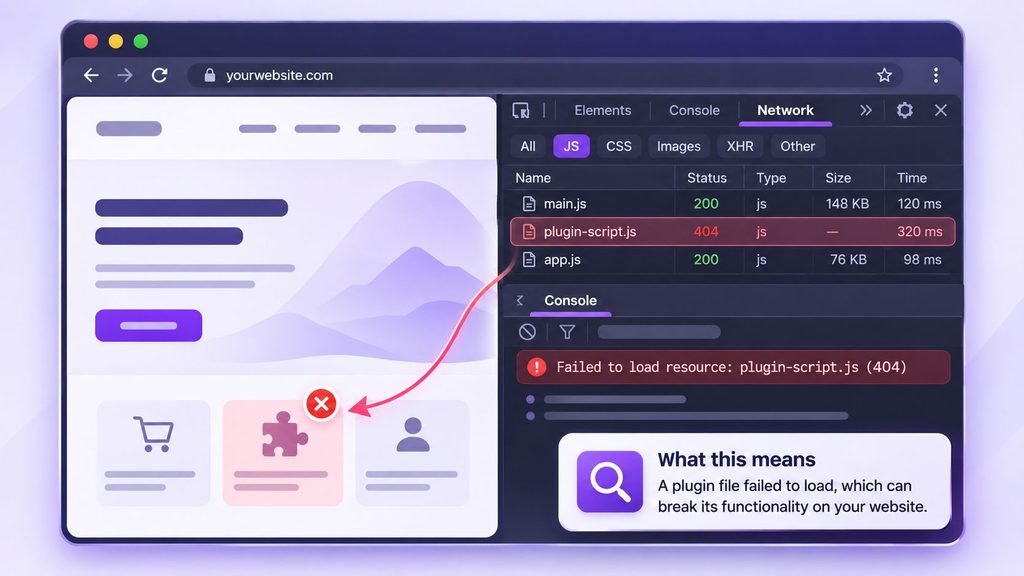
A plugin can be active in your WordPress dashboard but still fail to load its scripts, complete an update, or perform its intended function.
The solution depends on where the failure occurs.
If a plugin’s scripts or styles aren’t loading:
- Open your browser’s developer tools.
- Select the Console tab.
- Look for JavaScript errors.
- Check the Network tab for failed requests.
- Verify that the affected CSS and JavaScript files return successful responses.
- Investigate mixed-content warnings, blocked requests, and incorrect file paths.
In case your browser reports mixed-content errors or problems loading resources over HTTPS, our guide on how to fix the website not secure error can help you investigate the issue.
If the browser reports a JavaScript error, identify the script responsible before assuming the plugin itself is broken. Another plugin or your theme may be interfering.
If a plugin update fails:
- Check whether your hosting account has sufficient disk space.
- Verify that WordPress can write to the required directories.
- Check whether a security rule or firewall is blocking the update request.
- Review the hosting error logs for permission or timeout errors.
- Check the plugin developer’s documentation for known update problems.
If you see a timeout or gateway error, the problem may originate from the server or an external service rather than the plugin code.
Avoid repeatedly clicking Update when the installation is failing. Check the error first so you don’t make a partially completed update worse.
Website problems? We fix it!
Get urgent website issues fixed in 24 hours.
9. Restore a Working Version or Investigate Server Errors
If the plugin worked before a recent change, restoring the previous working state may be the quickest way to recover your website.
However, first determine whether the failure comes from the plugin, your server, or another component.
Review your error logs.
Check the WordPress debug log and your hosting provider’s PHP error logs for messages recorded when the problem occurred.
Look for references to the affected plugin’s directory or files.
Check server resources.
Some plugins perform intensive operations such as importing products, processing images, generating reports, or synchronizing external data.
If the server runs out of memory or reaches an execution timeout, the operation may fail.
Your hosting provider can help determine whether the server’s resource limits are contributing to the problem.
Roll back the plugin if appropriate.
If a recent plugin update introduced the issue, check whether the developer offers a supported rollback option or whether you can restore the previous version from a backup.
Before rolling back, verify that the older version is compatible with your WordPress installation and doesn’t contain a known security vulnerability.
Back up your current website before restoring an earlier version. If the plugin changes its database structure during an update, restoring only the plugin files may not be sufficient.
If the problem affects your entire website and you cannot isolate the cause, consider restoring a known-good backup or asking a WordPress developer to investigate.
The goal is to restore the website without introducing further compatibility or security problems.
How to Prevent WordPress Plugin Problems

Fixing a broken plugin is useful, but preventing the same issue from happening again is even better.
Follow these practices to reduce the likelihood of future plugin failures.
Keep WordPress and Your Plugins Updated
Install security and compatibility updates promptly, but test significant changes on a staging website whenever possible.
Before updating a critical plugin, review its changelog and compatibility requirements.
Use Plugins From Trusted Sources
Install plugins from the official WordPress directory or reputable developers.
Check recent updates, support activity, compatibility information, and user feedback before adding a new plugin.
Avoid abandoned plugins when a maintained alternative is available.
Avoid Installing Unnecessary Plugins
Every additional plugin introduces code, dependencies, and potential maintenance requirements.
Remove plugins you no longer need, but deactivate and delete them carefully after confirming that they aren’t required by another feature.
Don’t assume that installing more plugins will automatically make your website better.
Maintain Regular Backups
Keep recent backups of your website files and database.
For important websites, maintain a backup outside your primary hosting environment and periodically verify that restoration works.
A backup is only useful if you can recover your website when something goes wrong.
Test Changes Before Deploying Them
Use a staging environment to test plugin updates, new integrations, and major configuration changes.
This is particularly important for WooCommerce stores, membership websites, booking systems, and websites that depend on lead-generation forms.
Testing before deployment helps identify conflicts without disrupting the live website.
Frequently Asked Questions
WordPress plugins may stop working because of plugin conflicts, outdated software, PHP compatibility issues, incomplete updates, caching problems, or server configuration errors. Identify the specific symptom and check recent changes before modifying your website.
Deactivate the suspected plugin on a staging website and test the affected functionality. If the problem disappears, reactivate plugins individually to identify the conflict. If necessary, test with a default WordPress theme and review browser or server error logs.
A plugin may fail to activate because of a PHP fatal error, missing dependency, incompatible software version, incomplete installation, or file permission problem. Review the activation error and your PHP logs to identify the underlying cause.
If an installed plugin isn’t appearing in your WordPress dashboard, check whether you’re using an account with sufficient permissions, whether the plugin files are present in the correct directory, and whether the installation completed successfully. Multisite installations and hosting configurations can also affect which plugins are visible or manageable.
Yes. A plugin conflict can trigger a PHP fatal error, disrupt essential functionality, or make parts of your website inaccessible. Before disabling plugins or changing files, create a backup and use a staging environment whenever possible. If you cannot access the dashboard, your hosting file manager or SFTP may help you deactivate the problematic plugin.
Start by checking the error message and server logs. If the dashboard is accessible, deactivate plugins one at a time and test the affected functionality after each change. On a staging website, you can also use a plugin conflict troubleshooting tool to help isolate the problem.
Reinstalling a plugin can help if its files are corrupted or incomplete, but it won’t necessarily resolve conflicts, server errors, or compatibility problems. Back up your website and verify whether the plugin stores important settings or data before reinstalling it.
Check the plugin’s changelog and compatibility requirements, then inspect the error logs for failures introduced by the update. If necessary, use a supported rollback method or restore a known-good version. Avoid keeping vulnerable software installed simply because an older version works.
Conclusion
When WordPress plugins aren’t working, the most effective solution is to identify the underlying cause instead of repeatedly deactivating, reinstalling, or updating plugins.
Start by checking for plugin conflicts, reviewing recent changes, and confirming compatibility. If the problem persists, investigate file permissions, PHP errors, browser requests, and server resources.
Always back up your website before making significant changes, and use a staging environment whenever possible.
If you’ve tried these steps and your website is still experiencing problems, a WordPress developer can help isolate the issue and restore the affected functionality without unnecessary changes to the rest of your website.