
Website speed has become one of the most important factors affecting SEO, user experience, and online conversions. A slow-loading website not only frustrates visitors but also reduces engagement, increases bounce rates, and limits visibility in search engines. Google increasingly prioritizes fast, responsive websites through ranking systems like Core Web Vitals, making performance optimization essential for businesses that rely on organic traffic and lead generation.
For WordPress websites, performance issues are especially common because speed is influenced by multiple layers of the website stack. Hosting infrastructure, plugins, themes, page builders, images, databases, third-party scripts, and caching configurations all contribute to how quickly a website loads. In many cases, a WordPress website becomes slow not because of a single issue, but because several small inefficiencies accumulate over time and create significant performance bottlenecks.
One of the biggest challenges with WordPress optimization is that symptoms often appear similar while the underlying causes are completely different. A slow website may be caused by overloaded hosting, poorly optimized plugins, excessive JavaScript, database bloat, unoptimized images, or even external marketing scripts. Without identifying the actual bottleneck, many website owners end up installing random optimization plugins or applying unnecessary fixes that fail to improve performance.
This guide breaks down the 11 most common reasons WordPress websites become slow and explains how to diagnose and fix each issue properly. From hosting and caching to Elementor, WooCommerce, databases, and Core Web Vitals, this article covers both foundational optimization practices and deeper performance considerations that directly affect website speed, SEO rankings, and user experience.
WordPress Website Fix
All minor issues fixed in 24 hours.
How to Diagnose a Slow WordPress Website
Before optimizing a slow WordPress website, it is important to identify what is actually causing the slowdown. Many website owners immediately install caching plugins, compress images, or switch themes without properly diagnosing the root issue. While these optimizations can help, they often fail to solve the real performance bottleneck because WordPress speed problems can originate from multiple layers of the website stack.
A slow website may be caused by overloaded hosting infrastructure, poorly optimized frontend assets, database inefficiencies, excessive plugin activity, or third-party scripts that delay rendering. In many cases, several issues compound together and gradually reduce website performance over time. Proper diagnosis is what separates effective optimization from trial-and-error troubleshooting.
If your website fails to load altogether instead of simply performing slowly, the issue may involve server errors, DNS failures, or critical WordPress conflicts. In that case, this guide on fixing a WordPress site that is not loading covers deeper troubleshooting steps.
The first step is understanding how your website performs under real-world conditions and which metrics indicate performance problems.
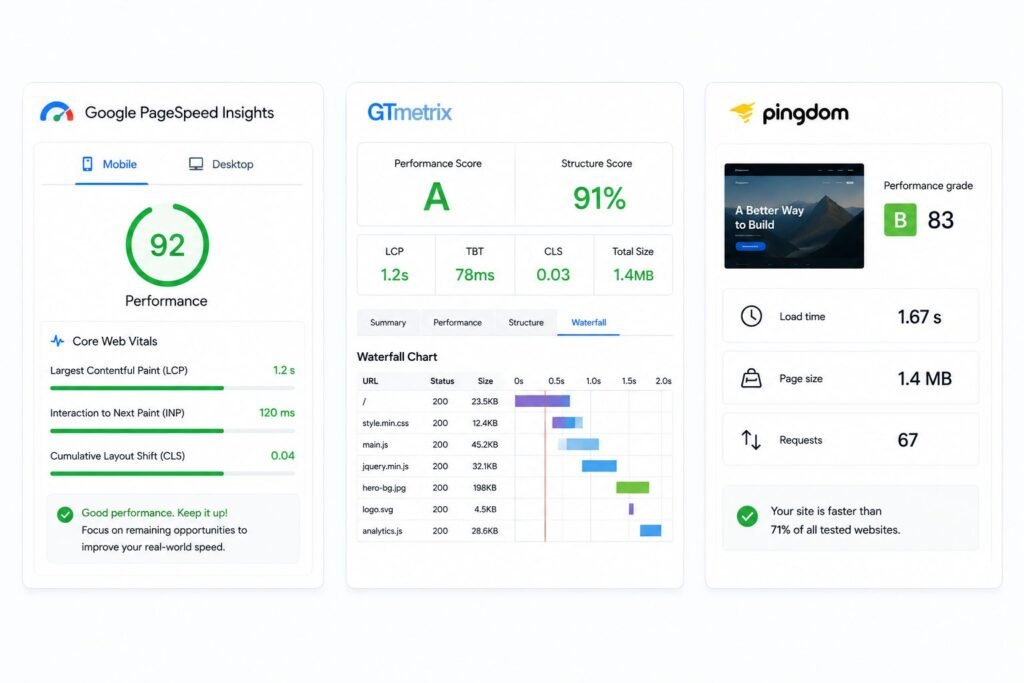
Google PageSpeed Insights evaluates your website against Google’s Core Web Vitals metrics and gives recommendations based on real-world user data. It is particularly useful for identifying render-blocking resources, slow Largest Contentful Paint, unused JavaScript, and mobile performance issues.
GTmetrix generates a waterfall report that shows every request the browser makes while loading your page, how long each one takes, and what depends on what. When a single slow request is holding back everything else, the waterfall makes it visible immediately.
Pingdom provides a simpler overview of total load time, page size, and request count. It is useful for a quick baseline reading before going deeper with the other tools.
The Four Categories of WordPress Performance Problems
Once you have data from a speed test, the next step is categorizing the problem correctly.
A server issue shows up as consistently high TTFB (Time to First Byte), meaning the server is responding slowly before the browser has even started loading anything. The website feels slow even with caching enabled, and performance often drops during peak hours.
A frontend issue appears in PageSpeed Insights as warnings about render-blocking resources, unused CSS or JavaScript, or excessive DOM size. The server is responding quickly, but the browser is struggling to render the page efficiently.
A plugin issue typically shows up as a slow WordPress admin dashboard, high memory usage, long PHP execution times, or excessive AJAX requests identified in GTmetrix. Plugins are doing more work than they should, and it is affecting both the frontend and backend.
A database issue develops gradually on older websites and WooCommerce stores. Query times increase, backend processing slows down, and the website becomes harder to cache effectively as unnecessary data accumulates.
Getting this diagnosis right before changing anything is what separates effective optimization from guesswork.
11 Common Causes of Slow WordPress Websites
WordPress websites rarely become slow because of a single issue. In most cases, performance problems develop gradually as websites grow in complexity, traffic, content volume, and functionality. Plugins accumulate, themes become heavier, databases expand, third-party scripts increase, and hosting limitations become more noticeable over time. Eventually, these small inefficiencies combine into a noticeably slower website experience.
One of the reasons WordPress performance optimization is often misunderstood is because slow websites can have very different underlying causes while producing similar symptoms. Two websites may both load slowly, but one may be limited by weak hosting infrastructure while the other suffers from excessive frontend scripts, database bottlenecks, or poorly optimized plugins.
This is why diagnosing the real source of the slowdown is more important than applying random “speed optimization” fixes. Installing multiple caching plugins, minifying assets, or disabling features without understanding the actual bottleneck can sometimes create additional conflicts and make performance even worse.
The following sections break down the most common causes of slow WordPress websites, how each issue affects performance, and what can be done to fix it properly. These issues range from hosting and server limitations to frontend rendering problems, page builders, WooCommerce bottlenecks, database inefficiencies, and third-party scripts that silently impact loading speed.
Understanding how these performance bottlenecks work is essential not only for improving load times, but also for maintaining better Core Web Vitals, search visibility, user experience, and long-term website scalability.
1. Cheap or Overloaded Web Hosting
Hosting is the foundation on which everything else runs, and it is the most frequently overlooked cause of poor WordPress performance. On shared hosting plans, your website competes for CPU, memory, and bandwidth with every other website on the same server. When one of those websites experiences a traffic spike, yours slows down too.
Signs your hosting is the problem:
- Slow WordPress admin dashboard without heavy plugins
- TTFB above 800ms consistently
- Slow website even with caching active
- Performance drops during peak hours
How to fix it: Upgrade to managed WordPress hosting or a VPS with LiteSpeed or NGINX, server-level caching, and a modern PHP version. For WooCommerce websites, especially, hosting quality directly determines scalability.
2. Too Many Plugins or Poorly Coded Ones
The number of plugins installed is not what determines speed. A website running 40 lightweight, well-maintained plugins can outperform one running 10 bloated ones. The problem is plugins that load scripts and stylesheets on every page regardless of whether they are needed, run heavy database queries in the background, or generate continuous AJAX requests that bypass caching.
Common culprits: Slider plugins, social sharing tools, analytics integrations, popup builders, security scanners, and WooCommerce extensions.
How to fix it: Audit plugins with Query Monitor to identify which ones generate the most database queries or PHP execution time. Remove anything inactive. Replace heavy tools with lightweight alternatives. Disable plugin assets on pages where they’re not needed.
3. Unoptimized Images
On most WordPress websites, images account for the largest share of total page weight. A homepage banner uploaded directly from a camera at 5,000 pixels wide, displayed at 1,920 pixels, forces every visitor to download significantly more data than the page actually requires.
This directly affects Largest Contentful Paint, one of Google’s three primary Core Web Vitals metrics.
How to fix it:
- Resize images before uploading. Match dimensions to how they actually display.
- Convert to WebP format. WebP delivers similar quality at significantly smaller file sizes than JPEG or PNG.
- Enable lazy loading so images below the fold only load as users scroll.
- Use an image optimization plugin or CDN that handles conversion automatically.
WordPress Website Fix
All minor issues fixed in 24 hours.
4. No Caching Configured
Without caching, WordPress generates every page dynamically on every visit. That means running PHP, querying the database, loading plugins, and assembling the full HTML response from scratch each time someone lands on your website. On a website with any meaningful traffic, this creates avoidable server workload that compounds quickly.
Types of caching that matter:
- Page caching: Stores pre-built HTML so pages serve instantly without reprocessing
- Browser caching: Stores static assets on visitors’ devices for faster repeat visits
- Server-level caching: Handled by your hosting infrastructure, the most performant layer
Common mistakes: Using multiple caching plugins simultaneously, not clearing cache after updates, caching WooCommerce cart and checkout pages (which need to stay dynamic).
Popular options: WP Rocket, LiteSpeed Cache (on LiteSpeed servers), W3 Total Cache.
5. A Bloated WordPress Theme
Multipurpose themes are designed to support dozens of industries and use cases within a single package. The trade-off is that the browser loads CSS frameworks, JavaScript libraries, animation systems, icon packs, and template engines regardless of how many of those features the website actually uses.
Signs your theme is the problem: Large CSS files flagged in GTmetrix, high DOM node count, slow mobile rendering, excessive JavaScript execution time.
How to test it: Temporarily switch to a lightweight theme (GeneratePress, Astra, Kadence). If performance improves significantly, your original theme is adding unnecessary overhead.
6. Elementor and Page Builder Performance Issues
Elementor is not inherently slow, but complex Elementor builds frequently are. The page builder generates deeply nested HTML structures, loads multiple JavaScript dependencies, and relies on CSS frameworks that increase frontend rendering workload. As layouts become more elaborate, the browser has to process substantially more before anything becomes visible.
Common bottlenecks:
- Excessive DOM size: Every widget, section, and container adds DOM nodes that the browser must calculate and render
- Animations and motion effects: Increase GPU workload and JavaScript execution, especially on mobile
- Google Fonts: Multiple font families with several weights introduce render-blocking requests
How to fix it: Reduce widget usage, limit animations to high-impact sections only, self-host fonts or reduce font variations, and use Elementor’s built-in performance settings to reduce frontend asset loading.
7. WooCommerce Slowing Down Your Website
WooCommerce is a more demanding application than a standard WordPress website by design. It continuously processes cart sessions, inventory queries, pricing calculations, customer accounts, and AJAX requests. A significant portion of this activity bypasses full-page caching because the content changes per user session, which means every visit places a direct load on your server.
The cart fragments problem: WooCommerce uses AJAX to update cart contents dynamically. Every visitor triggers these requests against your server, which shows up in performance tools as repeated admin-ajax.php hits. On high-traffic stores, this can become a significant backend load.
How to fix it: Use high-performance hosting built for dynamic requests, configure caching carefully (exclude cart, checkout, and account pages), optimize product images, audit WooCommerce extensions aggressively, and consider object caching to reduce repetitive database calls.
8. Too Many Third-Party Scripts
Facebook Pixel, Google Tag Manager, live chat systems, heatmap tools, and analytics platforms all load from external servers. Each one adds DNS lookups, JavaScript execution, and rendering delays that your server cannot control.
Google Tag Manager in particular tends to accumulate over time. Outdated tags, duplicate tracking scripts, and unused triggers quietly load on every page long after anyone remembers adding them.
Impact on Core Web Vitals:
- Render-blocking scripts increase LCP
- Heavy JavaScript increases INP (Interaction to Next Paint)
- Layout shifts from late-loading elements affect CLS
How to fix it: Audit your GTM container and remove outdated tags. Delay non-critical scripts from loading until after the main page renders. Load chat widgets only on pages where they’re relevant.
9. A Slow or Bloated WordPress Database
WordPress databases accumulate unnecessary data continuously. Post revisions, spam comments, expired transients, and orphaned plugin data all take up space and slow down queries over time.
The wp_options autoload problem is particularly impactful and less commonly addressed. WordPress loads certain database entries into memory on every single page request. Poorly optimized plugins store large configuration arrays as autoloaded data, which means the server is processing that data before the page even begins generating.
On older websites and WooCommerce stores, database bloat is a consistent contributor to slow backend performance and high TTFB.
Database cleanup checklist:
- Delete excessive post revisions (or limit them in wp-config.php)
- Remove spam comments and pingbacks
- Clean expired transients
- Reduce oversized autoloaded options
- For WooCommerce: clear old session data and orphaned order metadata
10. An Outdated PHP Version
PHP is the language WordPress runs on. Each major PHP release improves execution speed, memory handling, and request processing in measurable ways. A WordPress installation running PHP 7.3 will always be slower than the same installation on PHP 8.2, and it is also outside active security maintenance, which creates an entirely separate set of risks.
How to update safely: Create a full backup, test in a staging environment first, update plugins and themes before switching PHP versions, then check for conflicts post-update. Most managed hosting panels allow PHP version changes with a few clicks.
11. No CDN in Place
A Content Delivery Network stores cached versions of your static assets on servers distributed across multiple geographic locations. Visitors load those assets from whichever server is physically closest to them, rather than from your origin server, regardless of where it is located.
For WordPress websites, the practical benefit of a CDN is twofold. It reduces the physical distance between your visitors and your content, lowering latency. It also offloads static asset delivery from your origin server, which reduces load and makes your infrastructure more resilient during traffic spikes.
Popular CDN options for WordPress: Cloudflare (includes DNS, firewall, and caching), Bunny (lightweight and affordable), QUIC.cloud (integrates tightly with LiteSpeed Cache).
Core Web Vitals: What to Actually Target
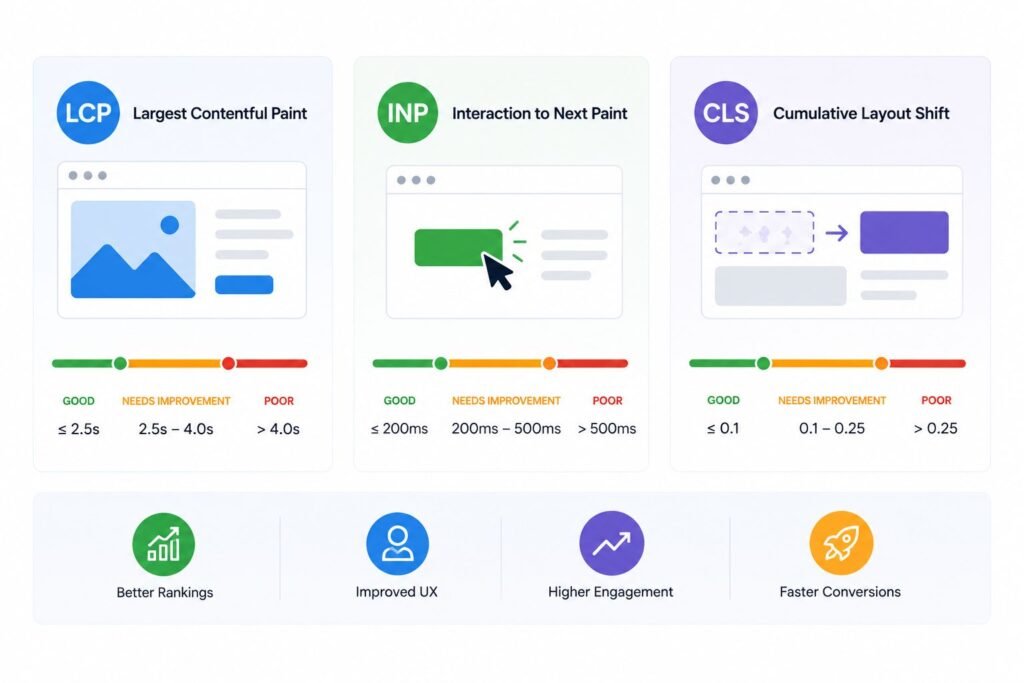
Google measures real-world user experience through three metrics that are worth understanding clearly.
Largest Contentful Paint (LCP)
It measures how long the main visible content of the page takes to load. Google considers anything under 2.5 seconds good. Slow LCP is most commonly caused by large images, slow server response, or render-blocking CSS and JavaScript.
Interaction to Next Paint (INP)
INP measures how quickly the page responds to user actions like clicks and taps. Under 200ms is the target. Poor INP is almost always caused by excessive JavaScript execution, heavy page builders, or a large DOM structure.
Cumulative Layout Shift (CLS)
CLS measures visual stability during loading. A score under 0.1 is good. Layout shifts happen when images load without defined dimensions, fonts render late and push content around, or dynamically injected elements appear after the page has already started displaying.
WordPress Speed Optimization Checklist
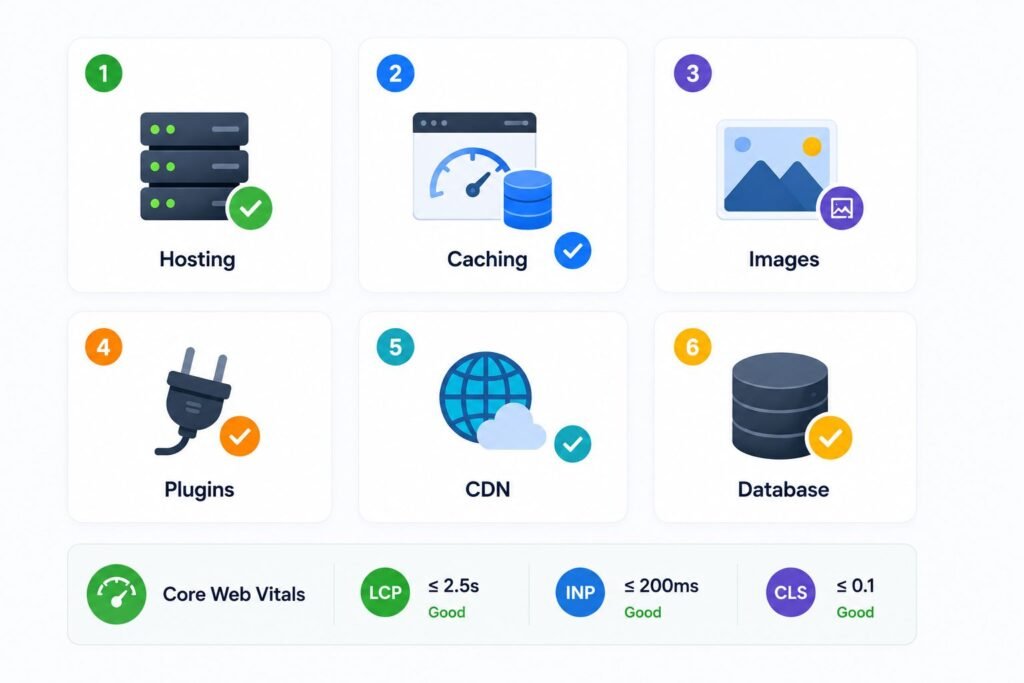
Hosting
- TTFB under 500ms on an uncached page
- PHP 8.1 or newer running on the server
- LiteSpeed or NGINX, not Apache on shared hosting
Images
- All images compressed and served in WebP format
- Lazy loading enabled site-wide
- Hero and banner images resized before upload
Caching
- Page caching active and tested
- Browser caching headers configured
- CDN connected for static asset delivery
Plugins
- No duplicate functionality across installed plugins
- Inactive plugins fully removed, not just deactivated
- Heavy plugins identified and audited with Query Monitor
Database
- Post revisions limited or cleaned
- Autoloaded data reviewed and reduced where possible
- WooCommerce session data cleared on a schedule
Frontend
- Render-blocking CSS and JavaScript addressed in PageSpeed Insights
- Third-party scripts audited and non-critical ones deferred
- Google Tag Manager container reviewed for outdated tags
WordPress Website Fix
All minor issues fixed in 24 hours.
Frequently Asked Questions
In most cases it is a combination of things rather than one problem. Hosting that cannot support the workload, images that were never compressed, plugins loading scripts on every page, and database bloat building up over time are the most common contributors. The right approach is to run a speed test, categorize the bottleneck, and fix the actual cause rather than applying generic optimization plugins and hoping something changes.
Plugin count is less important than plugin quality. The ones that cause problems are those running heavy database queries on every page, loading scripts and stylesheets where they are not needed, or generating continuous AJAX requests that bypass caching. A backend tool like Query Monitor will show you exactly which plugins are consuming the most resources.
A simple Elementor website on good hosting with proper caching can perform well. A complex Elementor build with heavy animations, dozens of widgets, multiple addons, and an oversized DOM structure will cause consistent performance problems regardless of how well everything else is configured. The page builder is not the problem by itself. How it is used determines the outcome.
WooCommerce processes significantly more dynamic requests than a standard WordPress website, and much of that activity cannot be fully cached. Cart sessions, checkout flows, inventory queries, and customer accounts all hit the server continuously. Performance on WooCommerce depends heavily on hosting quality, and that is where optimization should start before anything else.
A slow admin dashboard is a backend issue, not a frontend one. Overloaded hosting, database bloat, excessive plugin activity, and outdated PHP are the most common causes. It is separate from how the public-facing website performs and usually requires database cleanup or a hosting upgrade rather than frontend optimization.
Under two seconds is excellent. Two to three seconds is acceptable for most websites. Above four seconds indicates a performance problem that is worth addressing. More important than the overall load time are the Core Web Vitals targets: LCP under 2.5 seconds, INP under 200ms, and CLS under 0.1.
More than most people realize. Cheap shared hosting throttles CPU, limits memory, and increases server response times before any frontend optimization has a chance to make a difference. For WooCommerce websites especially, upgrading hosting tends to produce a larger speed improvement than any other single change.
The Right Way to Approach WordPress Speed Optimization
The most common mistake website owners make is applying random fixes without knowing what the actual problem is. Installing a caching plugin on a website that is slow because of weak hosting will not help. Compressing images on a site where the real bottleneck is database bloat will not move the needle either.
Start with a speed test. Read the data. Identify whether the problem is the server, the frontend, the plugins, or the database. Then fix the right thing.
That discipline is what separates websites that get meaningfully faster from websites that have a lot of optimization plugins installed and are still slow.
By identifying the real performance bottlenecks and applying the right optimizations strategically, WordPress websites can achieve significantly better speed, stronger SEO performance, and a much better overall user experience.